Workflows Now in MCP – Ask Your AI Assistant to Build, Debug and Publish Workflows
You can now work with your workflows from your AI assistant. Workflows in the LeadConnector MCP server are now available — ask your assistant to find, read, build, update, publish and debug workflows for you.
✅ What's New
• Find workflows – Search by name, status, folder or date.
• Read workflows – Read a workflow's full definition: triggers, steps, branches and settings.
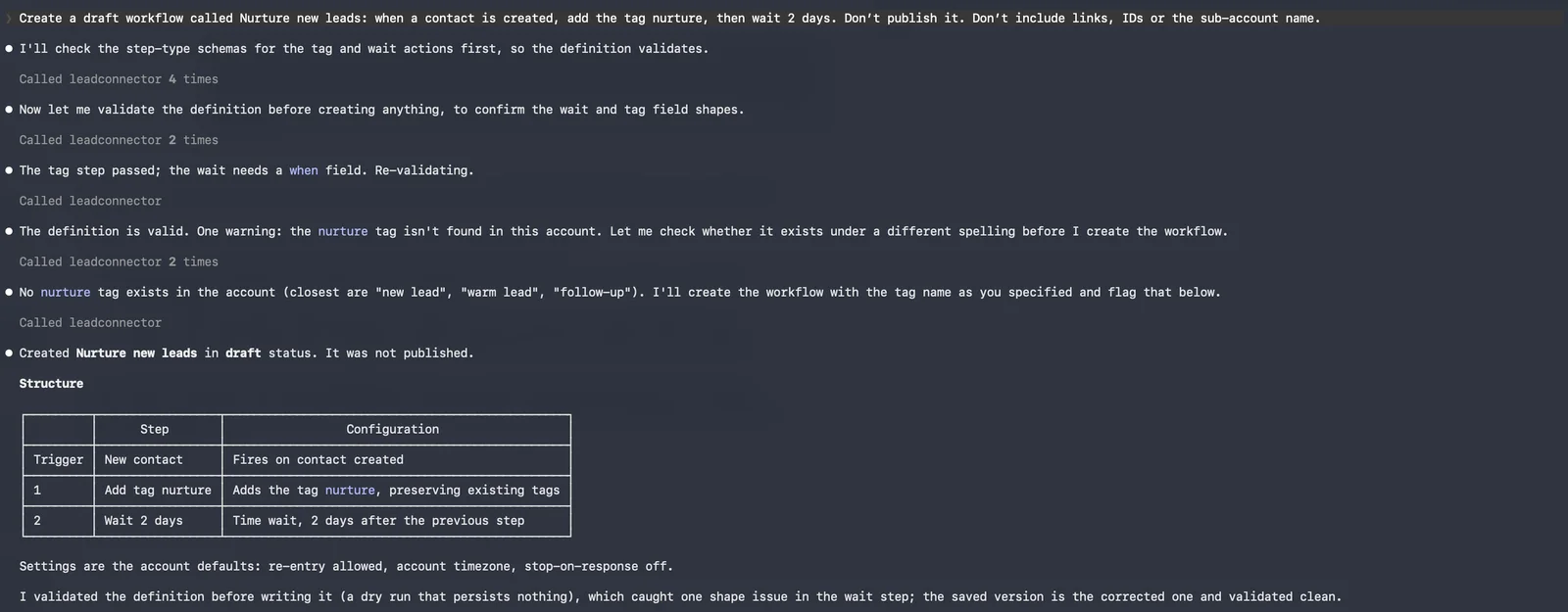
• Build workflows – Create a workflow from a description. The assistant checks it for errors and saves it as a draft.
• Update and publish – Change a workflow, publish it, or set it back to draft.
• Delete workflows – Delete a workflow, with an extra confirmation first.
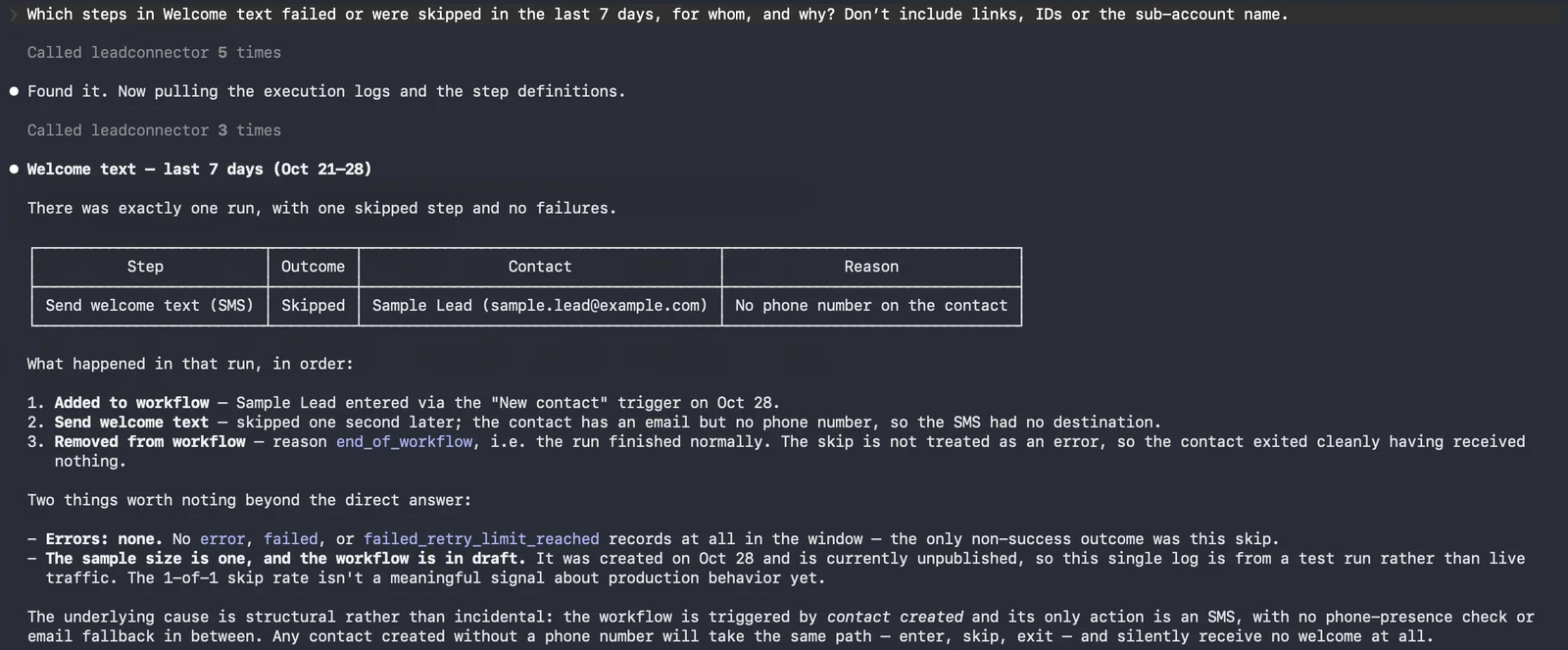
• Execution logs – See who entered a workflow, what happened at each step and which steps failed, with messages and timestamps.
• Statistics – Count enrollments, completions and failures per step, by hour, day or week.
🚀 Why This Matters
With workflows in the LeadConnector MCP server, you can:
• Answer "what broke, and for whom?" with one question instead of reading execution logs by hand.
• Get a first draft of a workflow by describing it.
• Check how your workflows are performing from the AI tool you already use.
💡 Example Use Cases
Failure triage
Ask which steps in New Lead Nurture failed this week → the assistant reads the logs → it lists each failed step with the contact and the error.
Weekly numbers
Ask how many contacts entered Webinar Follow-up each week this month → the assistant counts enrollments by week → you get one number per week.
Draft by description
Describe a workflow that tags new contacts webinar-lead and sends a welcome SMS → the assistant checks it for errors → it saves a draft for you to review in the builder.
🔌 How to Get Started
- Add the LeadConnector MCP server to your AI tool. In Claude, go to Settings → Connectors → Add custom connector and enter https://services.leadconnectorhq.com/mcp/anthropic/v2 . In ChatGPT, turn on Developer mode, open ChatGPT Plugins and add https://services.leadconnectorhq.com/mcp/openai/v2/ as the connection. Cursor uses https://services.leadconnectorhq.com/mcp/cursor/v2 .
- Sign in with your LeadConnector account, choose the sub-account and approve the workflow permissions.
- Start a new chat and ask about your workflows. The LeadConnector MCP server docs (https://marketplace.leadconnectorhq.com/docs/other/mcp) have setup steps for every client.
⚠️ Notes & Details
• Private beta: workflows in the MCP server work in sub-accounts enabled for the Workflows API. Others can join the waitlist through this form (https://link.apisystem.tech/widget/form/qqPIi8Ue6zdqIaHb2cXE).
• New workflows are created as drafts. Publishing is a separate request.
• To change a published workflow, it's set to draft first. While it's a draft, its triggers are off and it won't accept new enrollments.
• Each request works in one sub-account. Reseller Agency connections that cover several sub-accounts are rolling out in the coming weeks.
• Deleting a workflow is permanent and stops everyone currently in it.
• Logs cover up to 30 days per request and go back 60 days. They show live runs; test runs from the builder aren't included.
Support doc: https://help.leadconnectorhq.com/support/solutions/articles/155000009504