Workflow Maps: Understand and manage automations with the AI assistant
There's a faster way to understand your automations. Workflow Maps now includes an AI assistant that can explain any workflow, help you improve it, and point you to the workflows that matter most, all without leaving the canvas.
👀 What's New?
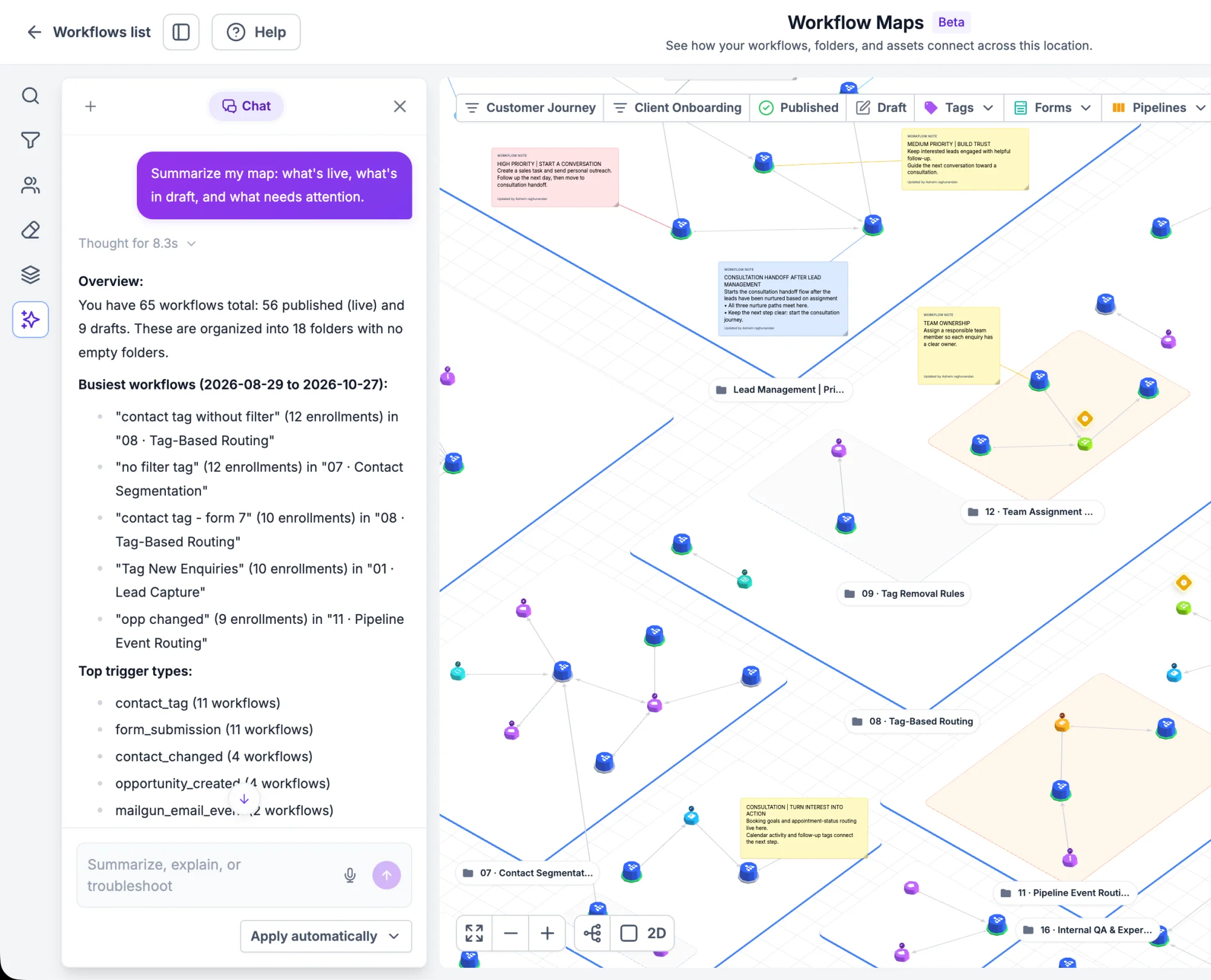
The Workflow Maps AI assistant is here, making it easier to understand, manage, and optimize your automations. You can ask the assistant questions in plain language, and it will provide answers based on your workflows, actions, and settings.
✨ What It Can Do
- Explain a workflow: Ask what a workflow does, or how it works, and get a clear summary.
- Optimize a workflow: Get suggestions to make a workflow cleaner or more effective.
- Find workflows: Ask which workflows use a specific action or send a specific type of message.
- Solve problems: Describe an issue or error, and get troubleshooting suggestions.
- Learn about features: Ask how a feature works, or how to set up a particular automation.
🛠️ How It Works
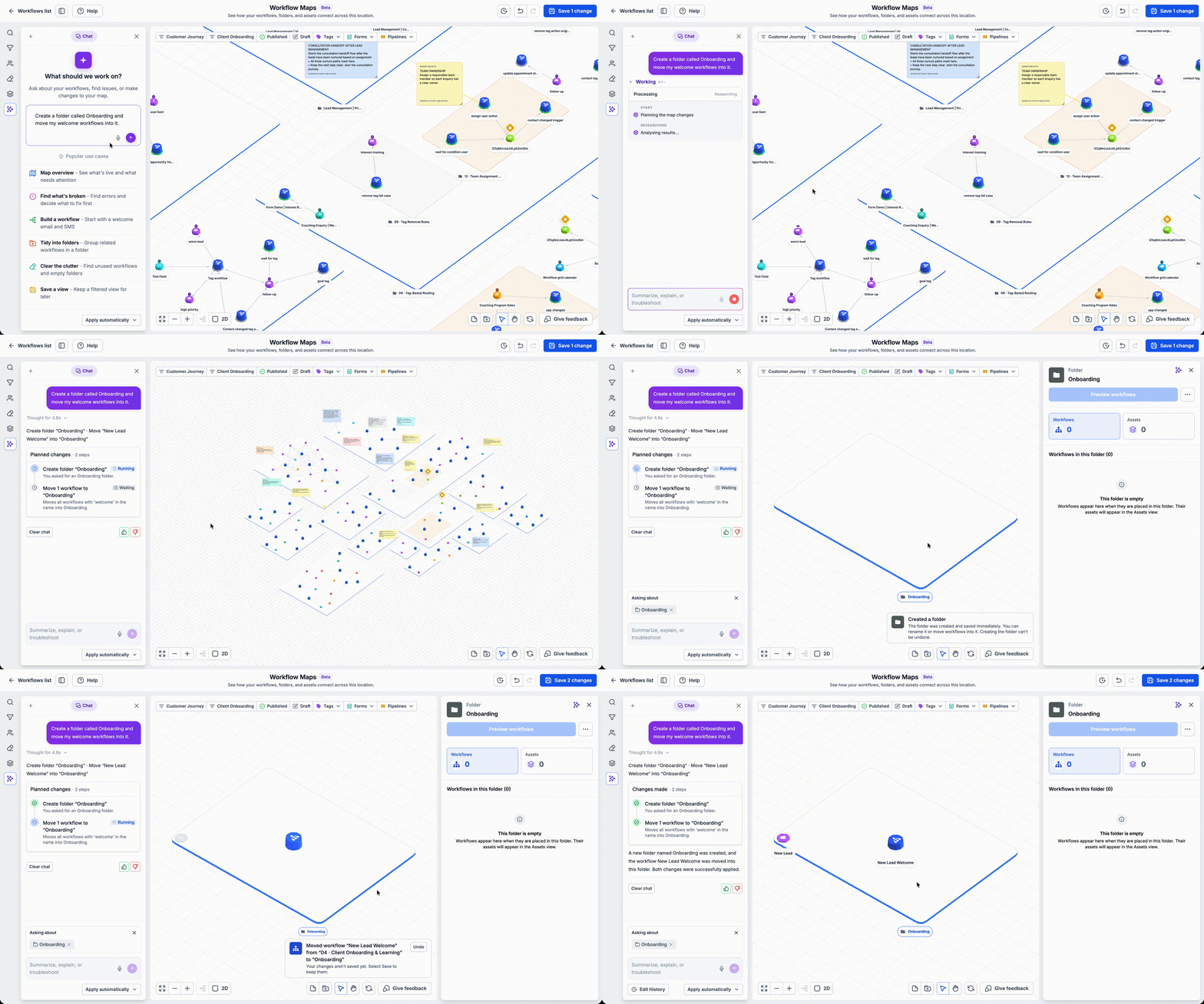
- Open any workflow.
- Click the Workflow Map icon in the top-right corner.
- Click the AI icon in the top-right corner of the Workflow Map.
- Type a question, such as "Find workflows that send SMS messages."
- Review the suggestions, follow the suggested steps, or ask a follow-up question.
📝 Additional Notes
- The AI assistant can only answer questions about the workflows in the account you are currently in.
- It cannot run workflows or change your workflows.
- When it provides a link to a specific workflow, clicking the link opens that workflow in a new tab.
🚀 Launch Access
- Available to all users, but answers can be generated only for workflows that you can access, based on your permissions.
- Access to the AI assistant is available only to reseller agency users and reseller agency admins, and it is also available to sub-account admins and users if the reseller agency enables it.
- To enable it for sub-accounts, go to Settings → Business Profile, then scroll down to AI Tools and turn on Workflow Maps AI Assistant.