Workflow Maps: Find and troubleshoot workflow errors
You can now find and fix workflow errors faster, right from Workflow Maps. When a workflow has errors, Workflow Maps shows you exactly where they are and what went wrong, so you can fix them without digging through every step.
👀 What's New?
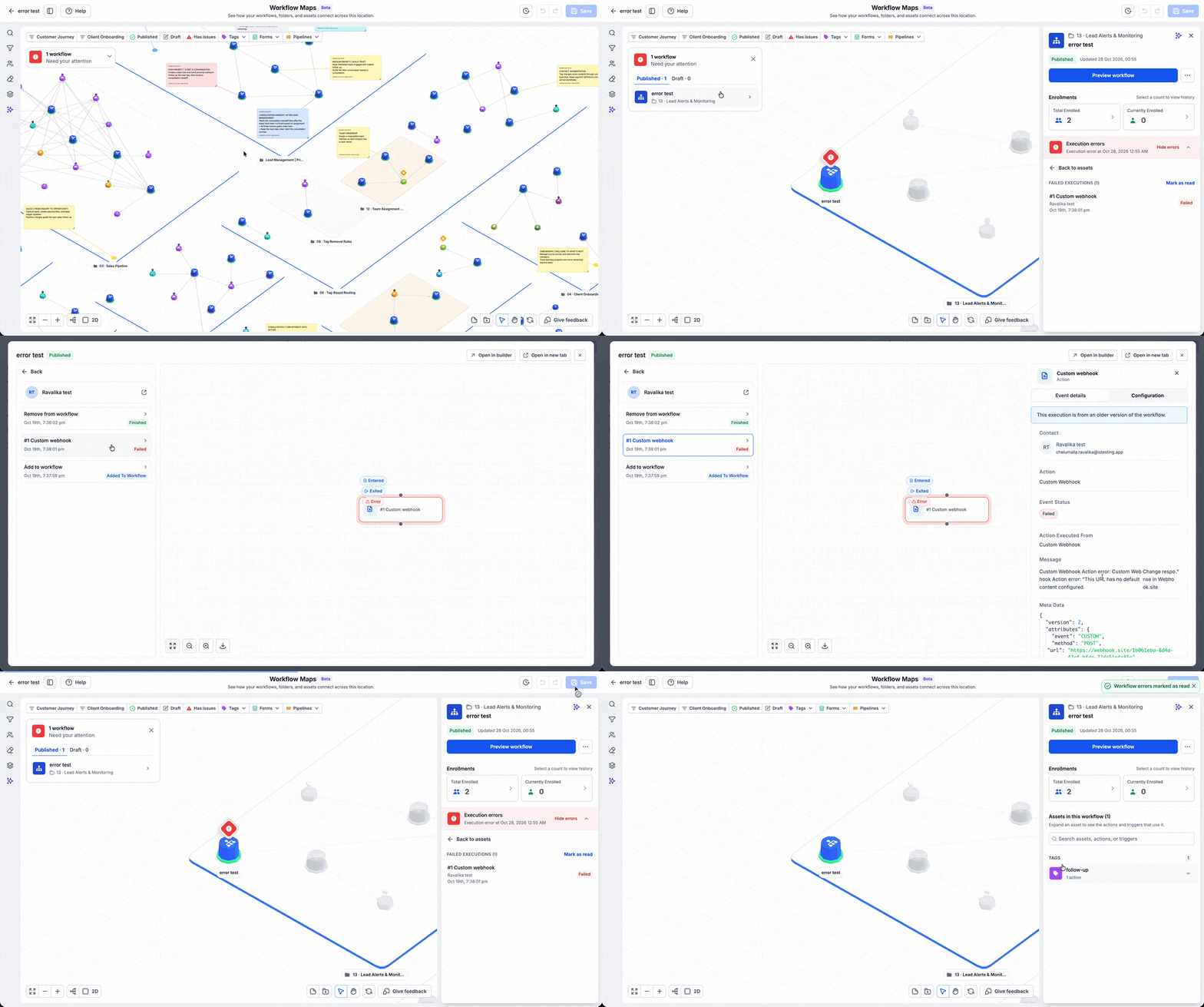
Workflow Maps now highlights errors directly in the map, with a clear view of which workflows and steps are affected.
- See errors at a glance: Error indicators show which workflows have problems.
- Find the failing step: Open the affected workflow and go straight to the step that needs attention.
- Fix issues faster: Review the error details and update the failing step, without searching through the whole workflow.
🌟 Why This Matters
- Stop guessing: Errors are shown where they happen, so you can see the problem at a glance.
- Save time: Go straight to the failing step instead of checking every step in the workflow.
- Keep automations running: Fix problems sooner, so contacts keep moving through your workflows.
🛠️ How It Works
- Open a workflow in the Workflow Canvas.
- Click the Workflow Map icon in the top-right corner.
- Look for the error indicators on the map and open the affected workflow.
- Review the error details and update the failing step.
📝 Additional Notes
- Errors are shown for the workflows you can access, based on your permissions.
- The error view updates as workflows change, so you can confirm a fix as soon as it is made.
🚀 Launch Access
- Available to all users, but you will only see errors in workflows you can access, based on your permissions.
- Access is available only to reseller agency users and reseller agency admins, and it is also available to sub-account admins and users if the reseller agency enables it.
- To enable it for sub-accounts, go to Settings → Business Profile, then scroll down to AI Tools and turn on Workflow Maps.