Usage Limits for QR Codes & Builder Revamp
Your QR codes can now be smarter, cleaner, and easier to manage.
We've added usage limits, a clear expiry message, and a redesigned QR code builder, so you can control how and when your QR codes work — without any extra effort.
What's new?
- Set scan limits – Control how many times a QR code can be scanned before it stops working.
- Choose expiry dates – Set a QR code to expire on a specific date.
- Clear messages – Visitors see a friendly message when a QR code has reached its limit or expired.
- Redesigned builder – Build QR codes faster with a cleaner, simpler layout.
- Redesigned list – Your QR codes are now easier to find and manage.
Set scan limits for QR codes
You can now set a maximum number of scans for any QR code. This is perfect for limited-time offers, event check-ins, and exclusive content.
-
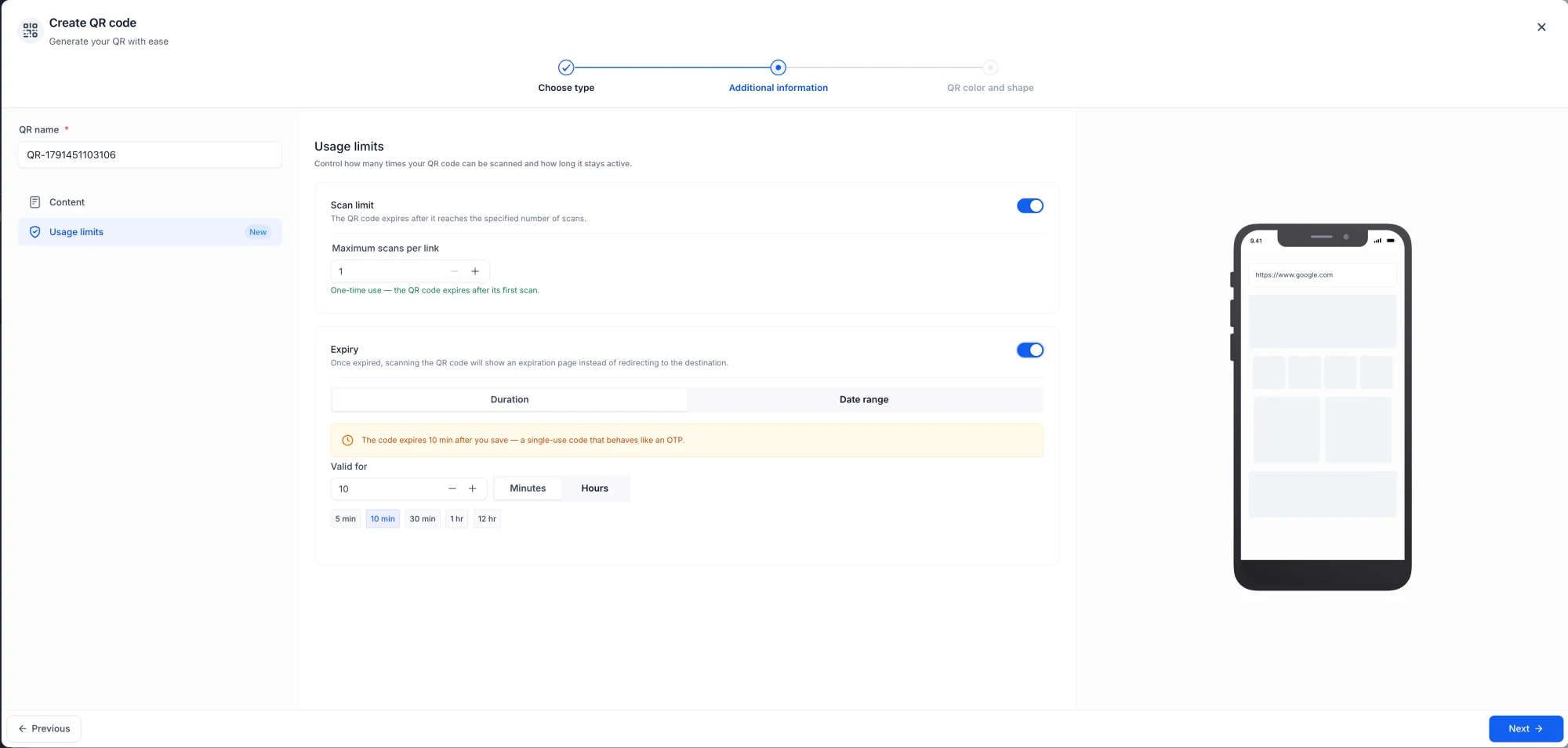
Open your QR code or create a new one.
-
Scroll to the Usage limits section.
-
Toggle on Enable maximum scans and enter the total number of scans allowed.
-
Save your QR code. Once the limit is reached, the QR code will stop working.
Your visitors will see a clean message explaining that the QR code has reached its limit, along with the QR code name.
Choose expiry dates
You can also set an expiry date for your QR codes, ensuring they are only used for a specific period.
-
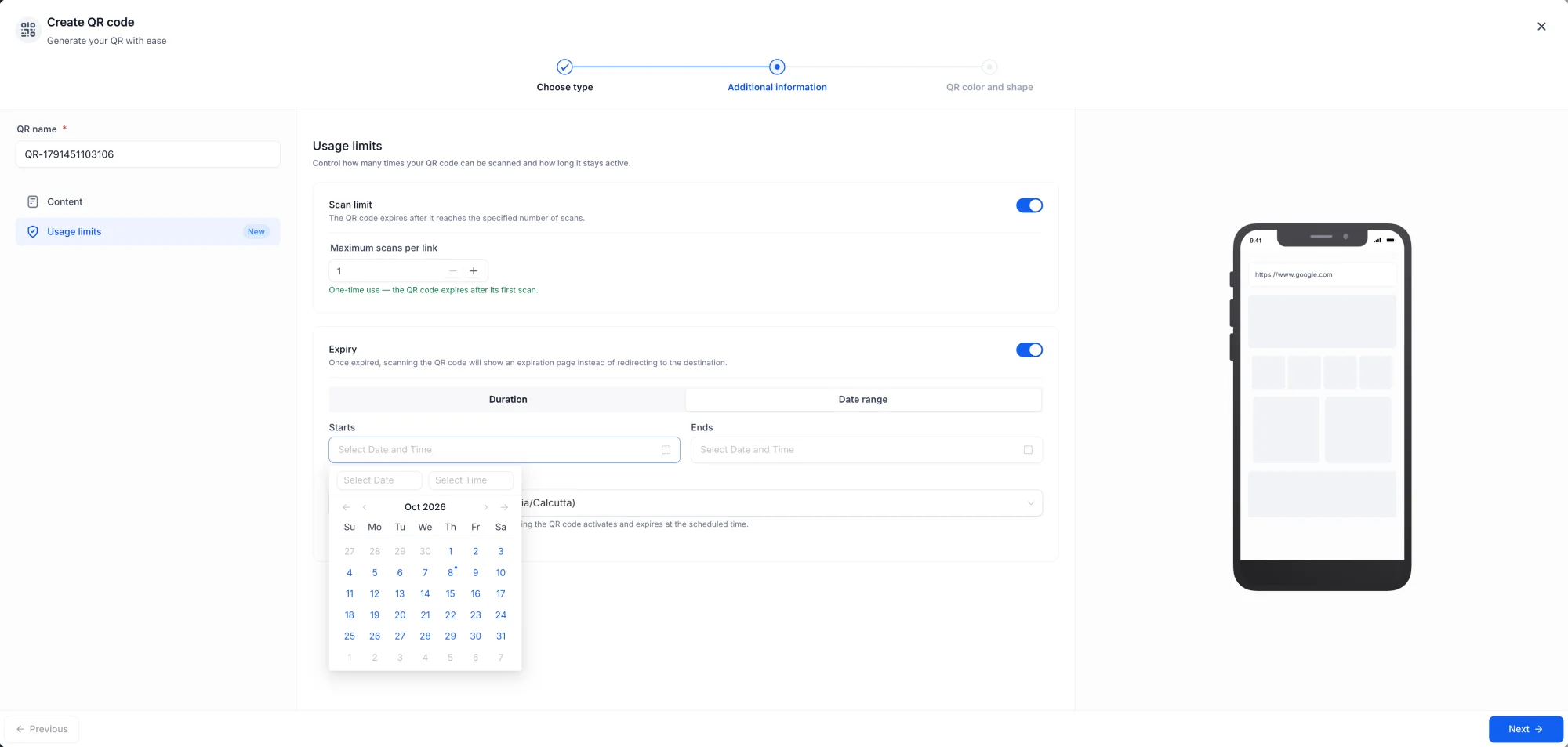
In the Usage limits section, toggle on Expiry date.
-
Choose a specific date and time when your QR code will expire.
-
Save your QR code. Once the expiry date passes, the QR code will stop working.
Your visitors will see a clean message explaining that the QR code has expired, along with the QR code name.
Clear messages for expired or maxed-out QR codes
When a QR code is scanned after its limit or expiry date, visitors will see:
- A friendly message explaining that the QR code has expired or reached its limit.
- The name of the QR code for easy reference.
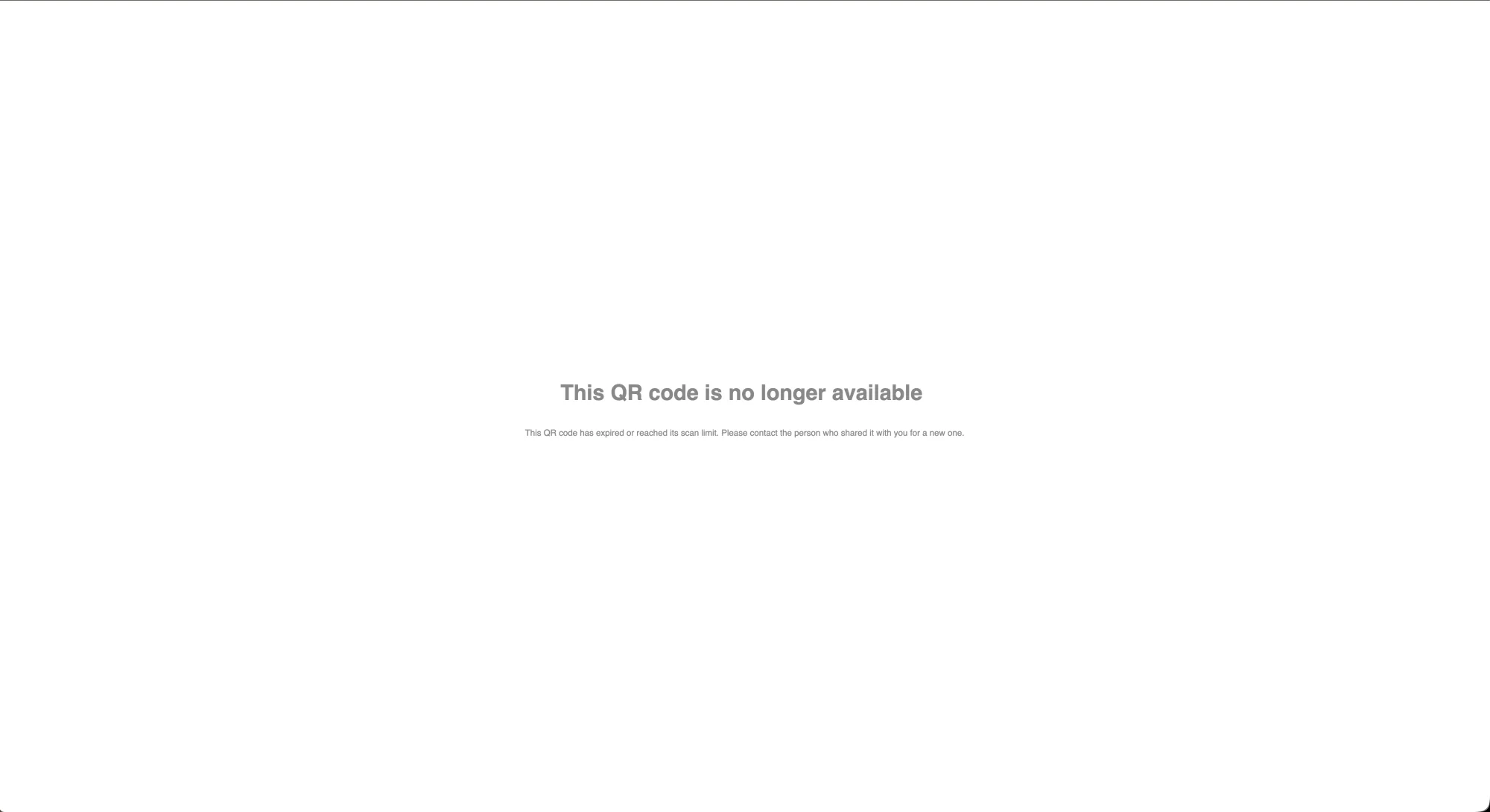
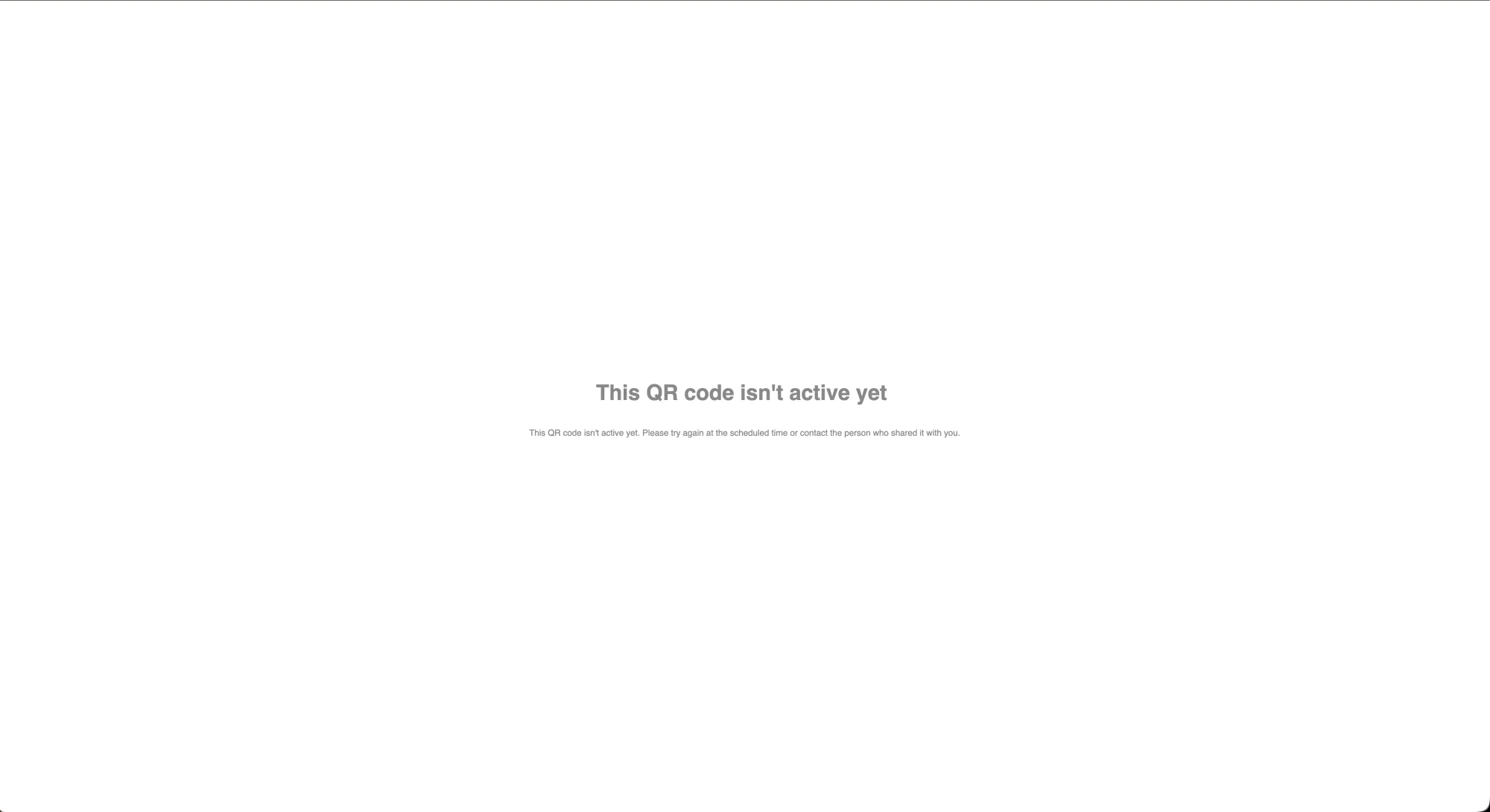
This helps your visitors understand why a QR code isn't working, keeping the experience clear and professional.
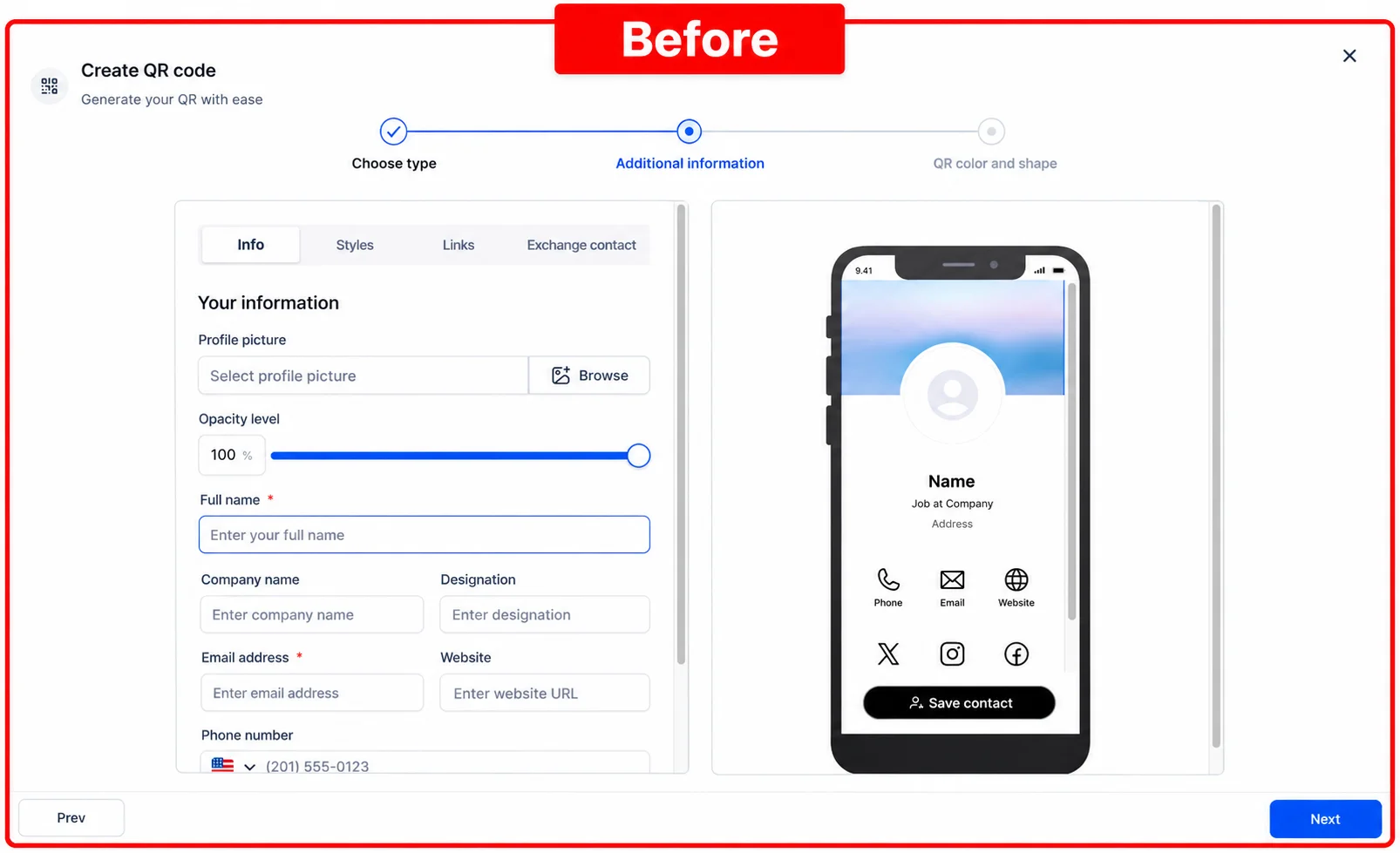
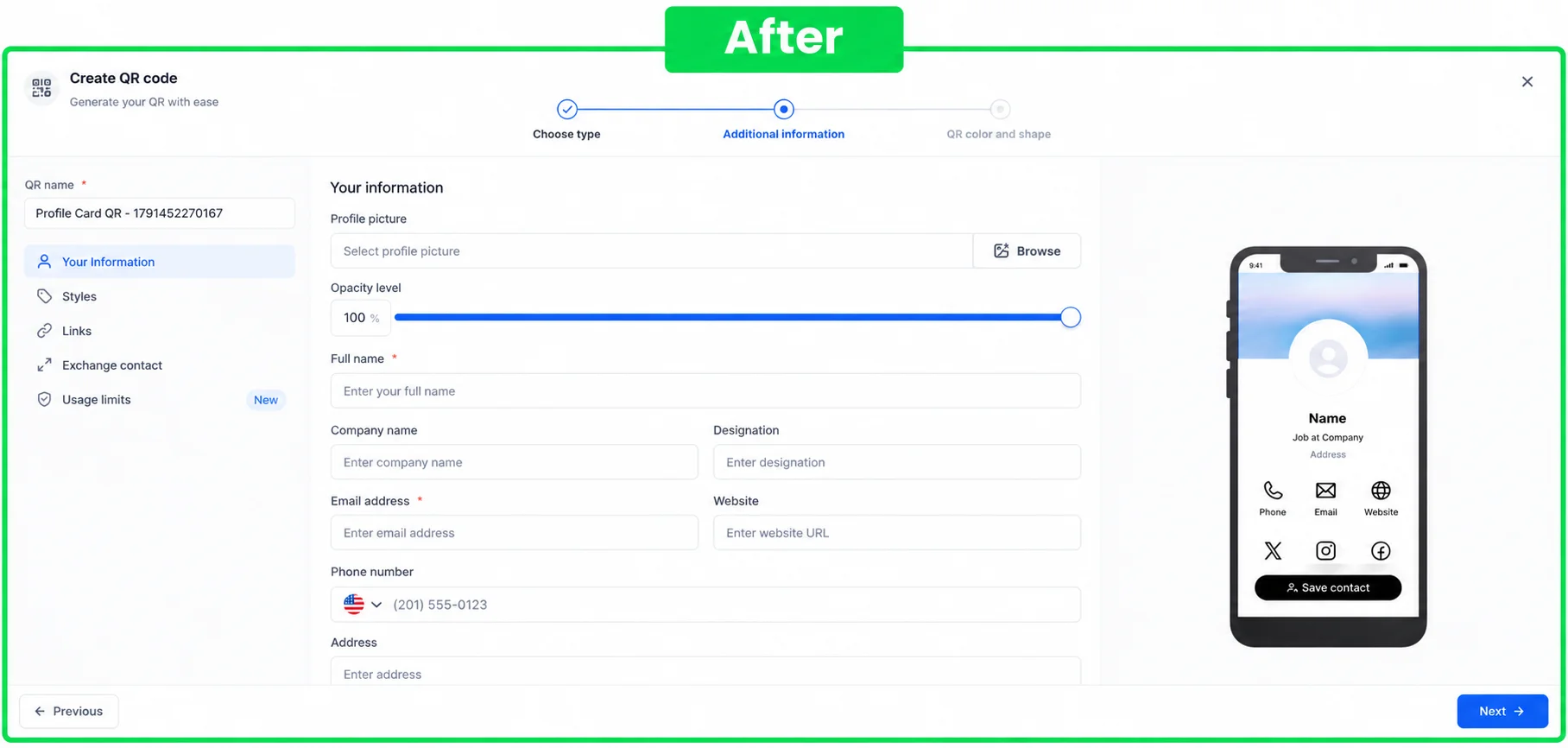
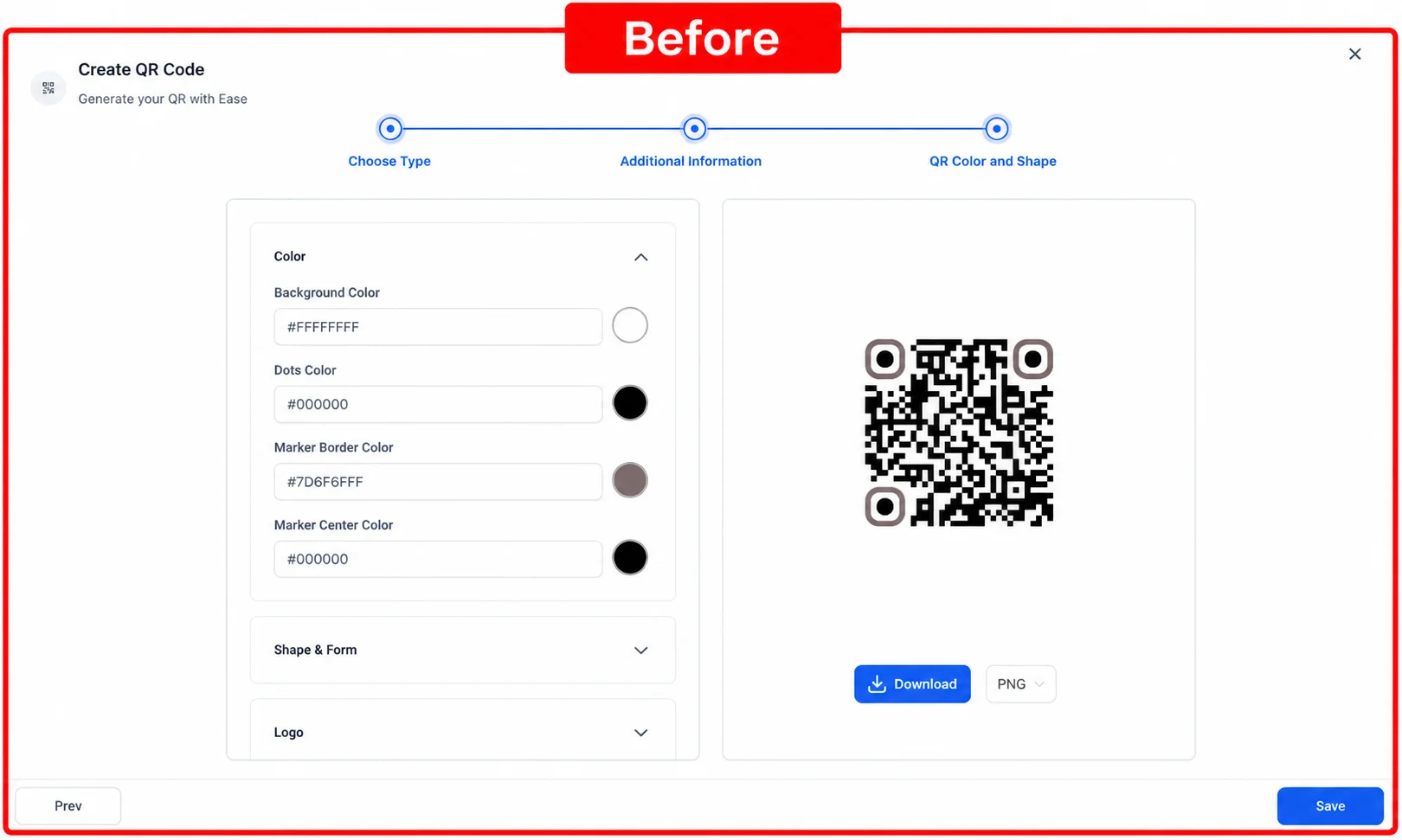
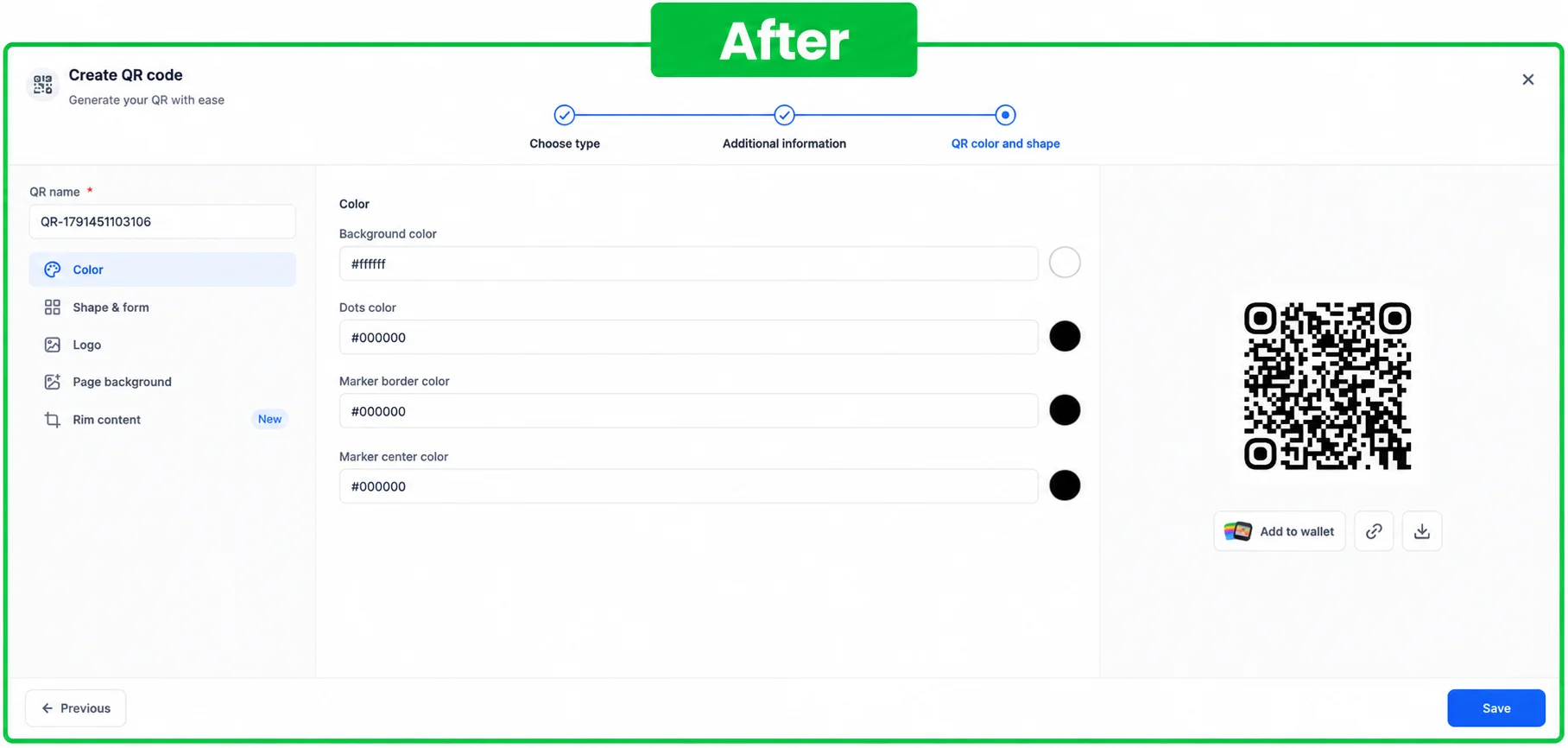
Redesigned QR code builder
Alongside usage limits, we've completely redesigned the QR code builder to make it faster and easier to use.
- Cleaner design
- Easier navigation
- Faster creation
Redesigned list for your QR codes
Your list of QR codes is now redesigned with a cleaner, more organised layout, making it easy to find, edit, and manage them.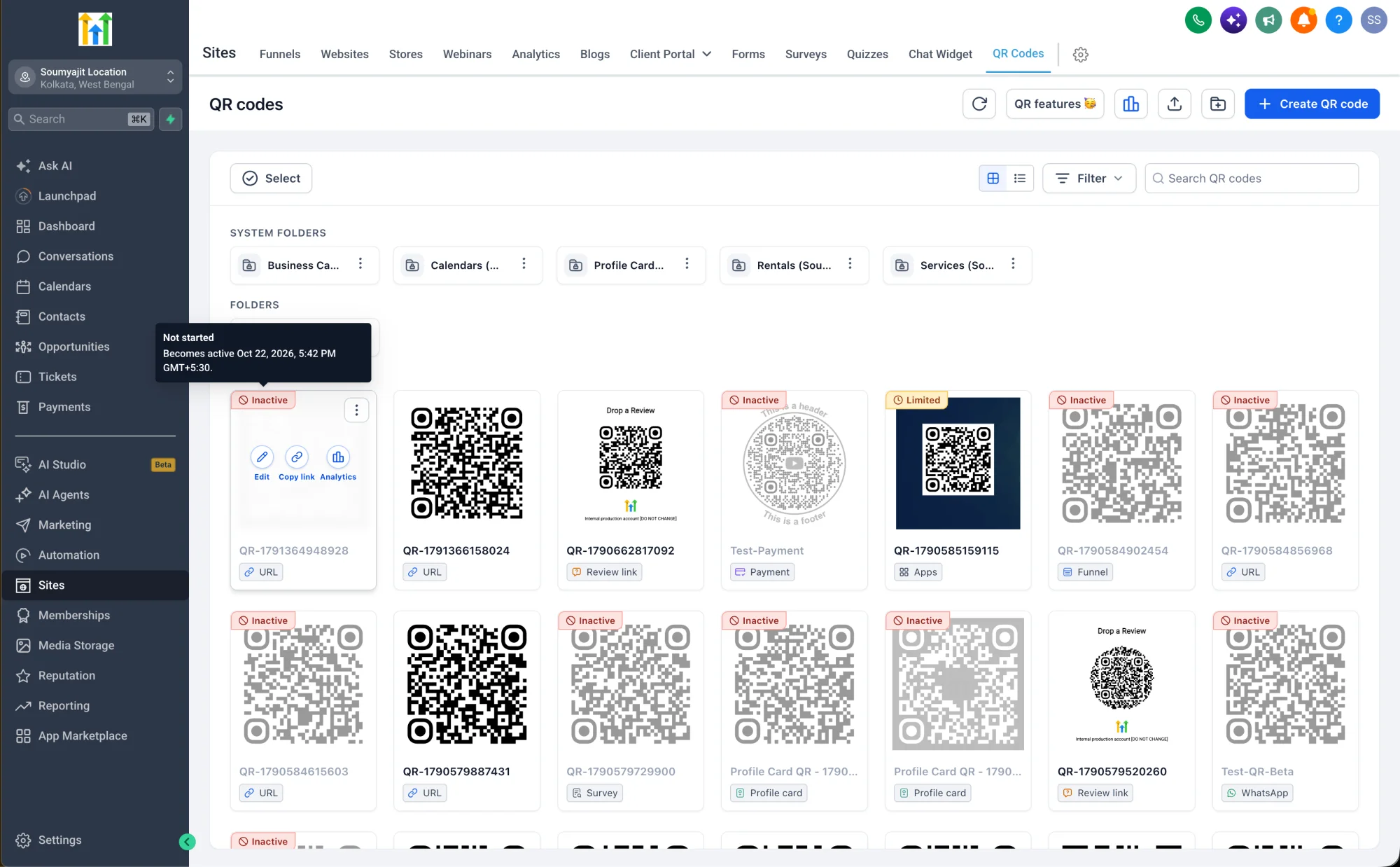
Notes
- Usage limits can be applied to both new and existing QR codes.
- Expired and maxed-out QR codes are still visible in the list.
- The scan limit counts every successful scan of the QR code.
- The expiry date uses the location's timezone.
- No extra setup is needed — usage limits work on all plans.