The all new Workflow Maps: See how your automations connect
What's new?
Meet Workflow Maps, a whole new visual interface that brings your workflows, folders, assets, and the connections between them into one map.
See how your automation is organized across the sub-account and how different parts work together. A form can start a workflow, that workflow can add a tag, and that tag can start another workflow. Workflow Maps shows you those connections in a simple, visual way.
The map is generated from your existing workflows, so you can start exploring without creating or maintaining anything extra.
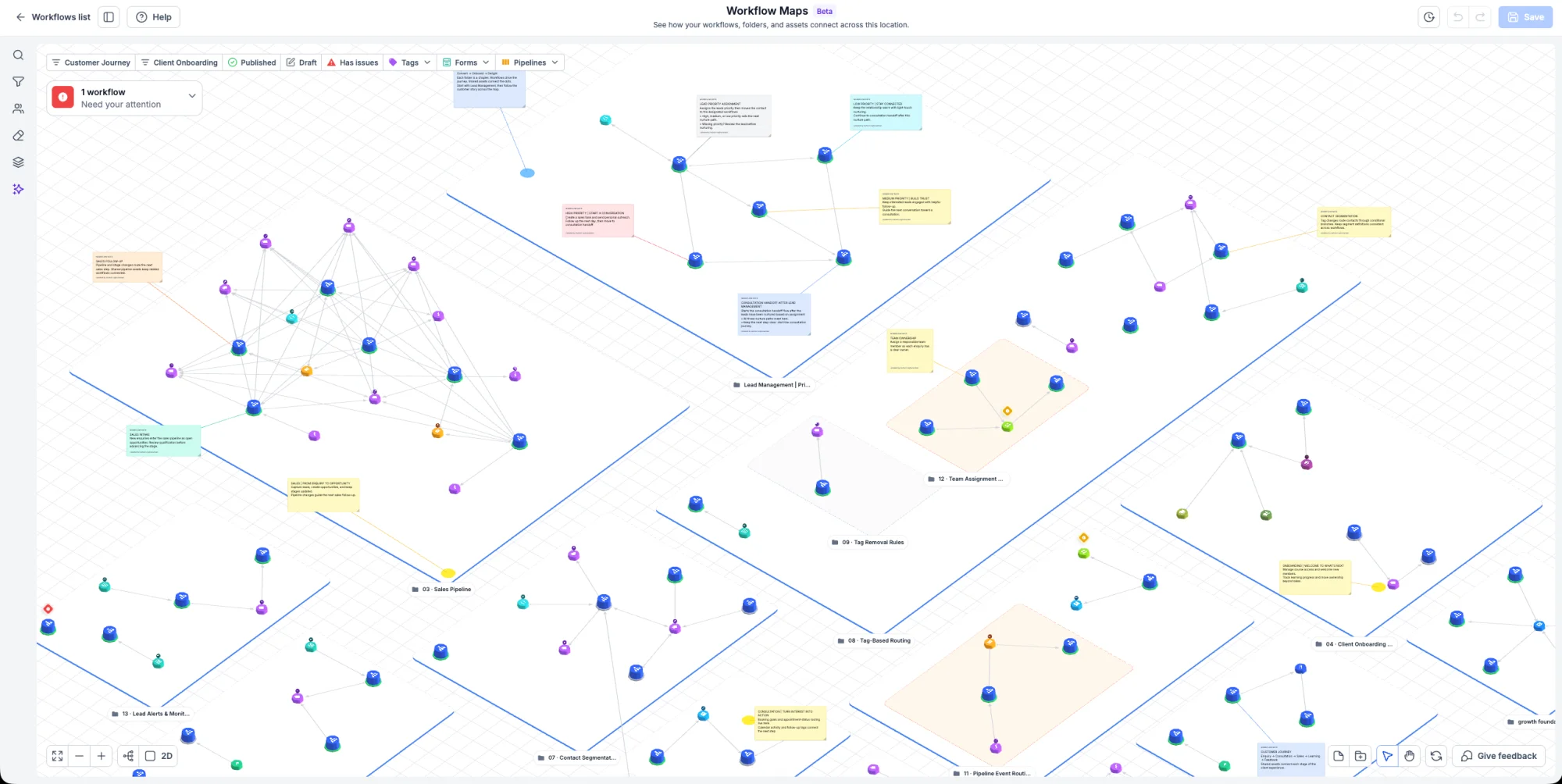
See workflows and their connected assets together on the map.
Why this matters
As your account grows, a single customer journey can span several workflows. Understanding how everything connects helps you see the full picture without opening each workflow one at a time.
How it works
Go to Automation > Workflows > Workflow Maps. You can also open Maps from a workflow's builder.
- Explore the account: See your workflows grouped into folders, with their connected assets around them.
- Find what you need: Search for workflows, assets, triggers, or actions by name and jump to the relevant part of the map.
- Focus your view: Use filters to narrow the map to the workflows and assets you want to investigate.
- Move between overview and detail: Pan, zoom, fit the map to the screen, and switch between 2D and 3D.
- Look closer: Select a workflow or asset to explore its details and connections.
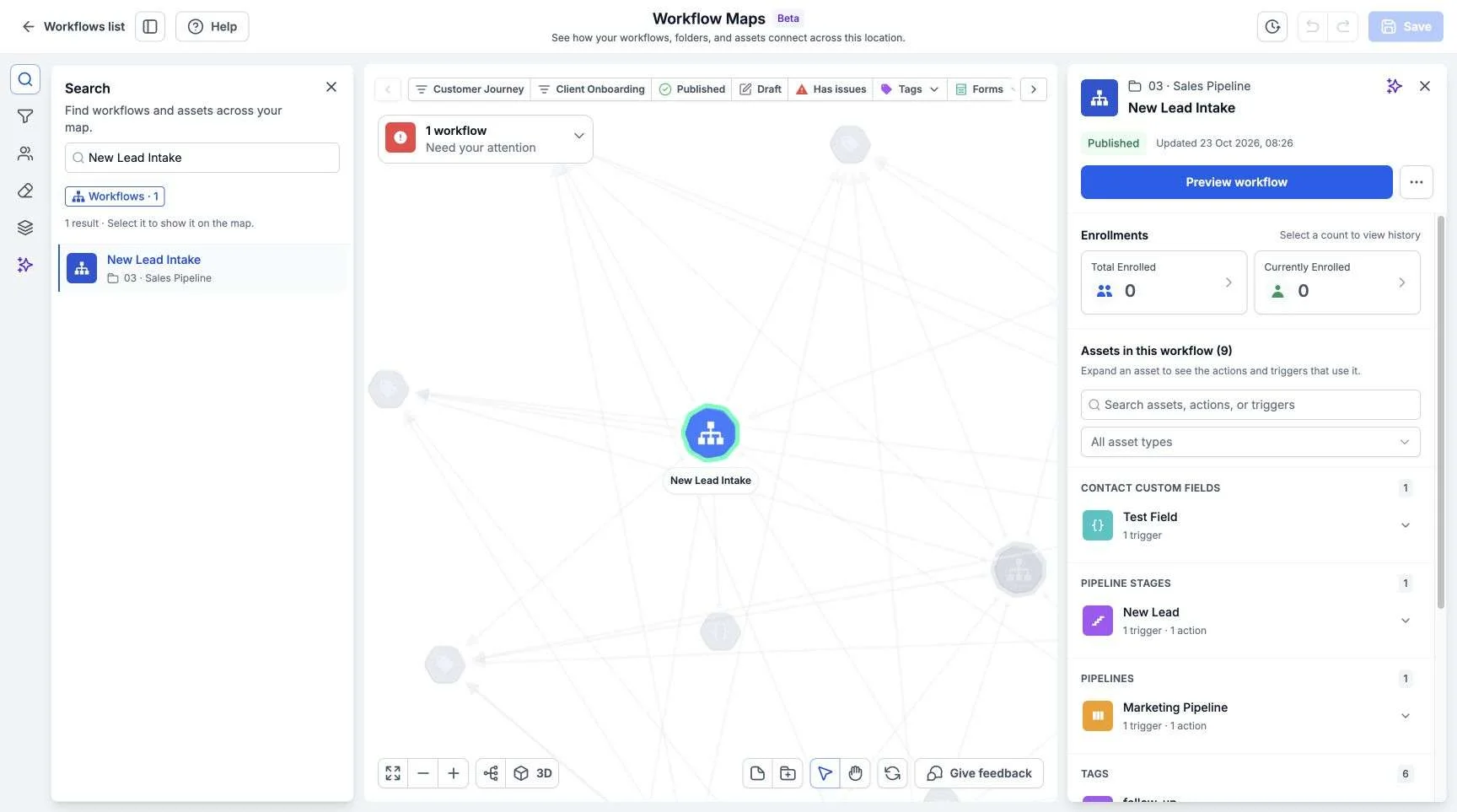
Search for a workflow and explore its status, enrollments, and connected assets.
Explore more with Workflow Maps
- Explore contact journeys: Search a contact and see all the workflows they have gone through.
- Troubleshoot with confidence: Select a workflow to understand why a contact did or didn't enroll.
- View linked folders: See how a folder is used across the account, or open a folder to see the workflows inside it.
- Review your account at a glance: Quickly see all workflows, their statuses, and which folders they belong to.
- Get help when you need it: Open the in-app help and onboarding tour directly from Workflow Maps.
- Learn through video: A short video in the in-app help explains how Workflow Maps works.
Common use cases
- Visualize how a workflow connects to forms, tags, triggers, and other workflows.
- Trace how a contact flows through multiple workflows.
- See how assets are used across the account.
Additional notes
- Each sub-account has its own Workflow Map.
- Launch access: Workflow Maps is available from Automation > Workflows, and is available only to reseller agency users and reseller agency admins.
- In the sub-account, anyone who can access workflows can use the map.
Preview
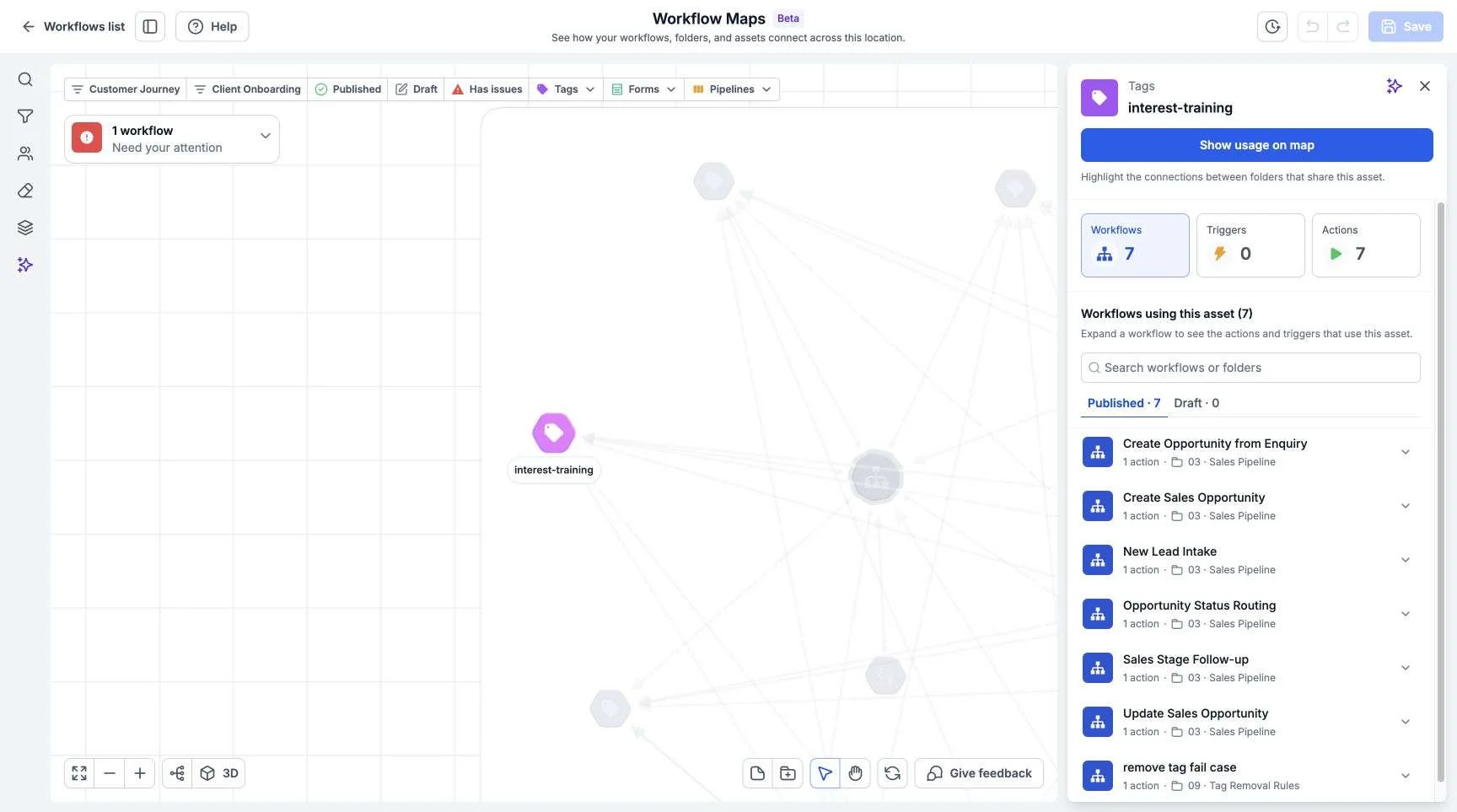
Explore asset usage across workflows
Select an asset to see the workflows that use it and explore their connections.
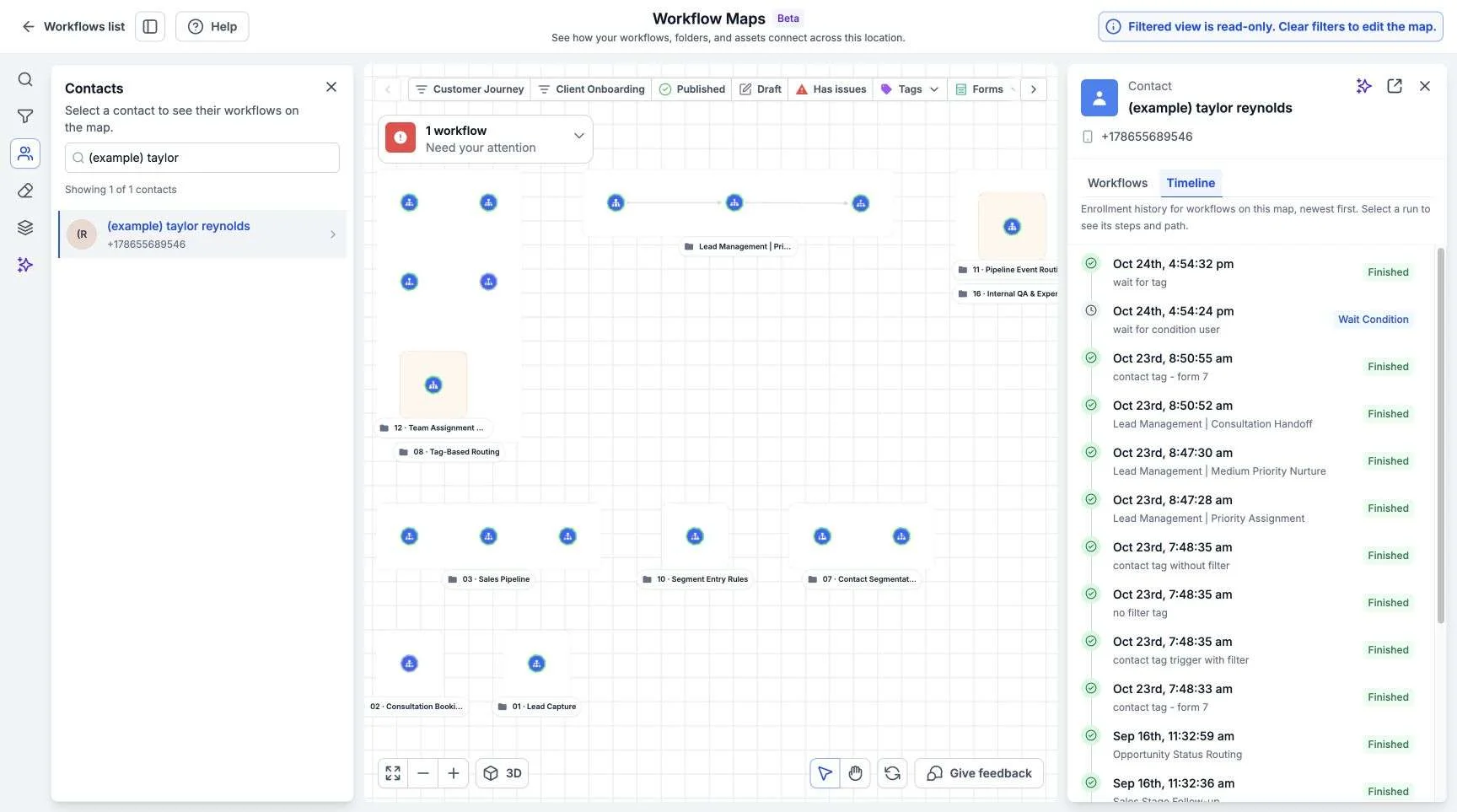
Follow a contact's journey
Follow a contact across workflows and review their enrollment history in Timeline.