Template Switcher in Email Builder
👀 What's New?
- Switch templates without leaving the builder: A new icon in the Email Builder's top tray opens the Template Library modal, so you can browse, search, and apply a different template to your current email.
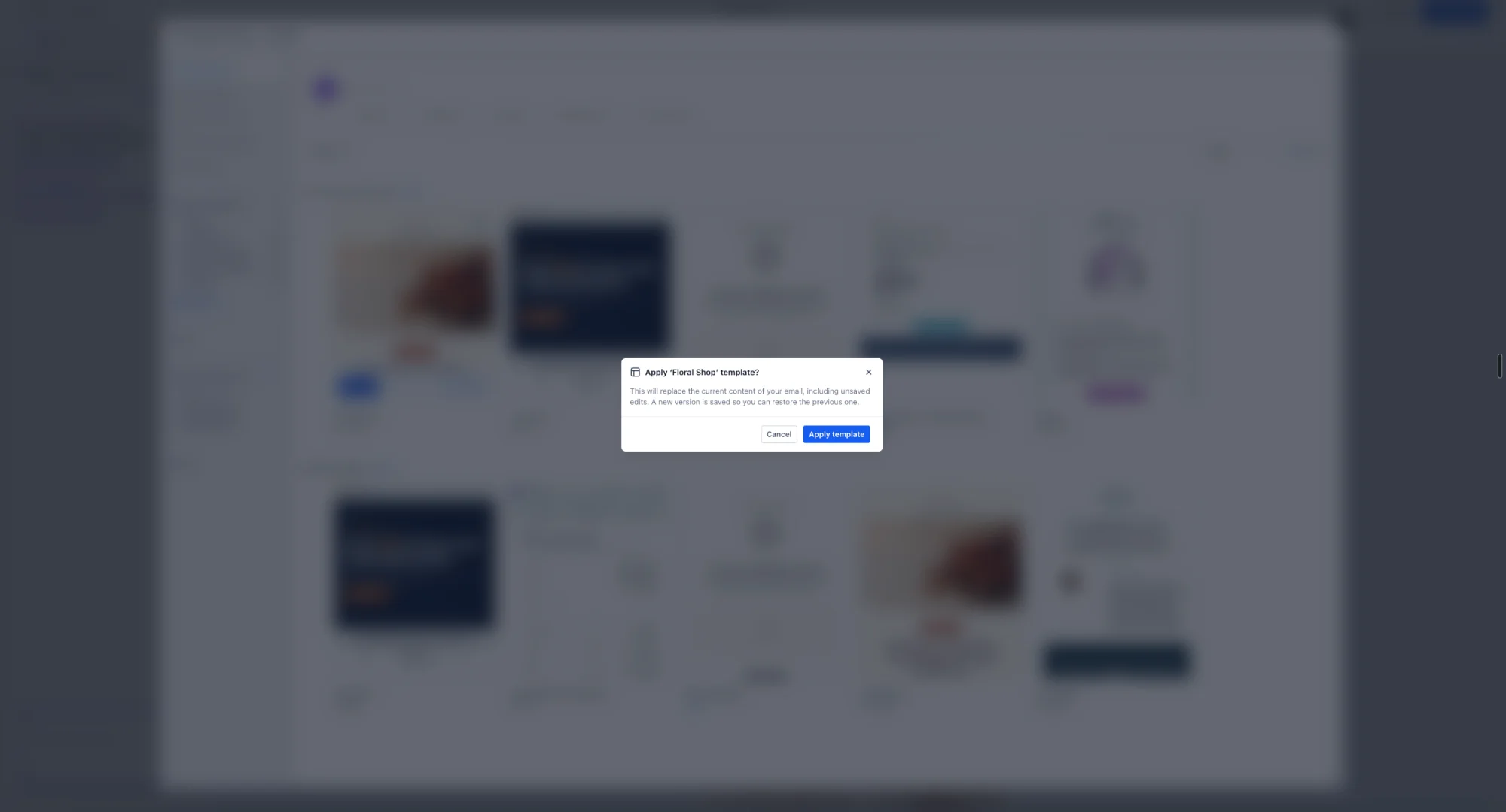
- Replace with confirmation: Applying a new template replaces the content on the canvas. If your email already has content, you're asked to confirm before anything is replaced.
🌟 Why This Matters:
Previously, a template could only be chosen when an email was first created - switching meant exiting the builder, picking a new template, and starting over. This was a common enough pain point that a notable share of users were re-creating emails from scratch just to get a different template. Now you can switch templates in place, without losing your work until you confirm the swap.
👷 How It Works:
1. Open the Design editor Email Builder.
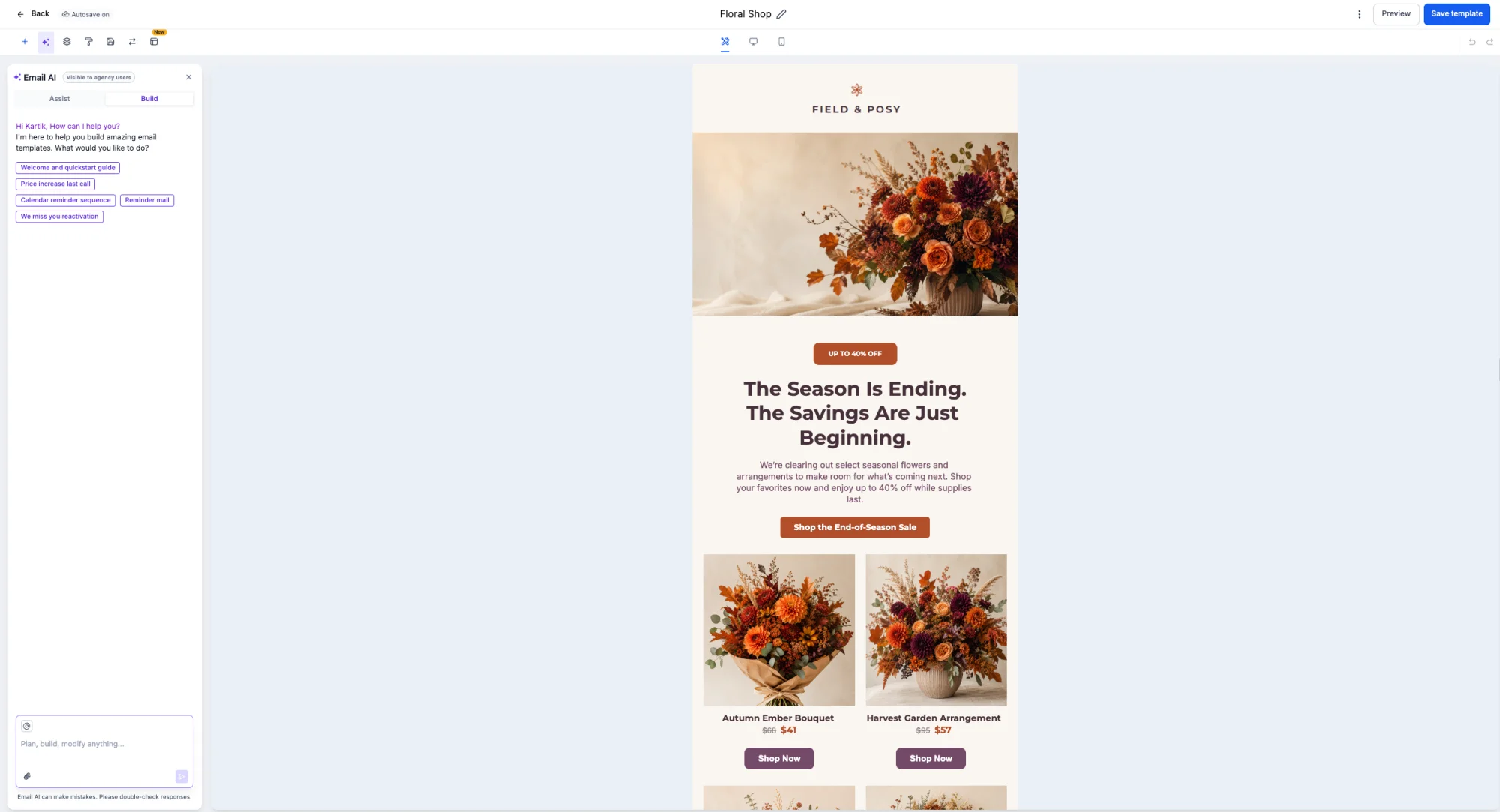
2. Click the template switch icon in the top tray.

3. Browse or search for a template in the modal.
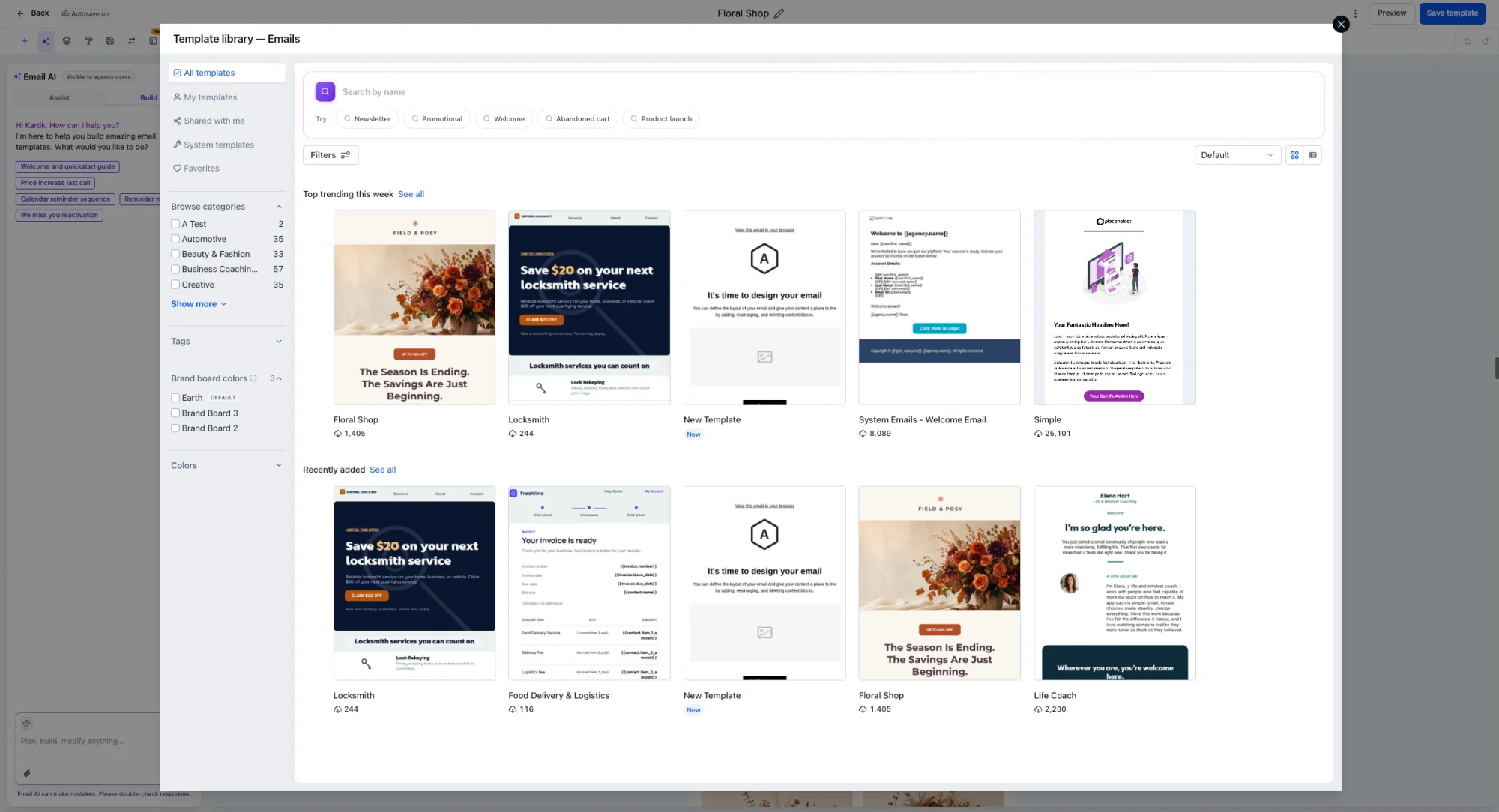
4. Select a template and confirm to replace the existing screen
📝 Notes:
- Only available in the design editor for email builder for now. Future releases will cover other use cases as well
- Will be soon available for other builders as well