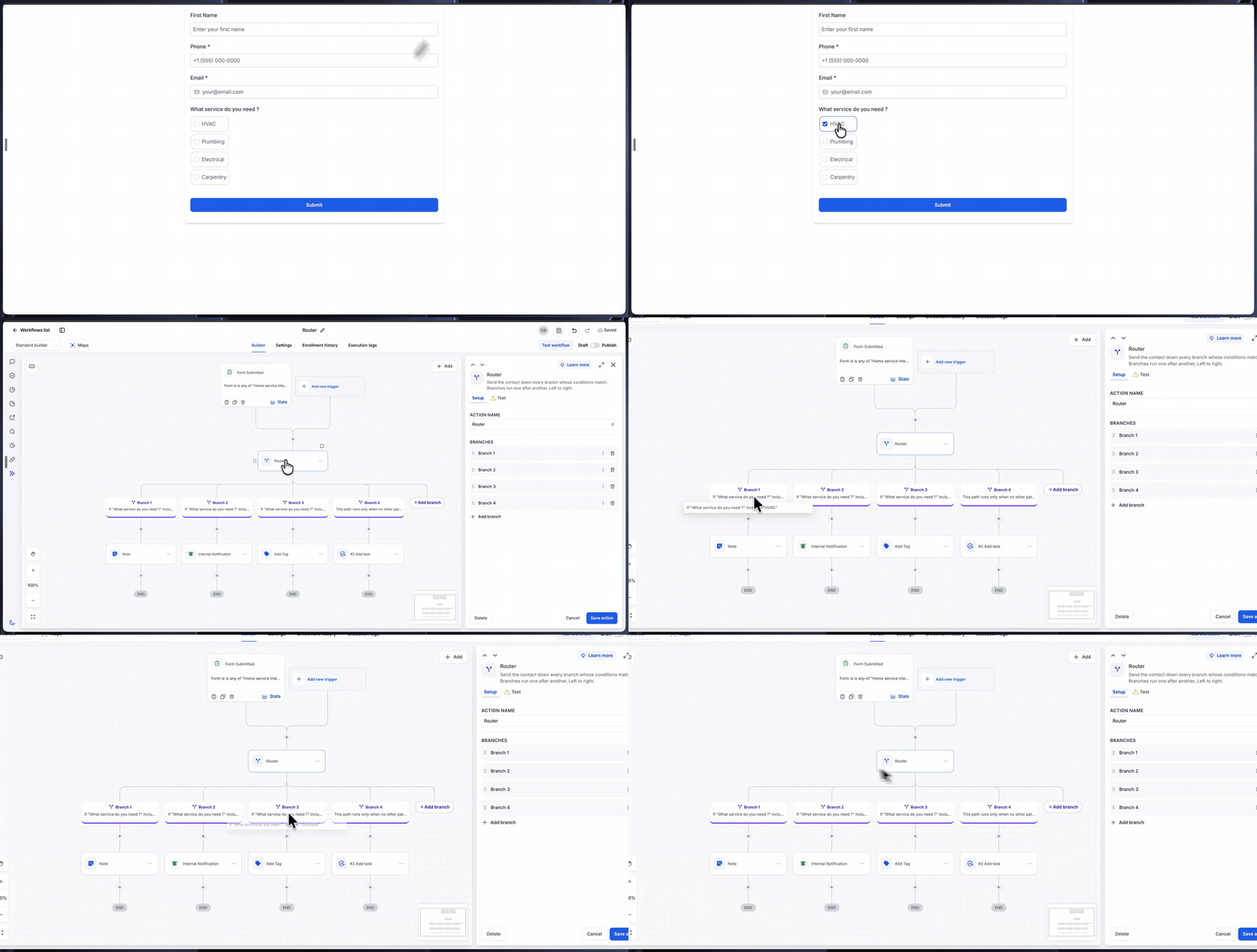
Router: New Workflow Action
Router is a new Workflow action that lets you send a contact down exactly one path based on which rules they satisfy. Add multiple branches, give each branch clear rules, and set one as the fallback with the Default branch. Contacts who don't meet any branch's conditions automatically go down the Default branch, and you can reorder branches anytime.
What's new?
Create a Router action
• Add a Router action from the Action library.
• Inside the Router, create branches, and add rules to each branch to define which contacts follow that branch.
• Set one branch as the Default branch to capture all contacts who don't meet any branch's conditions.
Branch rules
• Each branch uses rules based on contact, event, opportunity, task, custom values, or trigger data.
• Branches evaluate in order, from top to bottom. The contact follows the first branch whose conditions they meet.
• Use operators to build precise conditions: equals, not equals, contains, is empty, starts with, and more.
• Rules in one branch can use AND or OR logic, and can reference nested fields such as contact custom fields.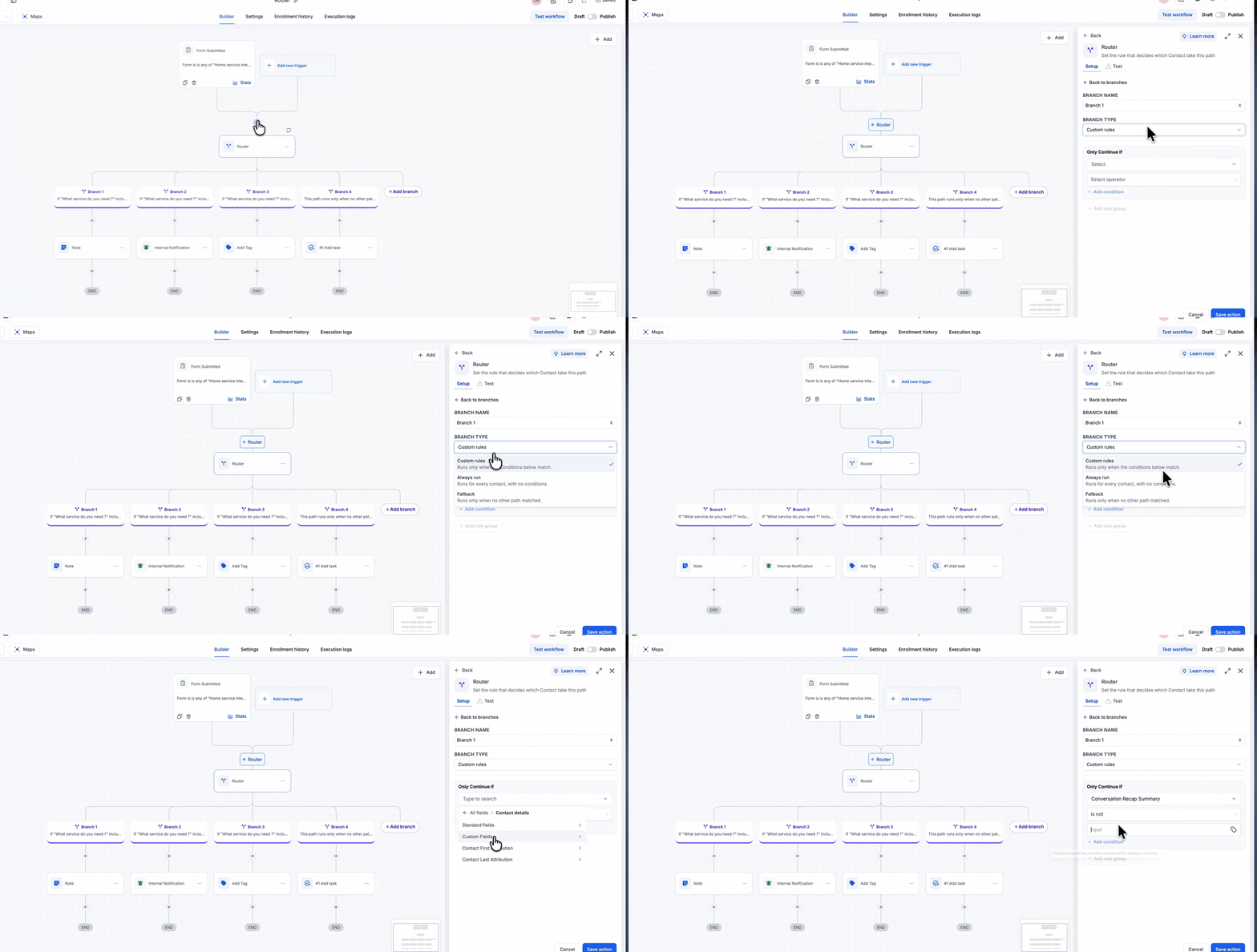
Reorder branches anytime
• Change branch order by dragging a branch into place, or use the up/down arrows on the branch.
• The order matters because branches evaluate in order, from top to bottom. A contact follows the first branch whose rules they match.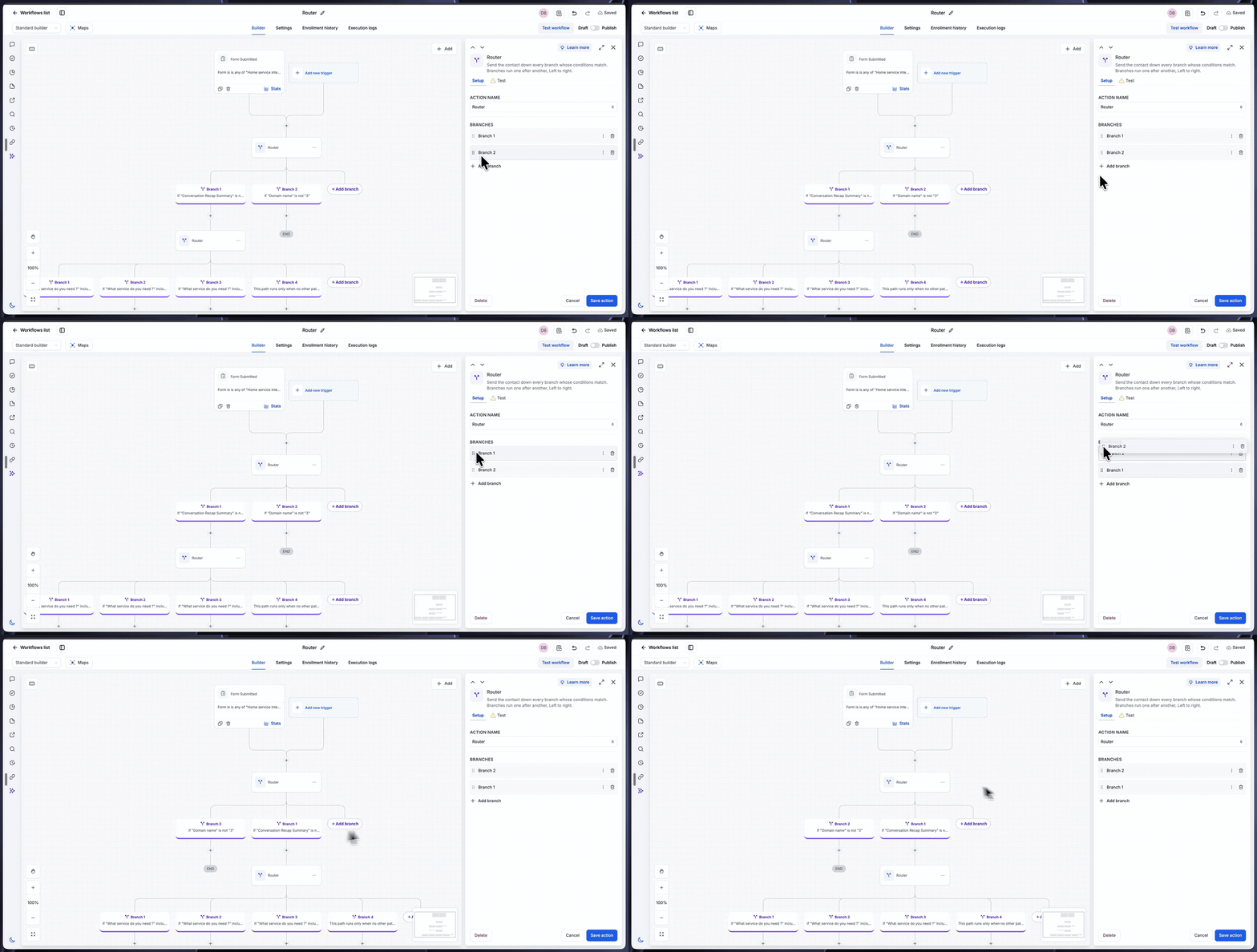
Why this matters
• One action replaces a chain of If/Else actions, so routing logic is easier to build, read, and maintain.
• Branches are evaluated in a clear order, so you always know which path a contact will take.
• Every contact has a path: unmatched contacts go down the Default branch instead of stalling.
How it works
• Add the Router action, create branches, and add rules to each branch.
• Set one branch as the Default branch.
• Reorder branches anytime; the contact follows the first branch whose conditions they meet.
Test it before you publish
• Use Test Workflow to check routing with real contact data before publishing.
• In the Workflow Test, open the Router node to view which branch a contact was sent down and the matching conditions.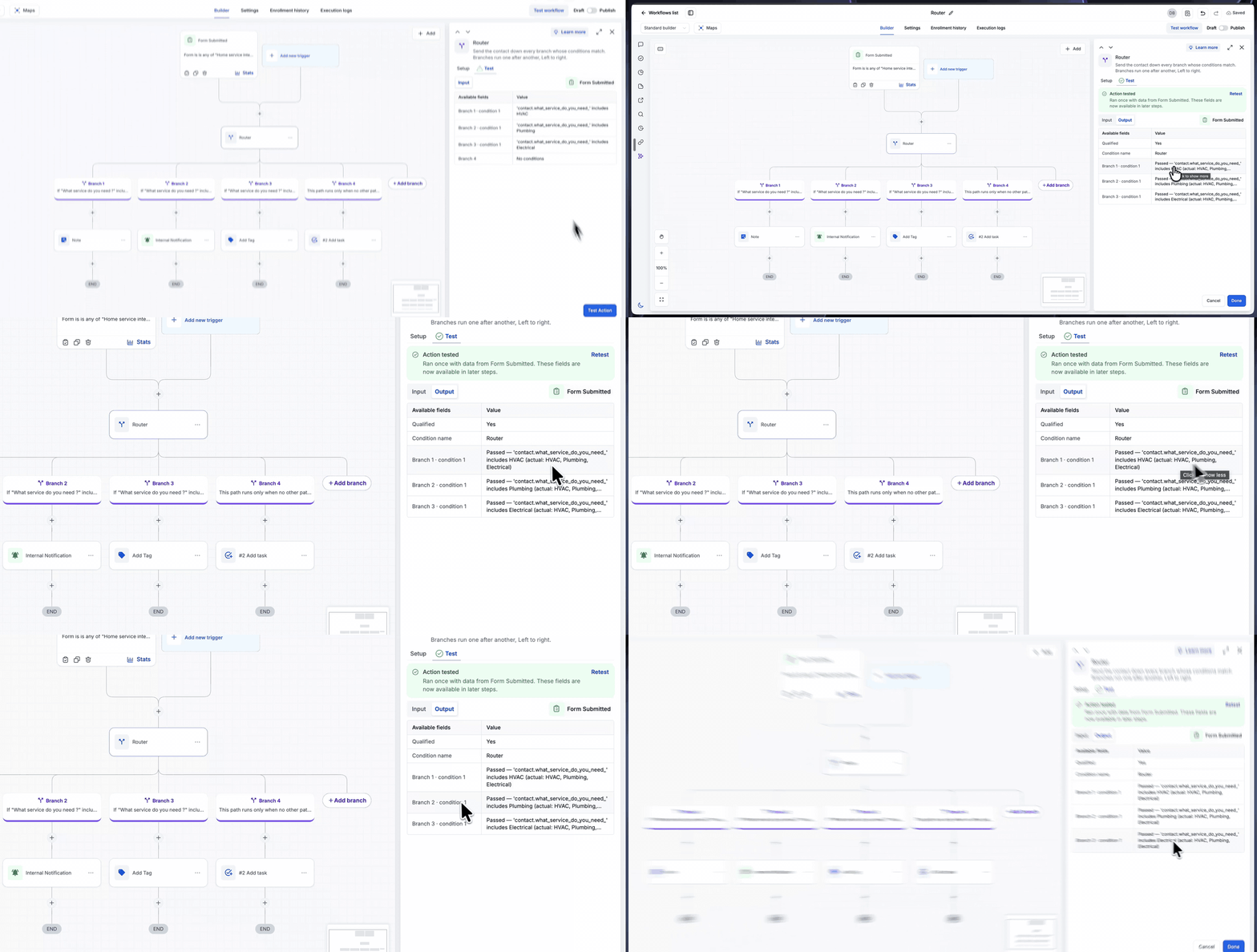
Preview
A Router in action: branches evaluate in order, the contact follows the first matching branch, and unmatched contacts go down the Default branch.