📅 Rental Booking is Now Available in the Client Portal
Managing rental bookings just got easier! Your clients can now explore, book, and manage rentals directly from the Client Portal — without needing separate booking links or switching between platforms.
Whether it's equipment, vehicles, spaces, or other rentable resources, clients can now access meetings, services, and rentals in one convenient place.
✨ What's New?
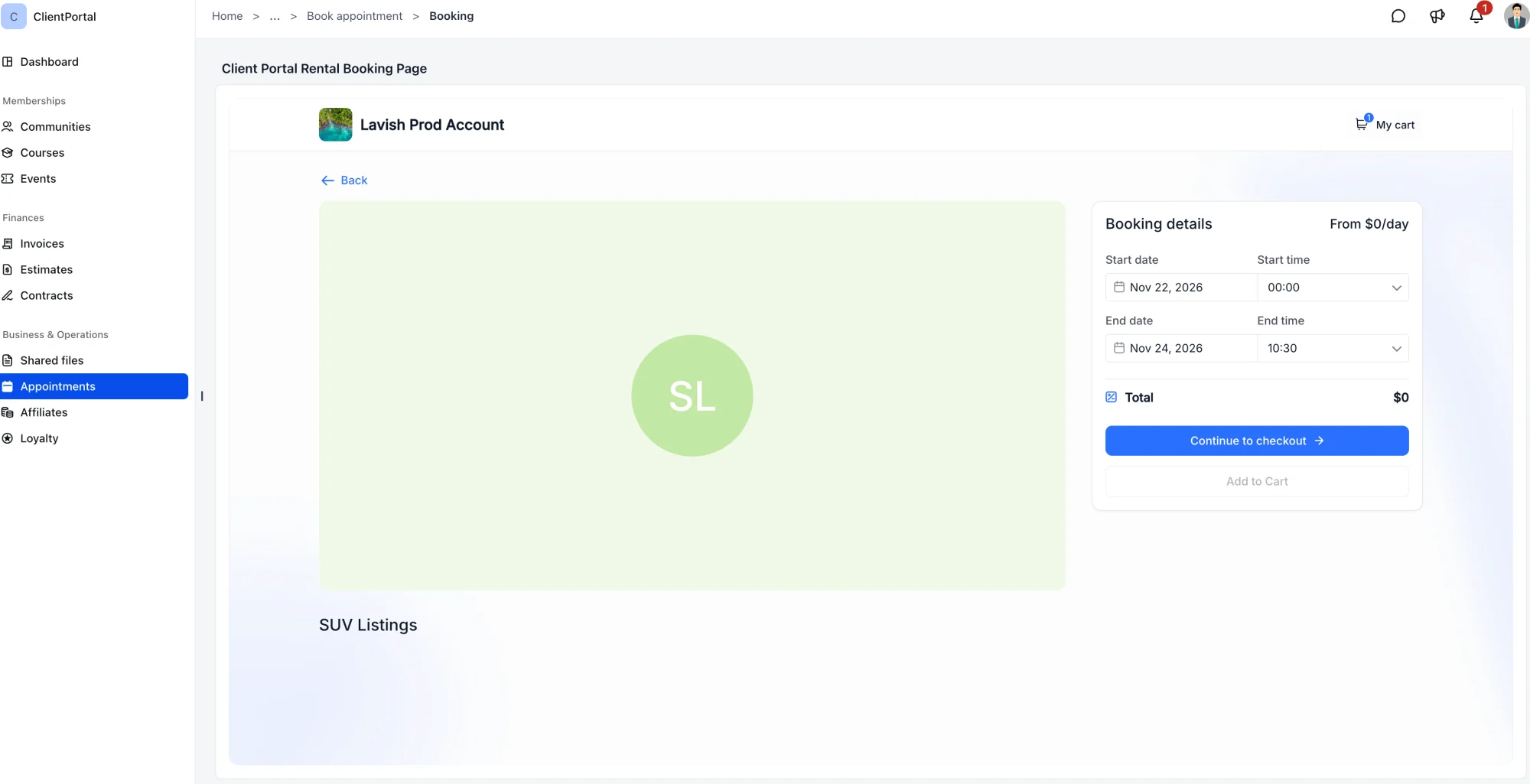
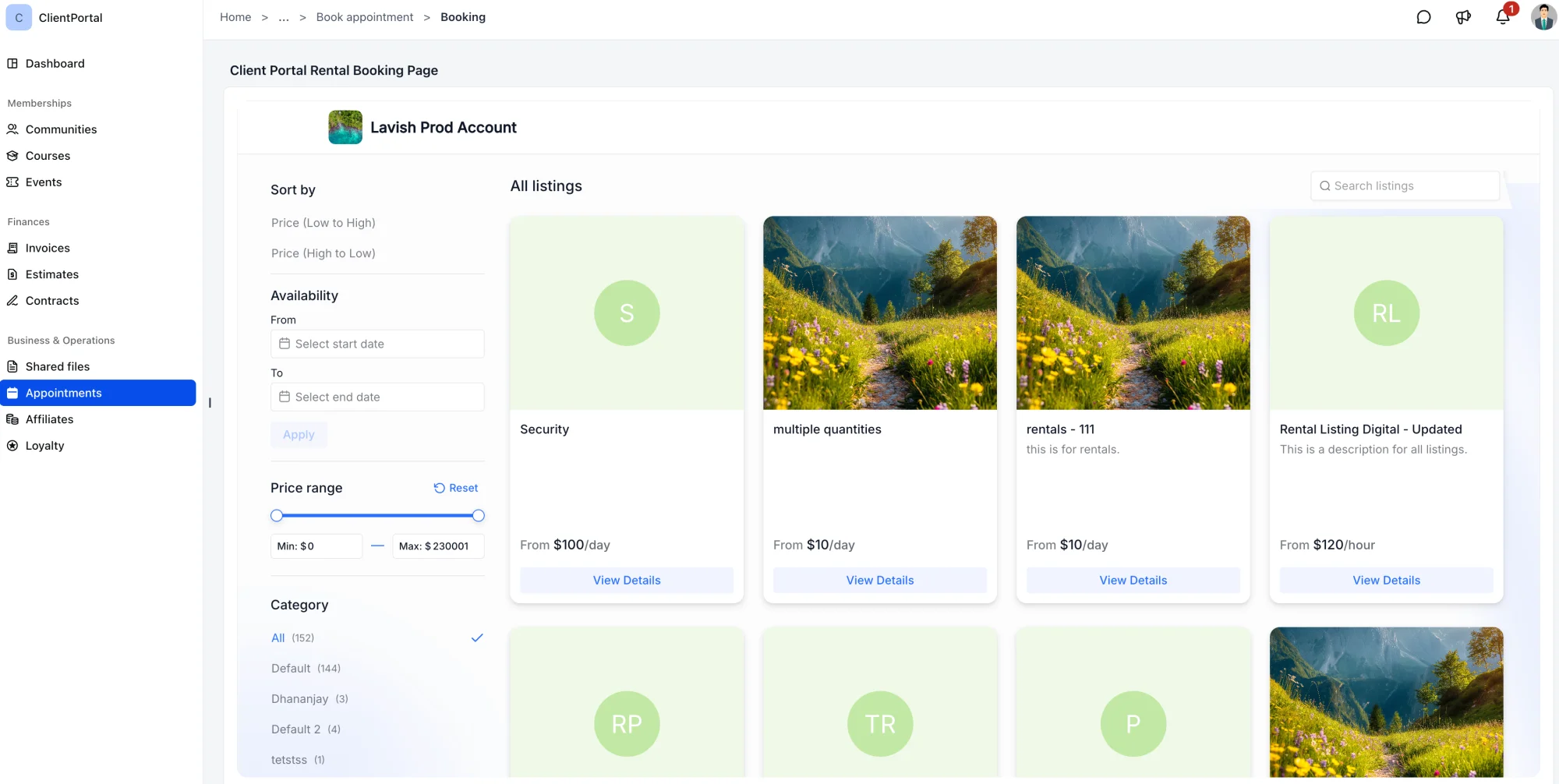
- Book Rentals Directly — Clients can browse available rental listings, select their preferred options, and book dates and times without leaving the Client Portal.
- Faster Booking Experience — Client information is automatically pre-filled, making it quicker and easier to complete rental bookings.
- Easy Cancellations — Clients can cancel eligible rental bookings directly from the Client Portal, based on your booking settings.
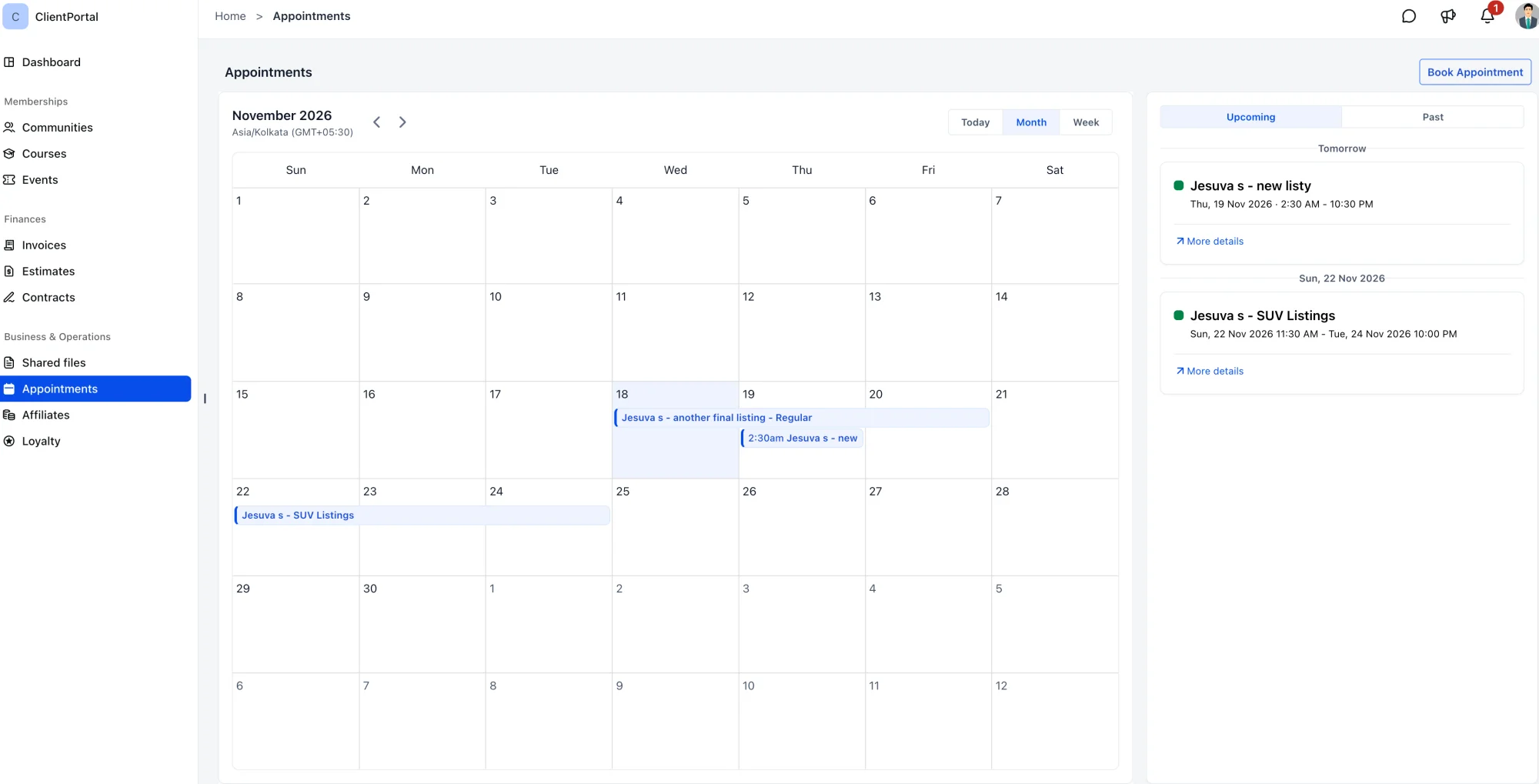
- All Appointments in One Place — Meetings, service bookings, and rentals now appear together under Appointments, organized into Upcoming and Past.
- Control Rental Visibility — Choose whether rental booking pages are accessible to your clients through the Client Portal.
🎯 Why It Matters
Previously, clients needed separate booking links to reserve rentals, creating unnecessary friction in their experience. Now, the Client Portal brings meetings, services, and rentals together in one place, making it easier for clients to discover and book what they need while giving businesses greater control over the booking experience.
🚀 What You'll Benefit From
- Simplified Rental Booking — Let clients explore and reserve rentals without leaving the Client Portal.
- Fewer Manual Steps — Reduce the need to share individual rental booking links.
- Better Client Experience — Give clients one place to view and manage their meetings, services, and rental bookings.
- Complete Control — Decide whether rental bookings are available through your Client Portal.
⚙️ Getting Started
Step 1: Enable Rental Booking
- Navigate to Calendars → Rentals → Global Settings.
- Under Client Portal, enable Allow booking from client portal.
- Click Save changes.
Step 2: Verify Appointments Access
Ensure Appointments is enabled under Memberships → Client Portal → Settings → App Permissions so clients can access their bookings.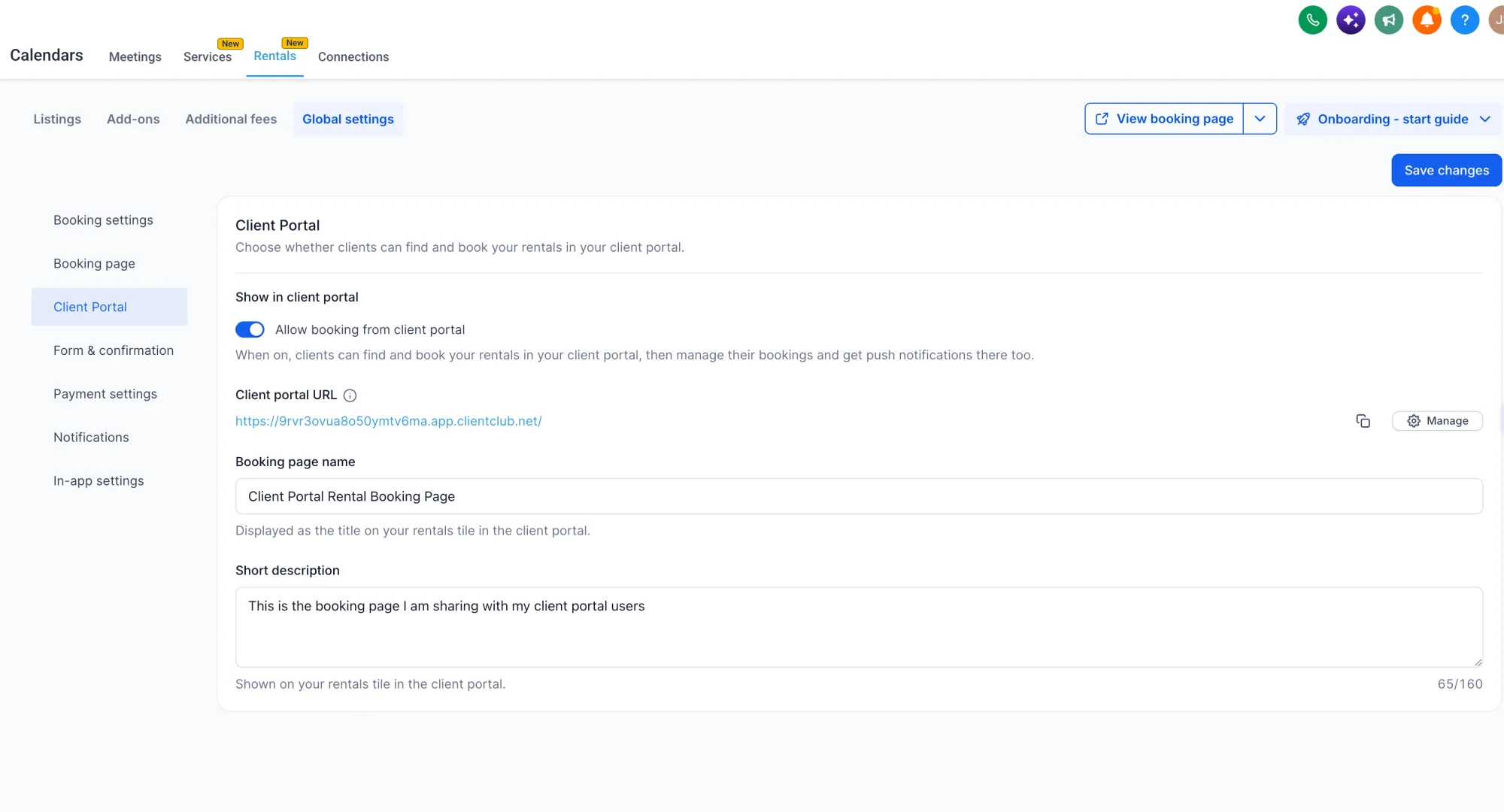
That's it! Your clients can now discover and book rentals directly from their Client Portal. 🎉
Availability: Rental Booking is available to all accounts with Rentals enabled and is supported in the new Client Portal UI.