QR Codes: Apply Brand Colors and Custom Colors
QR codes just got a fresh coat of paint — literally.
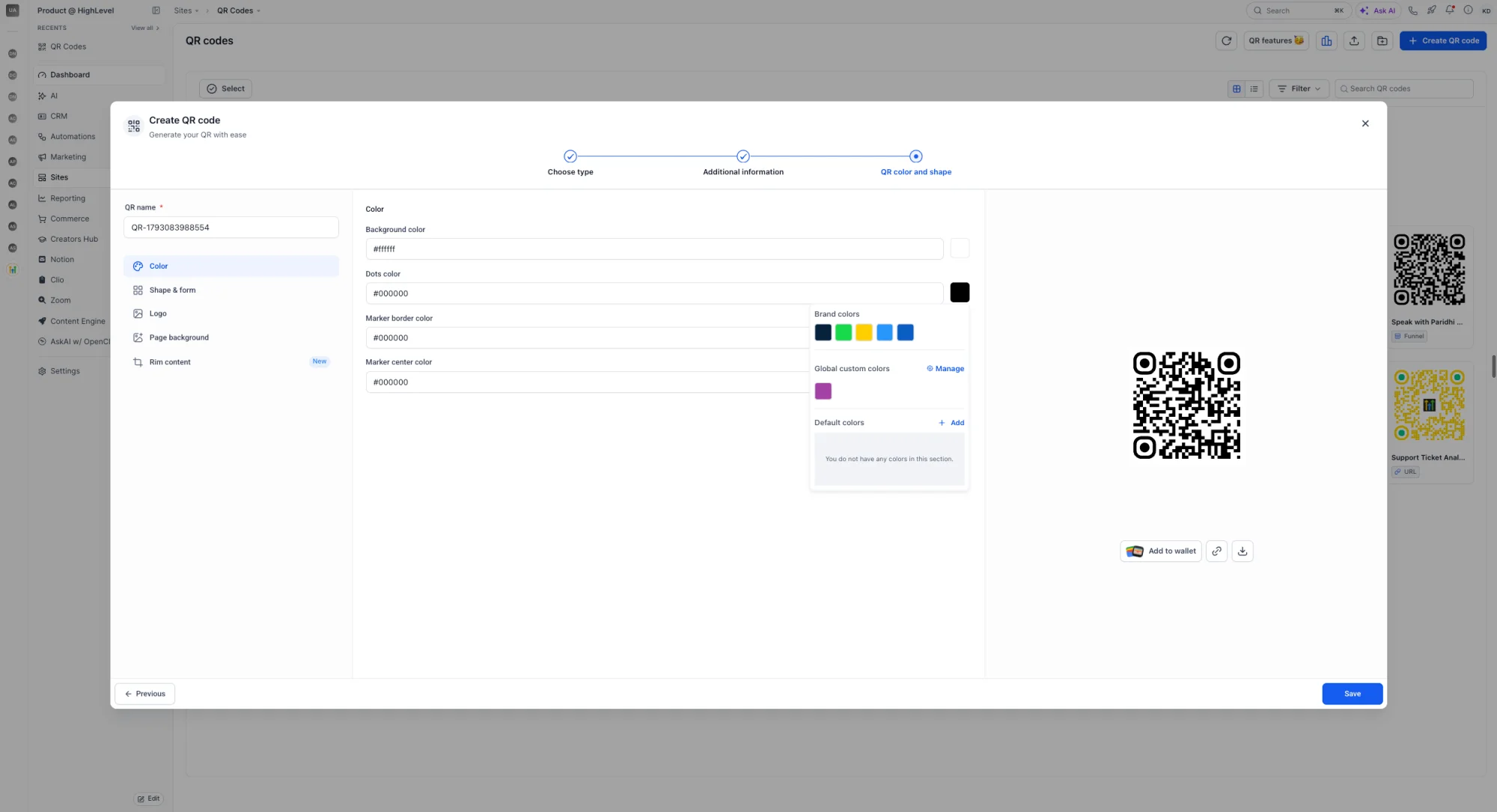
Your QR codes can now pull colors straight from your Brand Board or use a custom color of your choice, so every code matches your brand without extra design work.
What's new?
- Brand Board colors – Pick a Brand Board and apply its colors to your QR code instantly.
- Custom colors – Choose any color you like and apply it to your QR code.
- Clear preview – See how your QR code will look before you save it.
- Consistent branding – Keep every QR code on-brand across all your campaigns.
How it works
-
Go to the QR Codes section and open a QR code or create a new one.
-
Scroll to the Design section and choose a Brand Board from the dropdown. If you don't have a Brand Board set up, click Create Brand Board to make one.
-
Choose a color from your Brand Board or pick a custom color from the palette.
-
Preview your QR code and click Save to apply your changes.
Notes
- Use Brand Board colors to keep your QR codes consistent with your brand.
- If you update your Brand Board colors later, re-apply the board to your QR codes to reflect the change.
- Brand Boards are available on every plan.