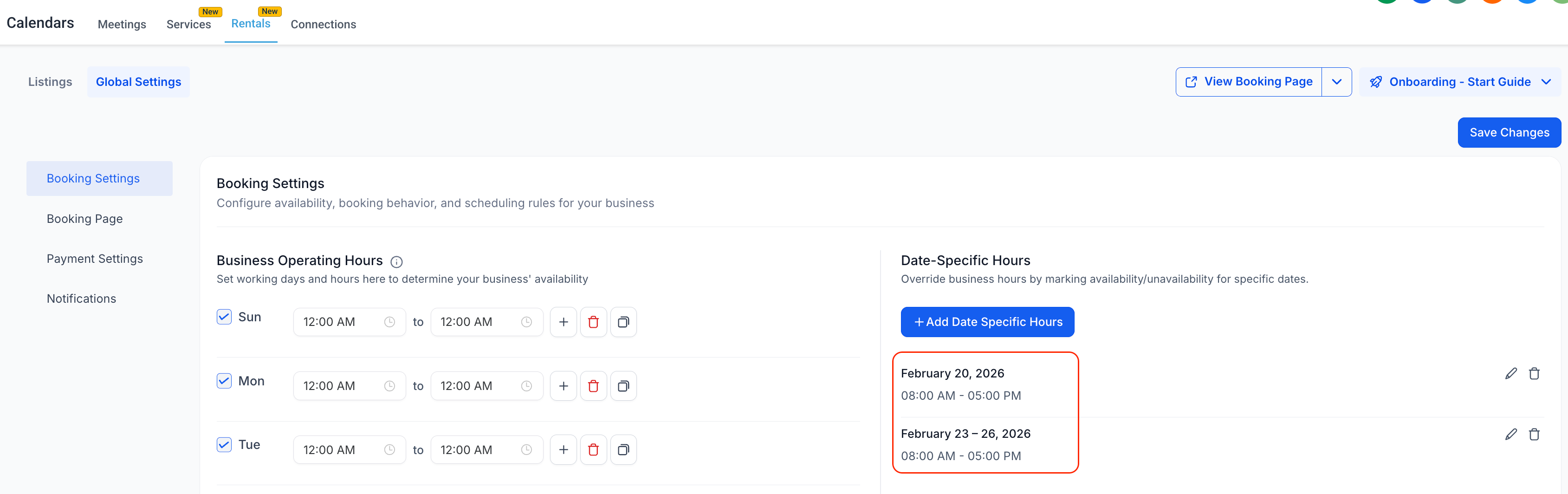
Multi-Date Selection for Date-Specific Hours (Meetings & Rentals)
🧭 Overview
Managing date-specific availability just got a whole lot easier across Meetings and Rentals (Private Beta)
Previously, you could add date-specific hours for only one date at a time — making it slow and repetitive to configure availability across multiple days.
You can now select multiple dates at once and apply the same availability hours in one go.
🚀 What’s New
You can now:
- Select multiple dates from the date picker when adding date-specific hours
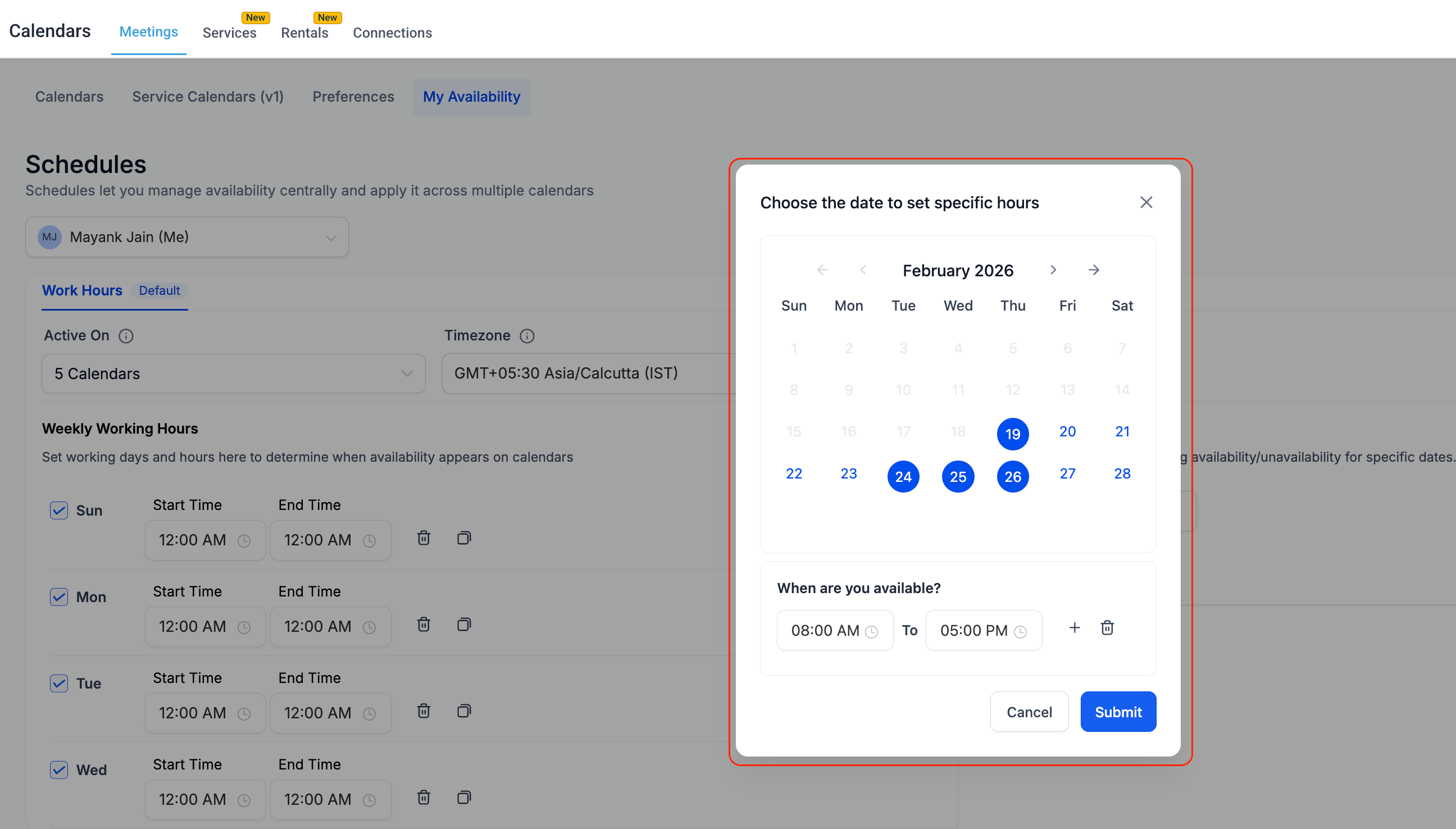
- Set the start time and end time once
- Apply the configuration in bulk across all selected dates
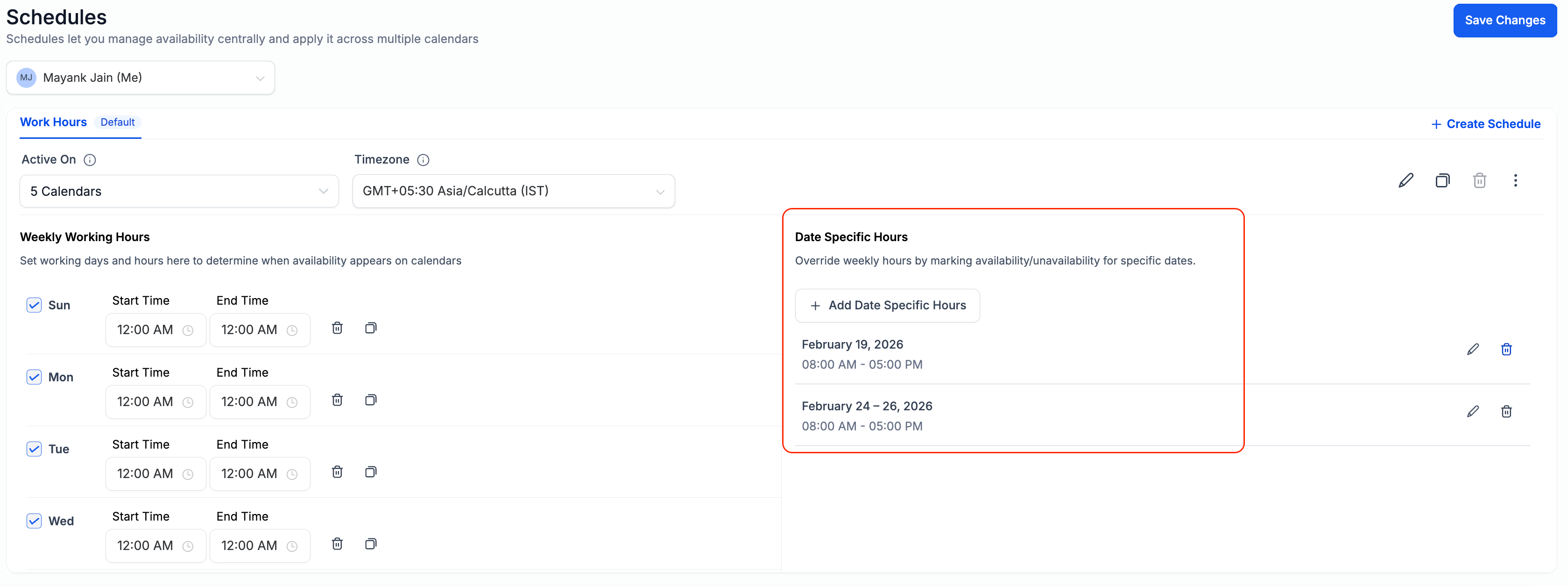
- View grouped date ranges for cleaner organization
🧩 How Date Grouping Works
When you select multiple dates, the system automatically groups consecutive dates together to make them easier to manage.
- Consecutive dates are grouped into a single block
- Non-consecutive dates are split into separate blocks
Each group can be edited or deleted independently later.
🎯 Why This Matters
- ⏱️ Saves time by eliminating repetitive, date-by-date setup
- 🧩 Keeps availability clean and organized with smart grouping
- ✏️ Makes bulk edits simple and manageable
- 📆 Perfect for holidays, special schedules, or short-term changes