🎛️ Make the Calendar View Yours: More Settings, Export & Staff Colors
The calendar view now gives you more control over how it looks and what you can do with it. A new Calendar view settings panel brings your display preferences together in one place, export lets you take the exact view you're looking at out of the product, and filters and event colors are easier to work with. These are display and workflow improvements only. Availability, booking rules, and what customers see on your booking page don't change.
What's new?
Calendar view settings, one click away
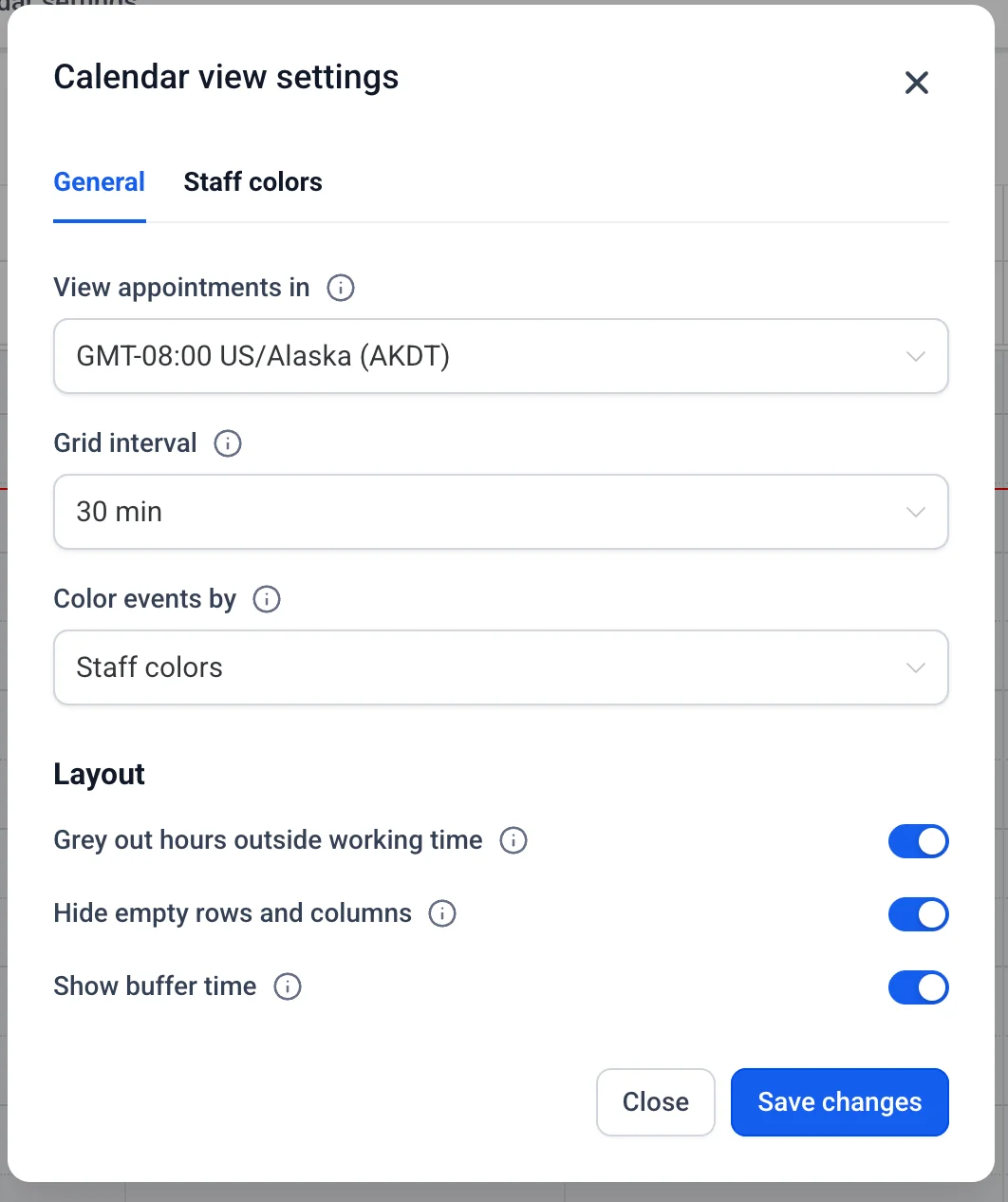
Open the more options (3 dots menu) next to Manage view in the calendar toolbar and select Calendar view settings to open a single panel for your display preferences. Your choices are saved for the next time you open the calendar.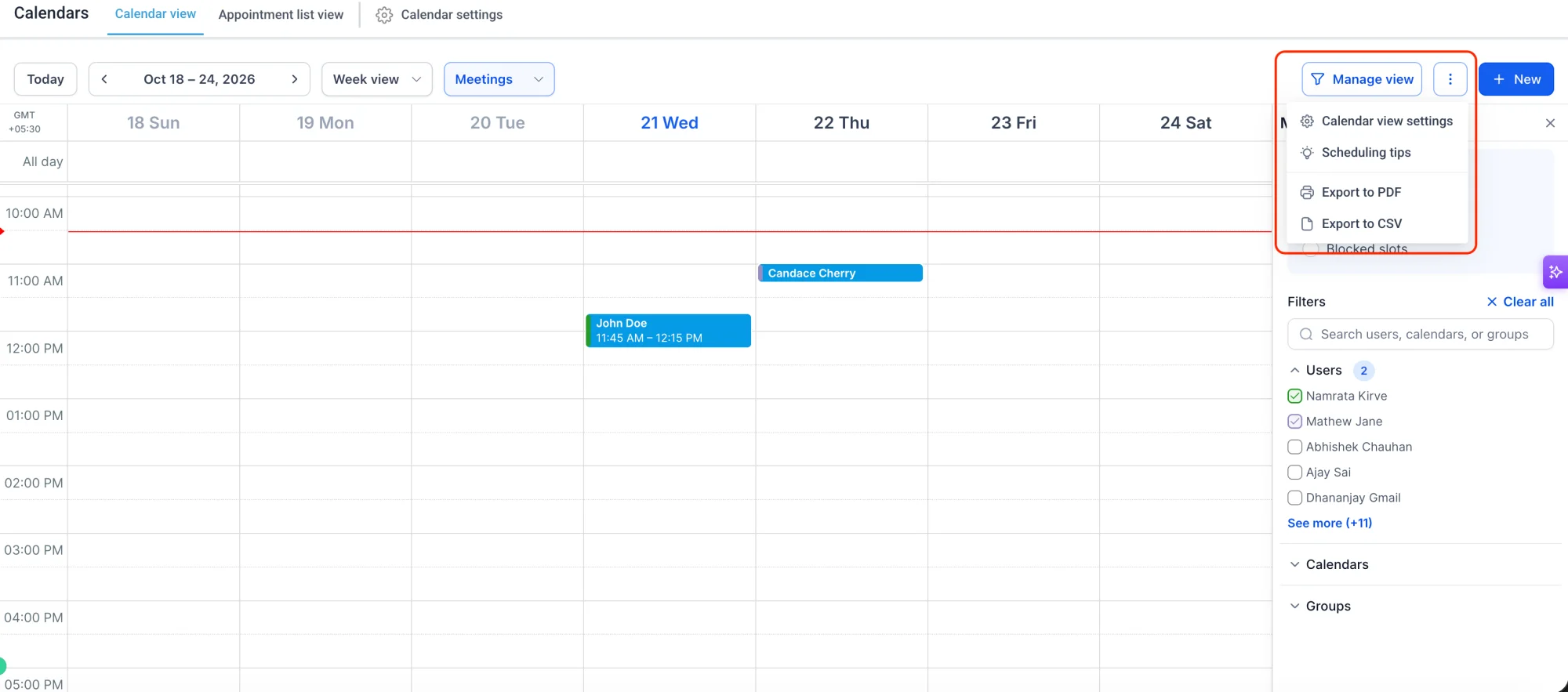
Preferences you can tune
• View appointments in: Show times in the timezone you choose throughout your calendar screens. It also applies to your appointment-related emails. Note: This setting is just for you and doesn't affect availability, how others book, or the preferences for other team members or customers.
• Default grid interval: Choose how granular (15, 30, 60 min) the day and week grids are on the calendar view.
• Grey out hours outside working time: Shade non-working hours for each staff member using their schedules for that date.
• Hide empty rows and columns: Keep the view focused on booked resources and hide the ones without any appointments.
• Show buffer time: See buffer time before and after staff appointments wherever a slot is blocked by buffers.
Timezone now lives with your other view settings
The "View in timezone" setting moved out of Meetings Preferences and the Services/Rentals Global Settings. Any timezone you set before carries over automatically.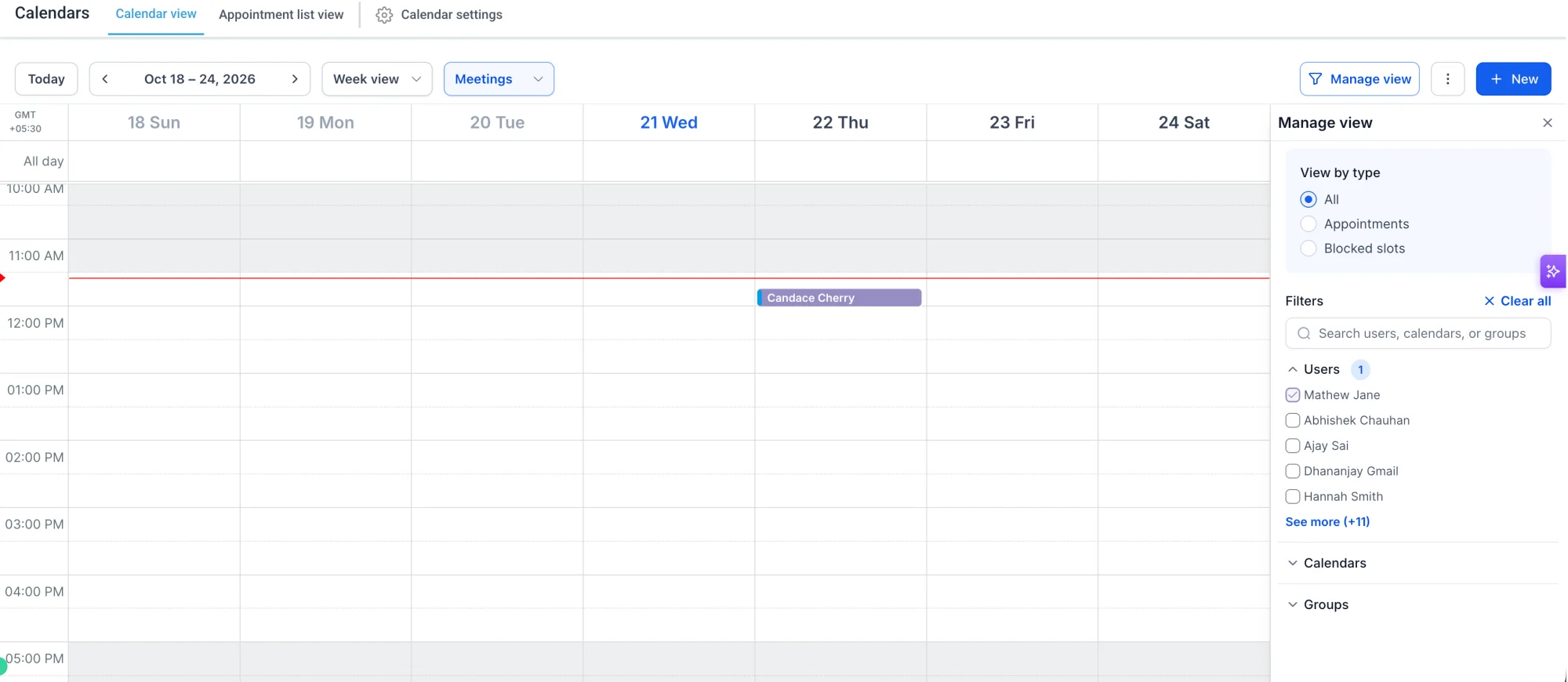
Staff colors for admins
Admins can set a color for each staff member. It applies to meetings created for them, and the color shows in their meetings across the calendar view and team calendar. Staff colors are visible to all users, including customers, in the calendar view and wherever meetings are shown.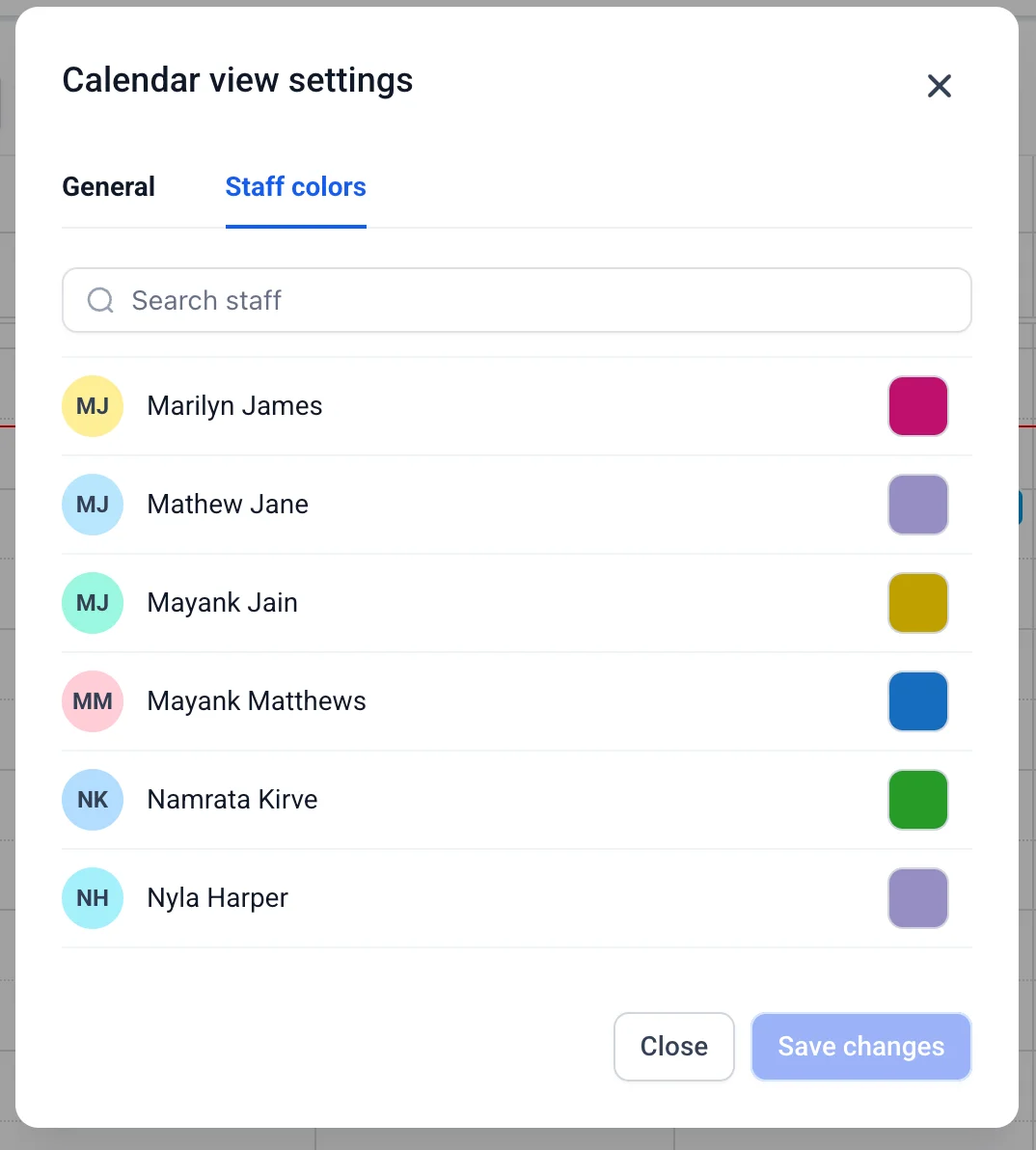
Color events by calendar, service, or staff
In the same settings panel, choose what an event's color means. By calendar assigns colors by the calendar it was created in, by service by the service, and by staff by the staff member, with a wider color strip on meetings.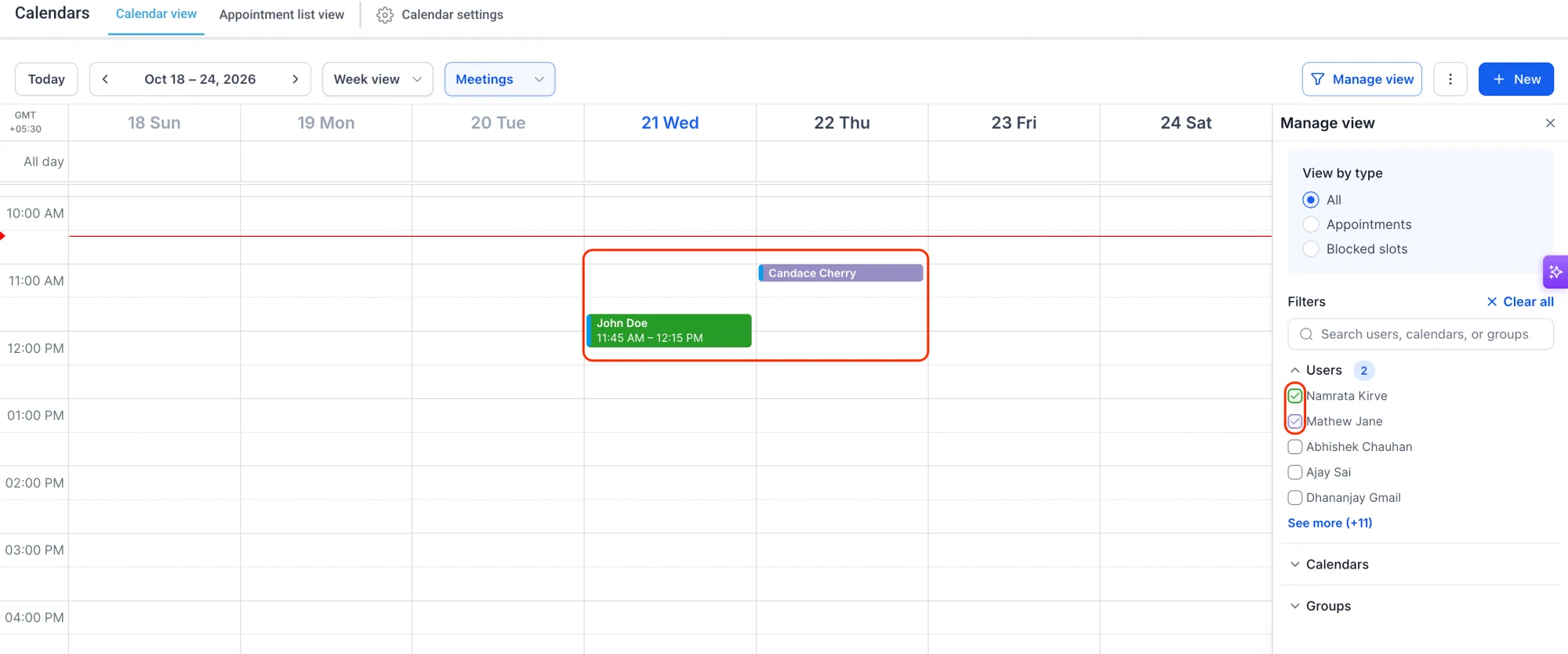
Export a calendar view
Select Export from the more options (3 dots menu) next to Manage view and choose to export as CSV. Only the appointments currently visible in the view — filtered list and date range — are exported. One CSV per calendar is downloaded if export is selected in a multi-calendar view.
Why this matters
A calendar gets crowded quickly when you juggle multiple staff, services, and locations. These updates make it easier to scan, find, and share what's booked, and to tell at a glance who a meeting belongs to.
How it works
-
Open your calendar and select the more options (3 dots menu) next to Manage view.
-
Select Calendar view settings to tune your display preferences, including timezone, grid interval, greyed-out hours, hidden empty rows, buffer time, and event colors.
-
To export, select Export from the same menu and choose CSV.
-
Admins can set staff colors so meetings are easy to tell apart across the calendar view and team calendar.Preview