Forms <> CRM – Create Opportunities, Companies and Custom Objects from Forms, No Contact Needed
Forms used to be built around a contact. To get a deal, a company or a custom object record in from a form, you'd collect contact details first, then manually create the other records and link them up afterwards.
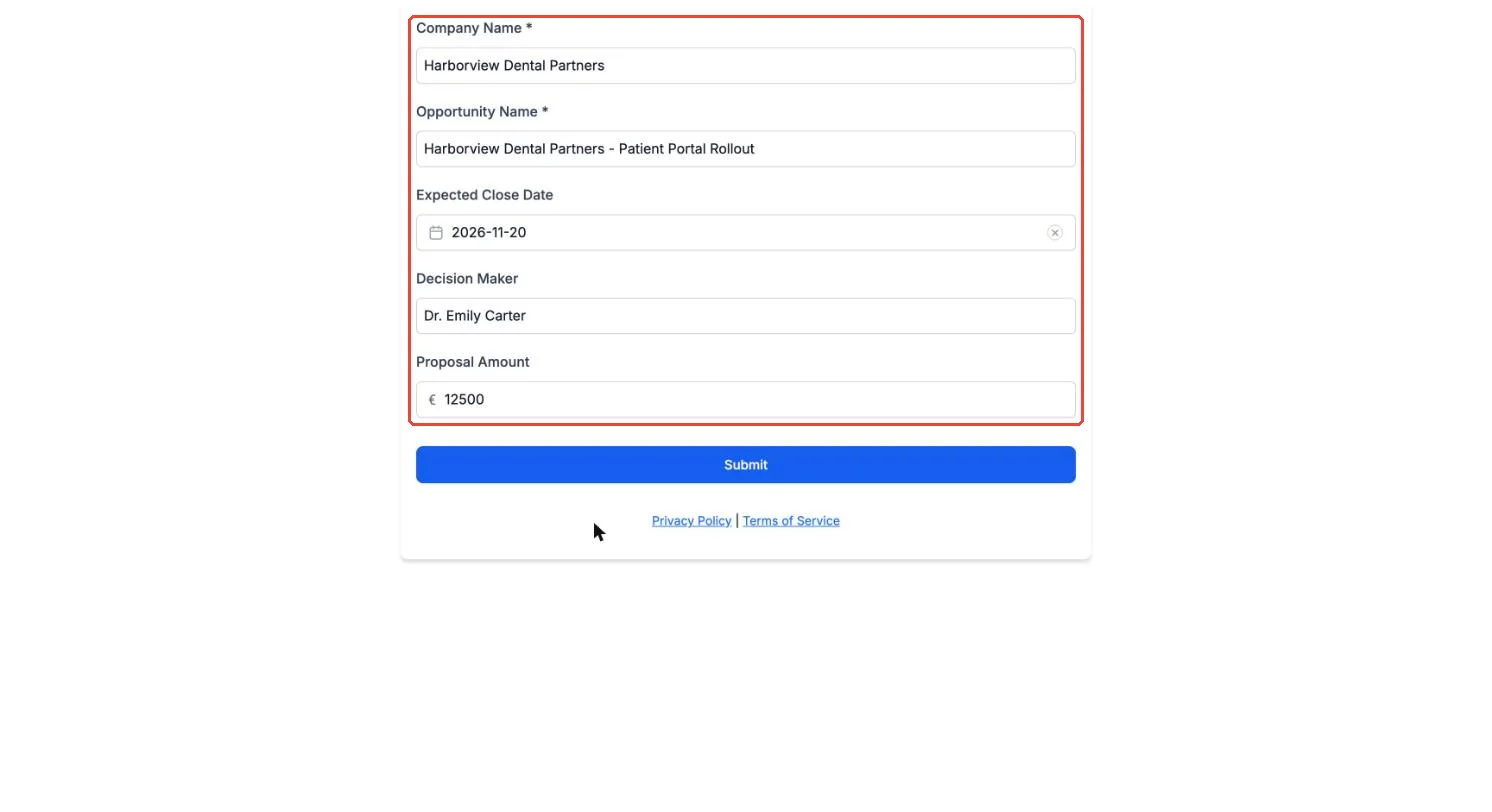
Now you can build a form with no contact at all. A form made only of opportunity fields creates an opportunity. A form with opportunity and company fields creates both records and links them together, so the deal lands in the right pipeline with the right company attached.

What's New?
-
Opportunity-only forms: a form with just opportunity fields creates the opportunity, with no contact required.
-
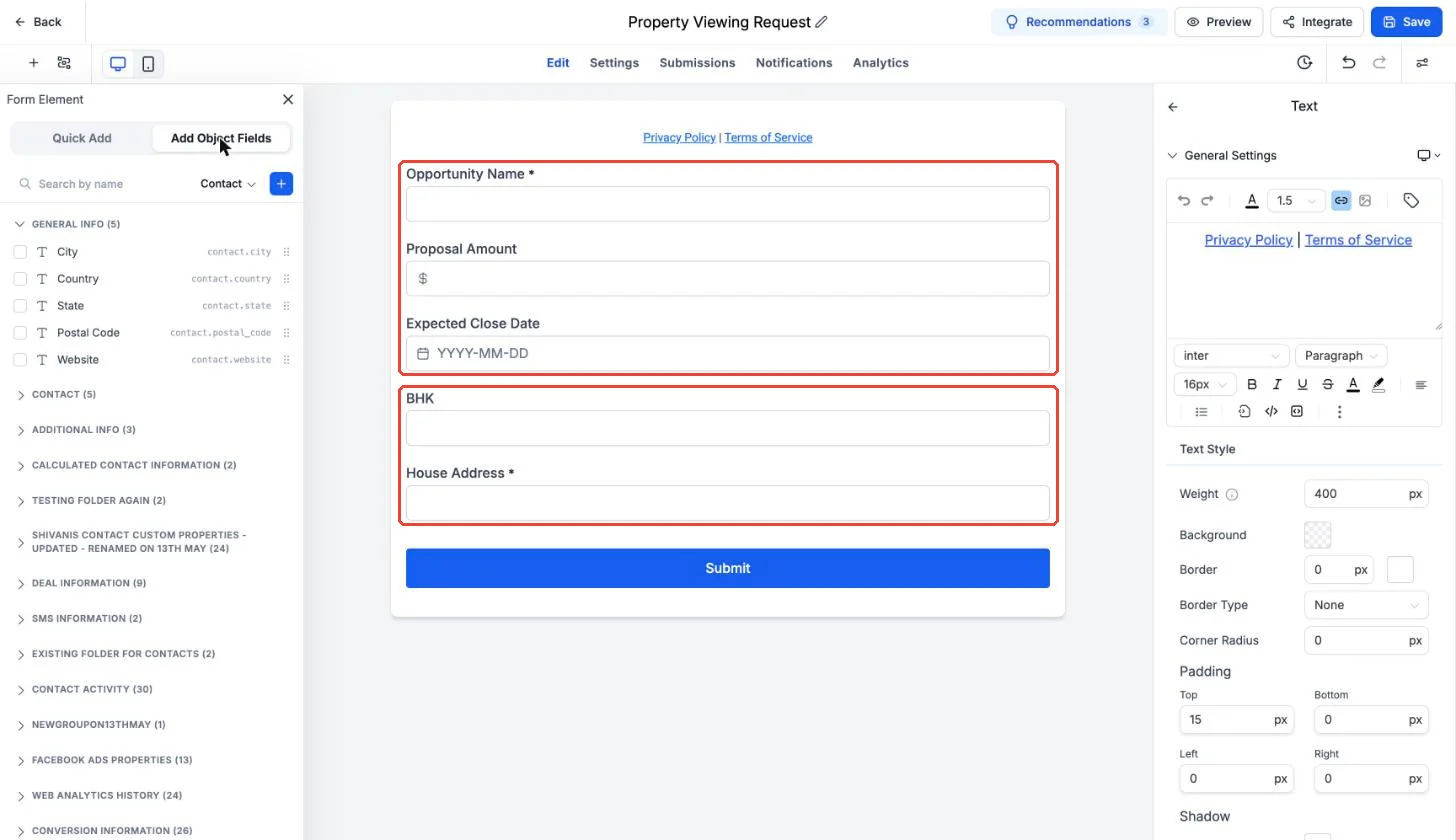
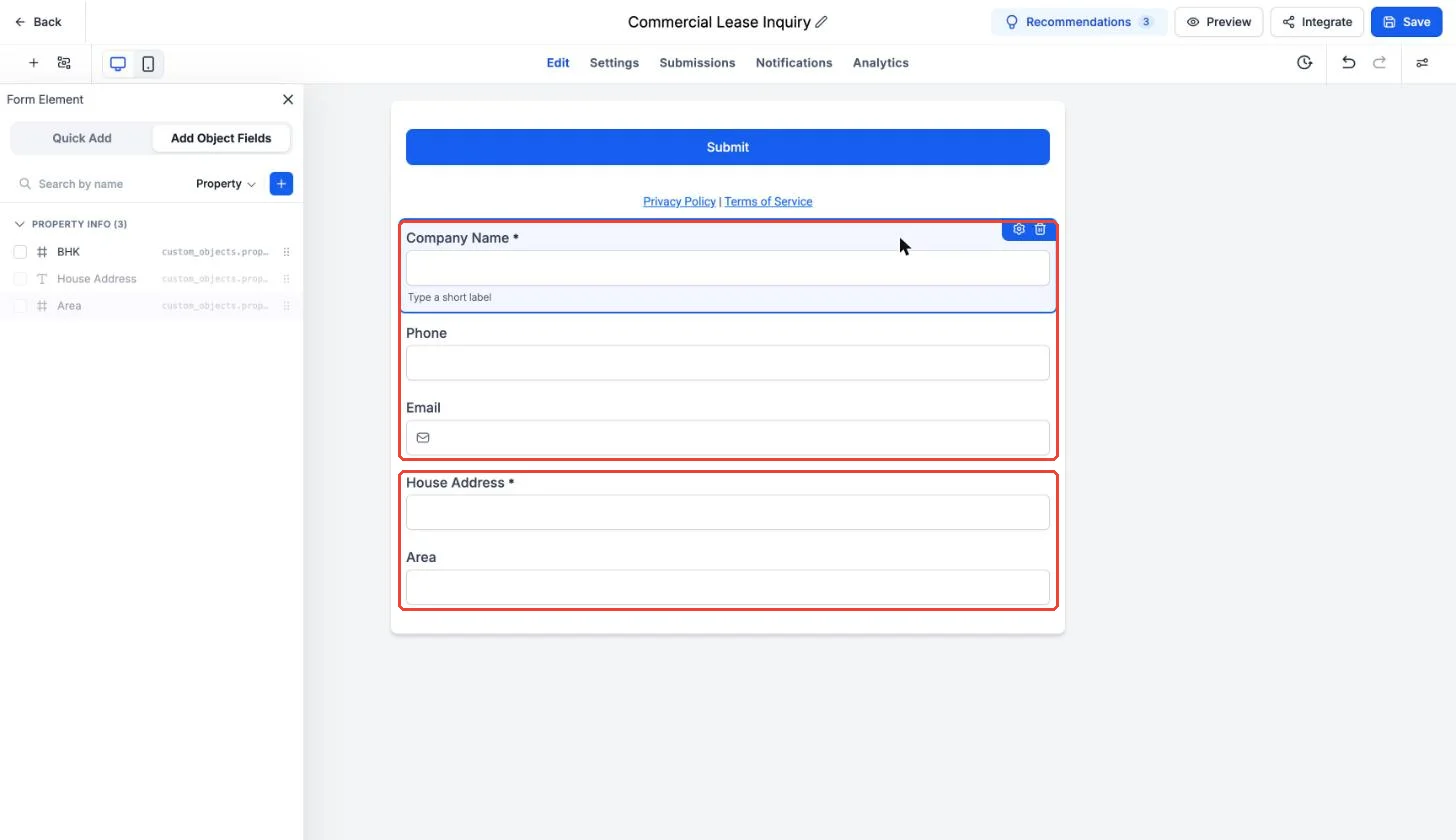
New form combinations, no contact required: – Opportunity + Company, e.g. a partner deal registration form or a vendor form that creates both the deal and the company – Opportunity + Custom object, e.g. a property viewing form that creates an opportunity and a Property record – Company + Custom object, e.g. a lease enquiry that creates the company and the Property
-
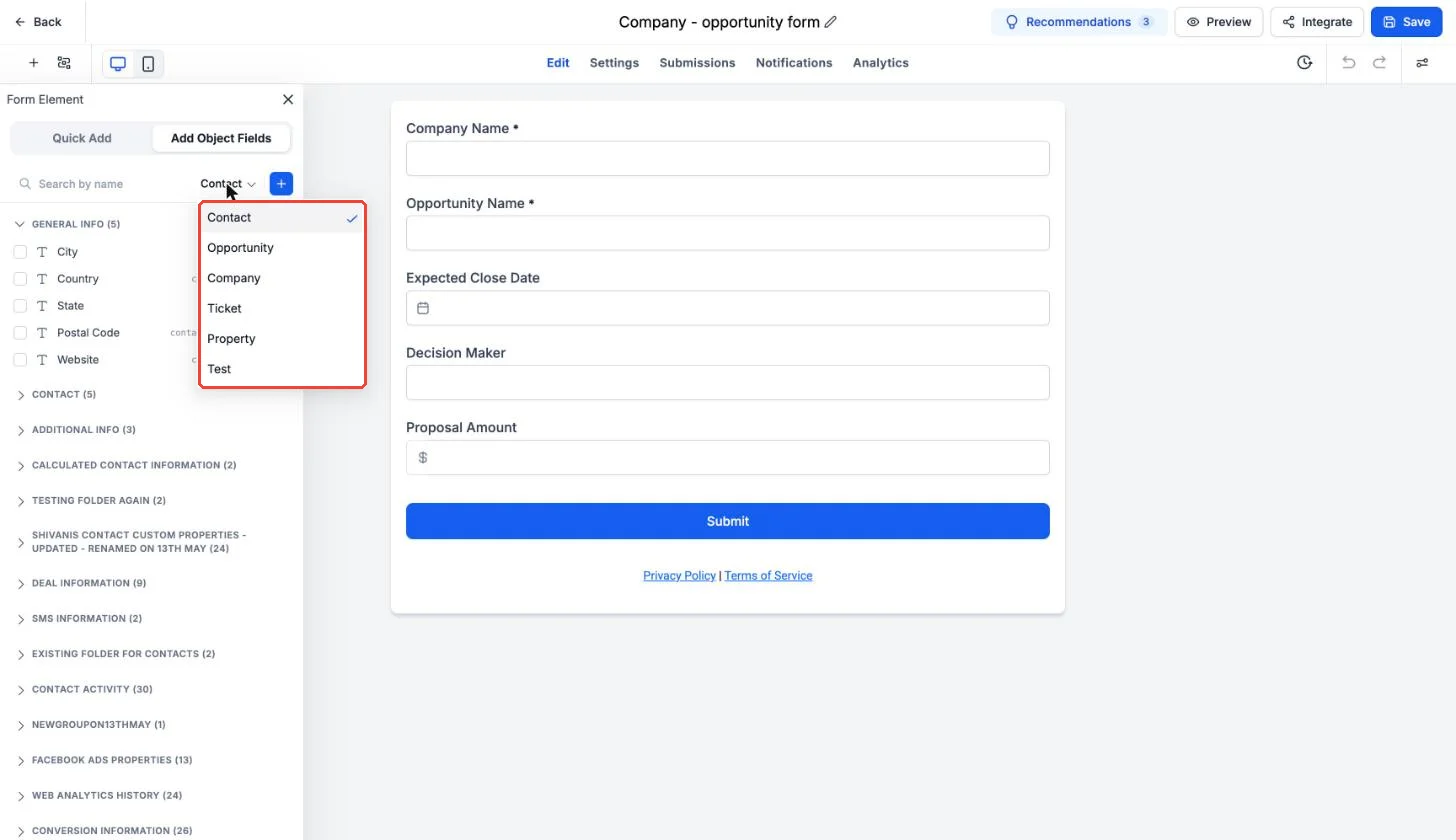
Add Object Fields: pick Opportunity, Company or any custom object and add its fields. Opportunity Name is required for opportunity forms.
-
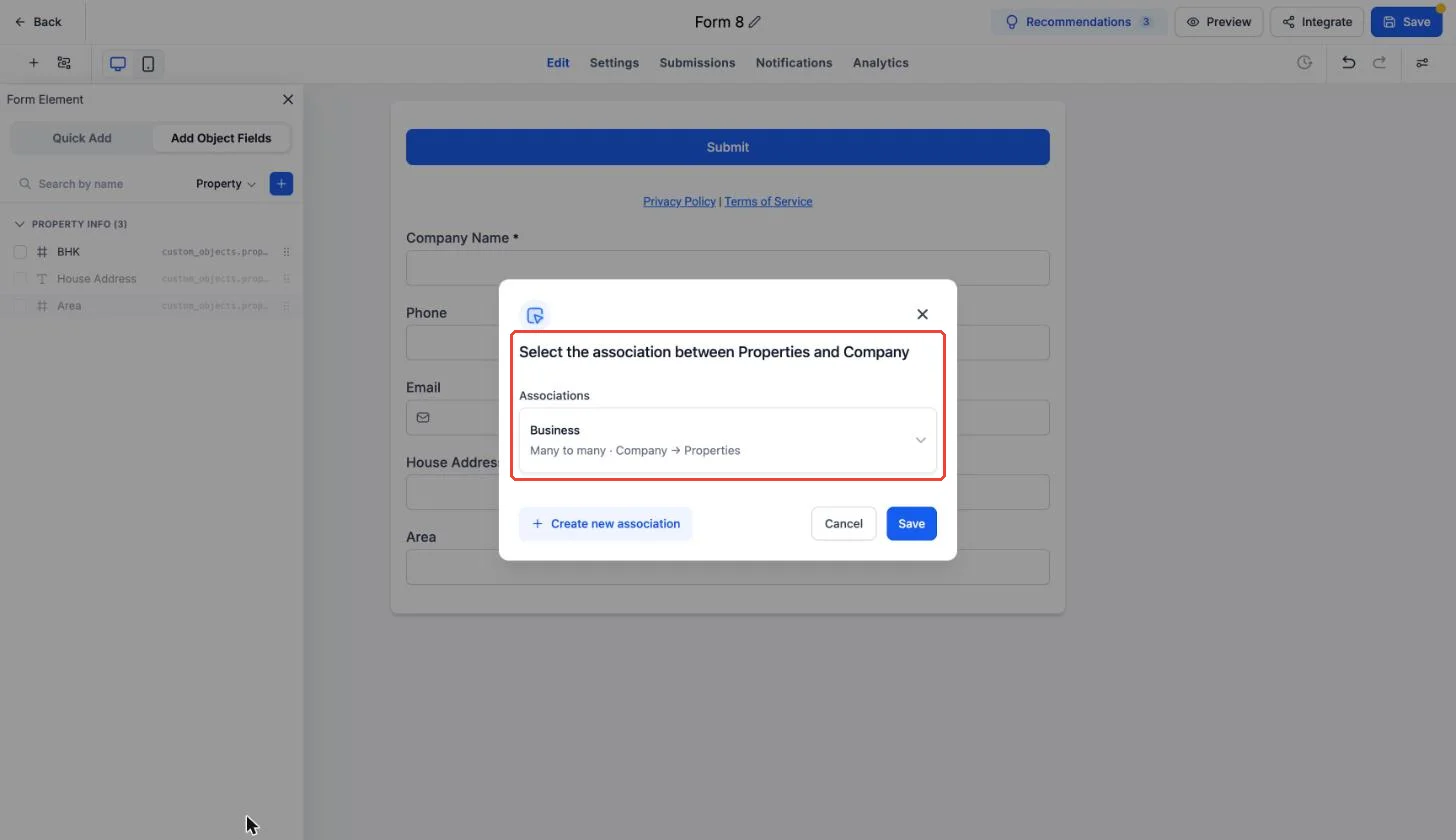
Association label: when you add the second object, choose how the two records are linked, e.g. Business, Client, Deal, Vendor. Create the label first in Settings > Objects > Associations if you don't have the one you need.
-
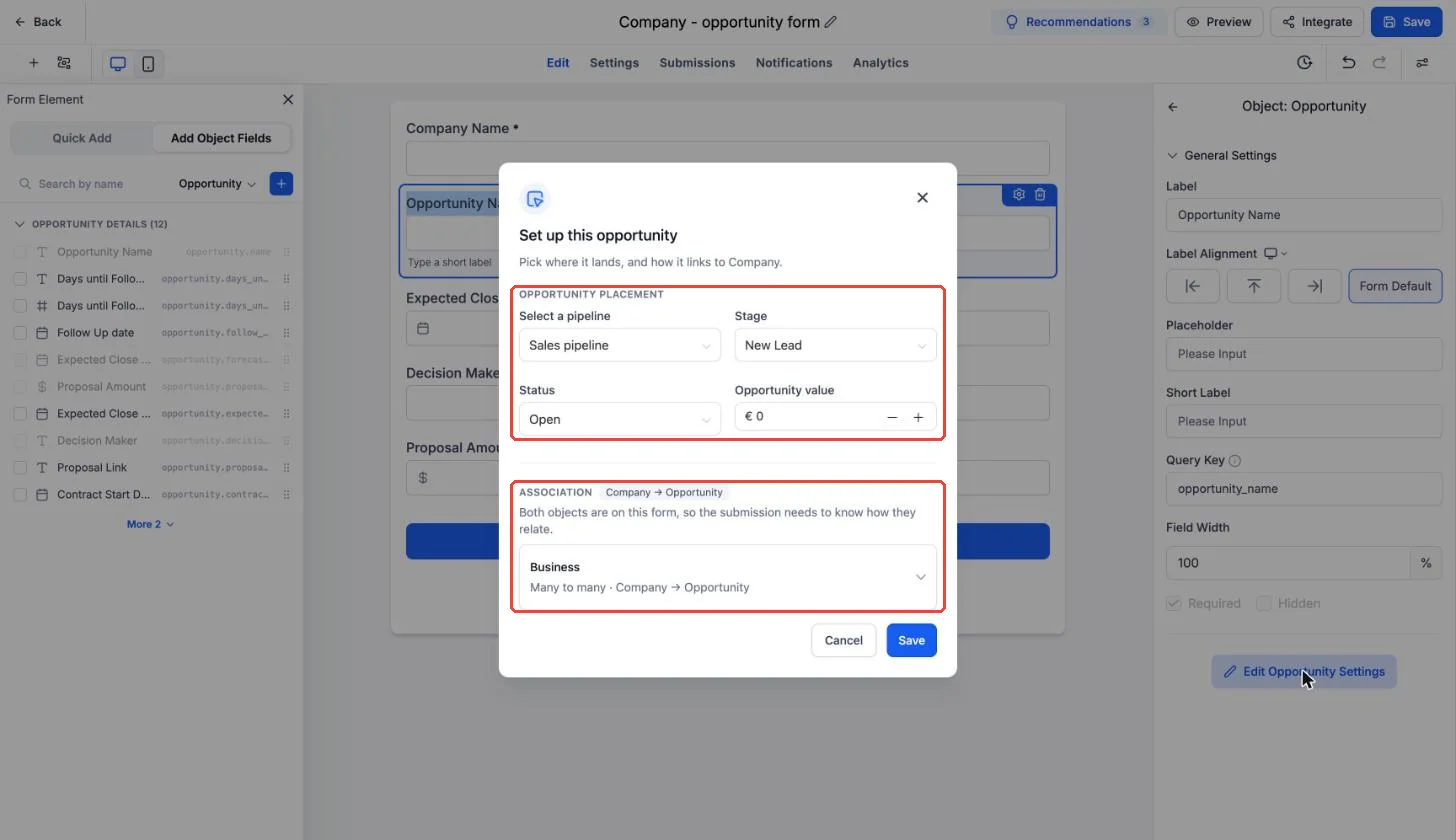
Set up this opportunity: for forms with opportunity fields, choose the pipeline, stage, status and opportunity value. The opportunity value comes from here, not from the form, so use an opportunity custom field if you need the value entered on the form.
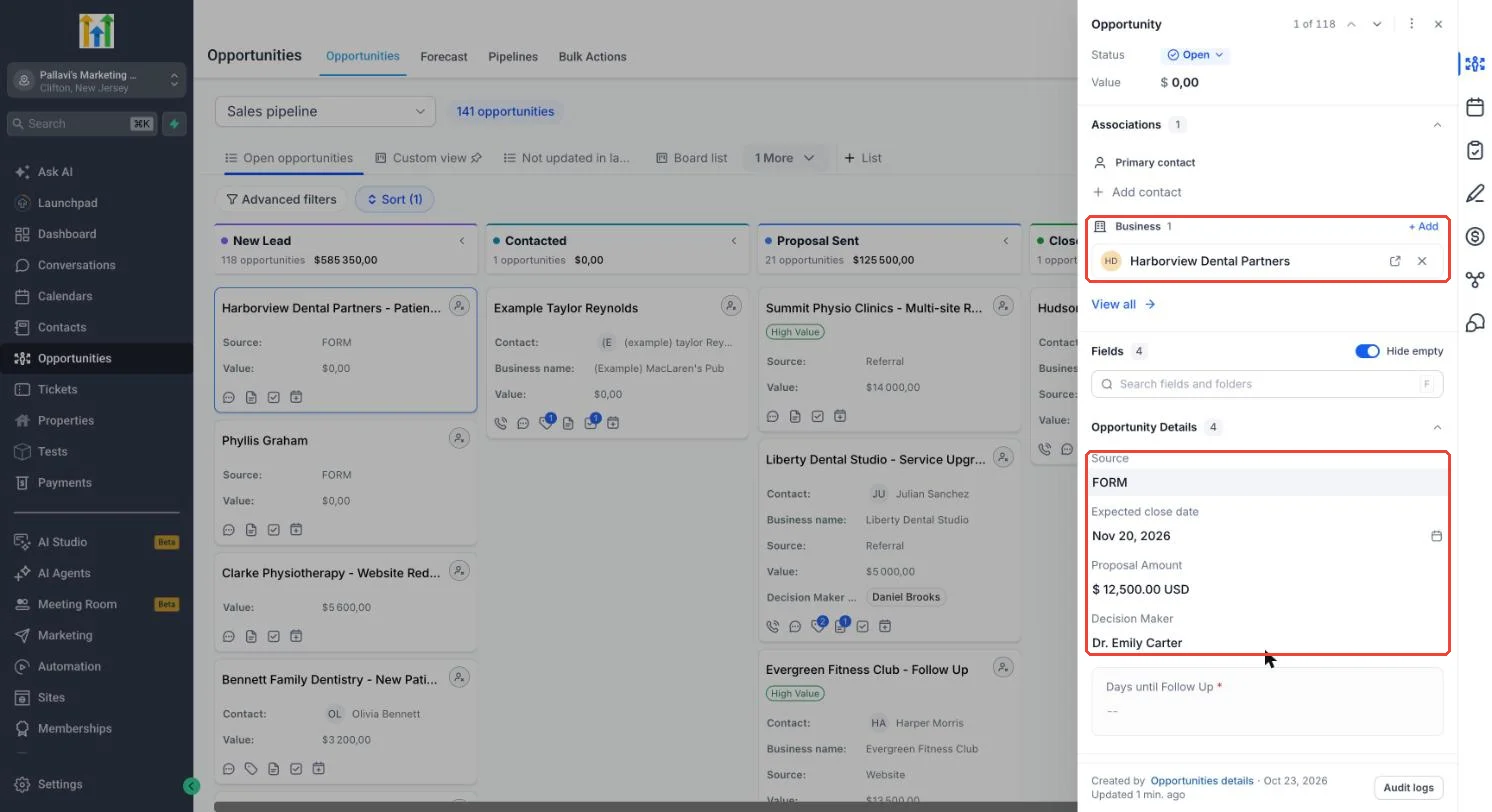
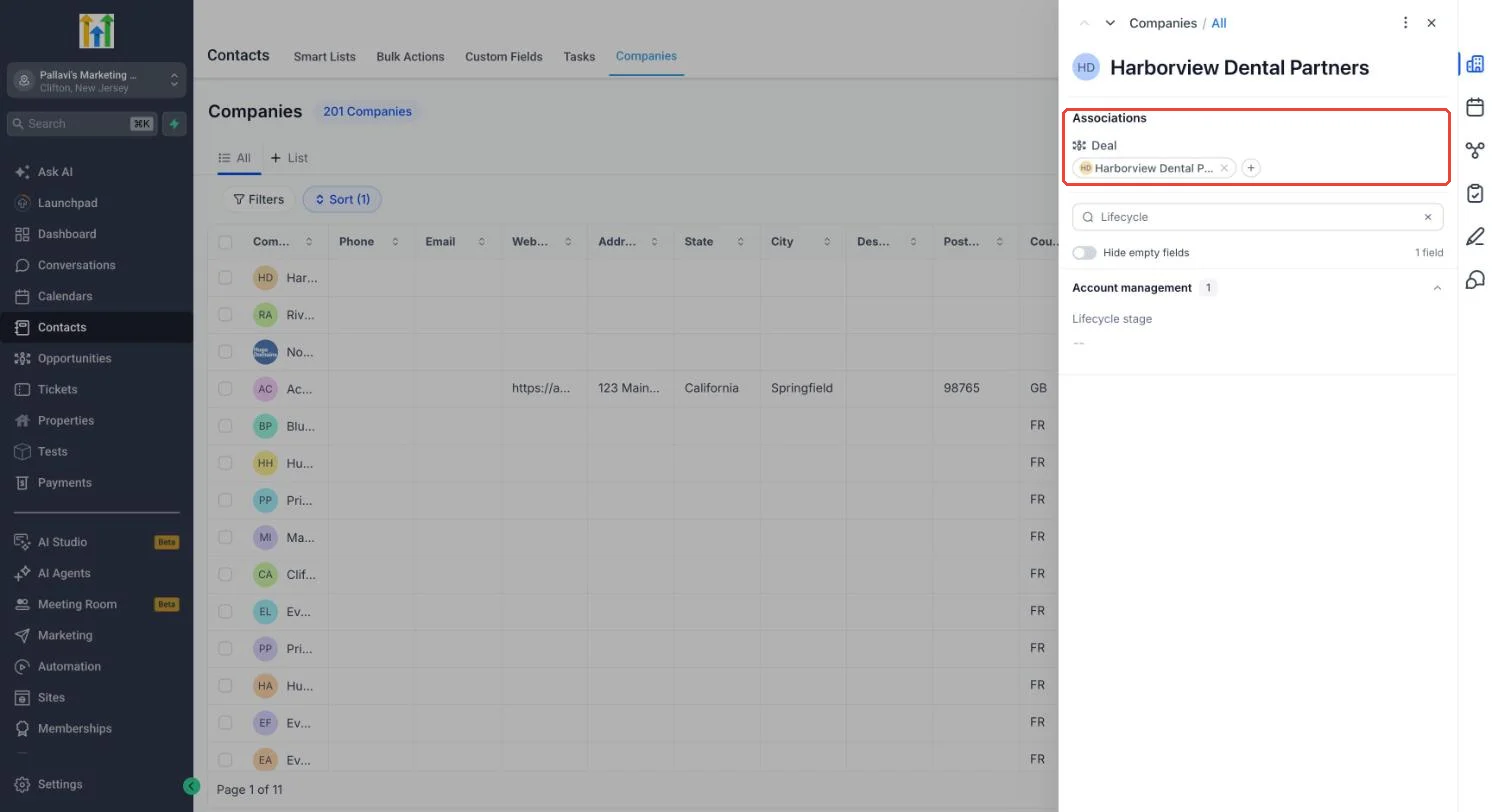
On submit, both records are created and linked with the label you picked. Opportunities land in the pipeline you selected, and companies appear in the Companies tab with their associations shown.
How to Use
- Sites > Forms > open or create a form, and remove the default contact fields.
- Add Object Fields > pick Opportunity or Company > add its fields.
- To create a second record, switch the object dropdown to Company or a custom object, add its fields, and pick the association label.
- For opportunities, click Opportunity Name > Edit Opportunity Settings and set the pipeline, stage, status and value.
- Save and share the form. Track entries in Submissions.
Why This Matters
- Quote, deal, partner and property forms bring in the right records, not placeholder contacts.
- Records arrive already linked, with the right relationship label.
- One form replaces a contact form plus manual record creation and linking.
Pro Tips
- Opportunity Name is required on any form with opportunity fields.
- The opportunity value comes from Set up this opportunity, not from the form. Use an opportunity custom field if you need the value on the form.
- Create the association label you need in Settings > Objects > Associations before building the form.
This is part of the Opportunity-First private beta. Locations are enabled for the beta.