Conversations: Expanded Filtering Capabilities
We've expanded the filtering capabilities in Conversations with six new filters, giving users more control over how they organize and manage their inbox. Users can now filter conversations by Channel Account, Last Call Status, Contact Type, Opportunity Pipeline, Opportunity Stage, and Opportunity Status.
Previously, finding conversations associated with a specific phone number, missed call, or opportunity required manually scanning the inbox or switching between Conversations, Contacts, and Opportunities. With these new filters, teams can quickly narrow down their inbox, identify conversations that need attention, and take action faster. All six filters can also be combined with existing filters using AND/OR conditions.
What's New?
We've introduced six new filters in the Conversations filter panel:
-
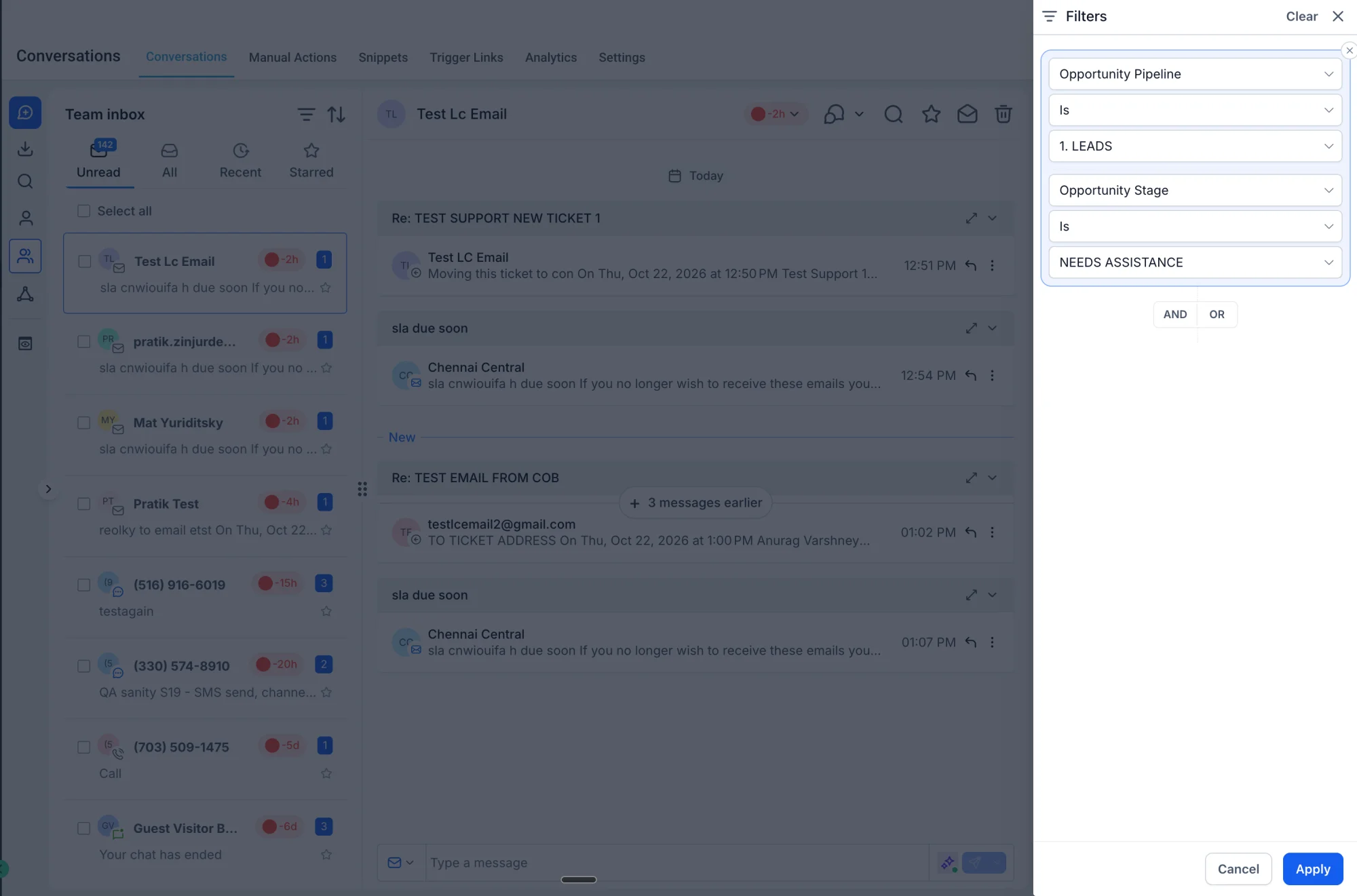
Opportunity Pipeline: Filter conversations based on the pipeline associated with a contact's opportunity. If a contact has opportunities across multiple pipelines, the conversation appears if at least one opportunity matches the selected pipeline. Teams managing multiple sales pipelines can focus on conversations associated with a specific sales process.
-
Opportunity Stage: Filter conversations based on the stage of a contact's opportunity. Available stages are displayed based on the selected pipeline. Sales reps can quickly find conversations with contacts in stages such as Appointment Scheduled, Proposal Sent, or Negotiation and prioritise follow-ups.
-
Opportunity Status: Filter conversations based on the status of a contact's opportunity: open, won, lost, abandoned. Teams can focus on active opportunities, reconnect with lost deals, or review conversations associated with closed opportunities.
-
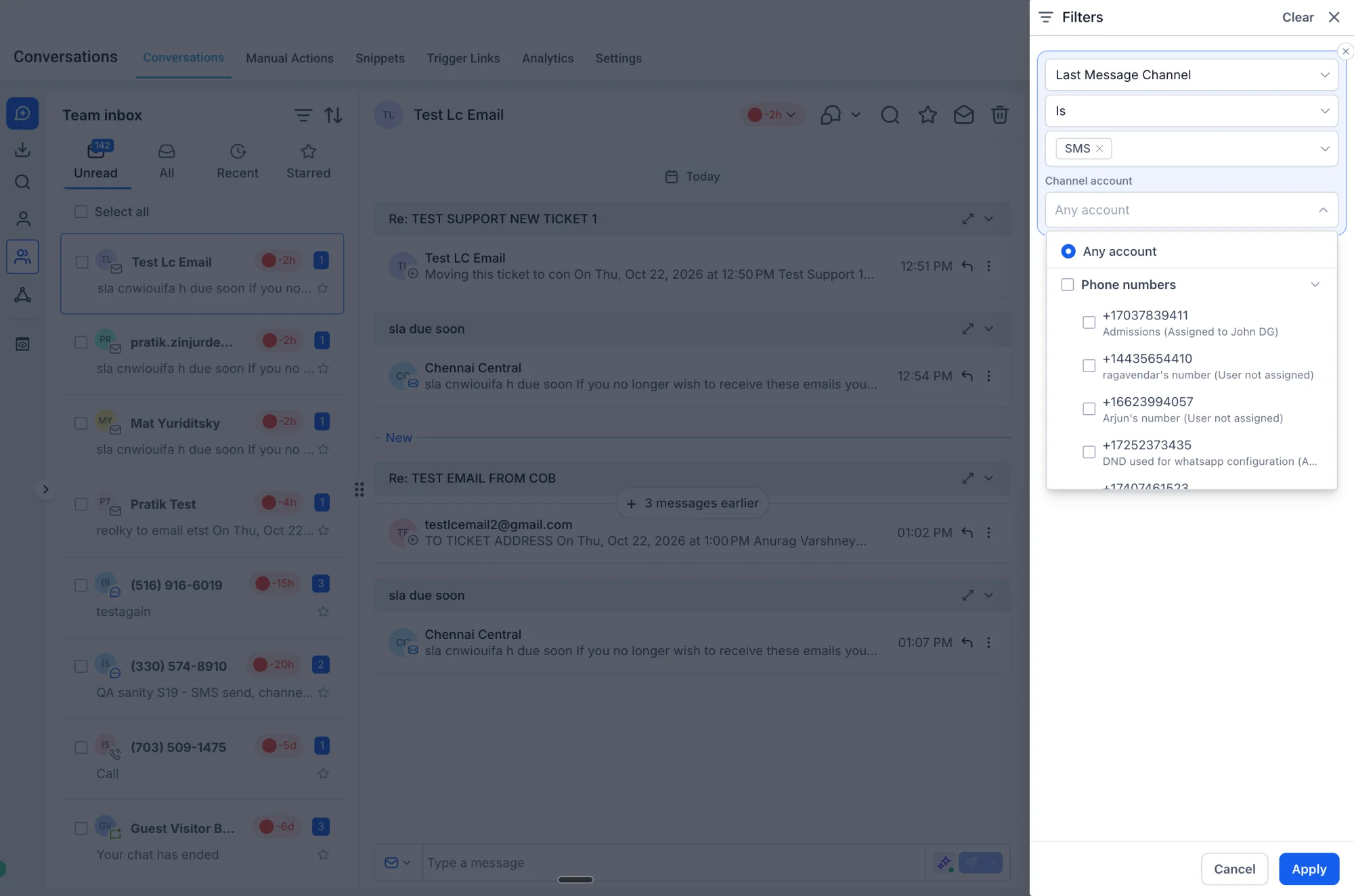
Channel Account: Filter conversations based on the specific channel account associated with the most recent message in a conversation, such as a particular phone number, WhatsApp number, or email address. Reseller Agencies managing multiple phone numbers or inboxes can quickly isolate conversations tied to a specific line or account.
-
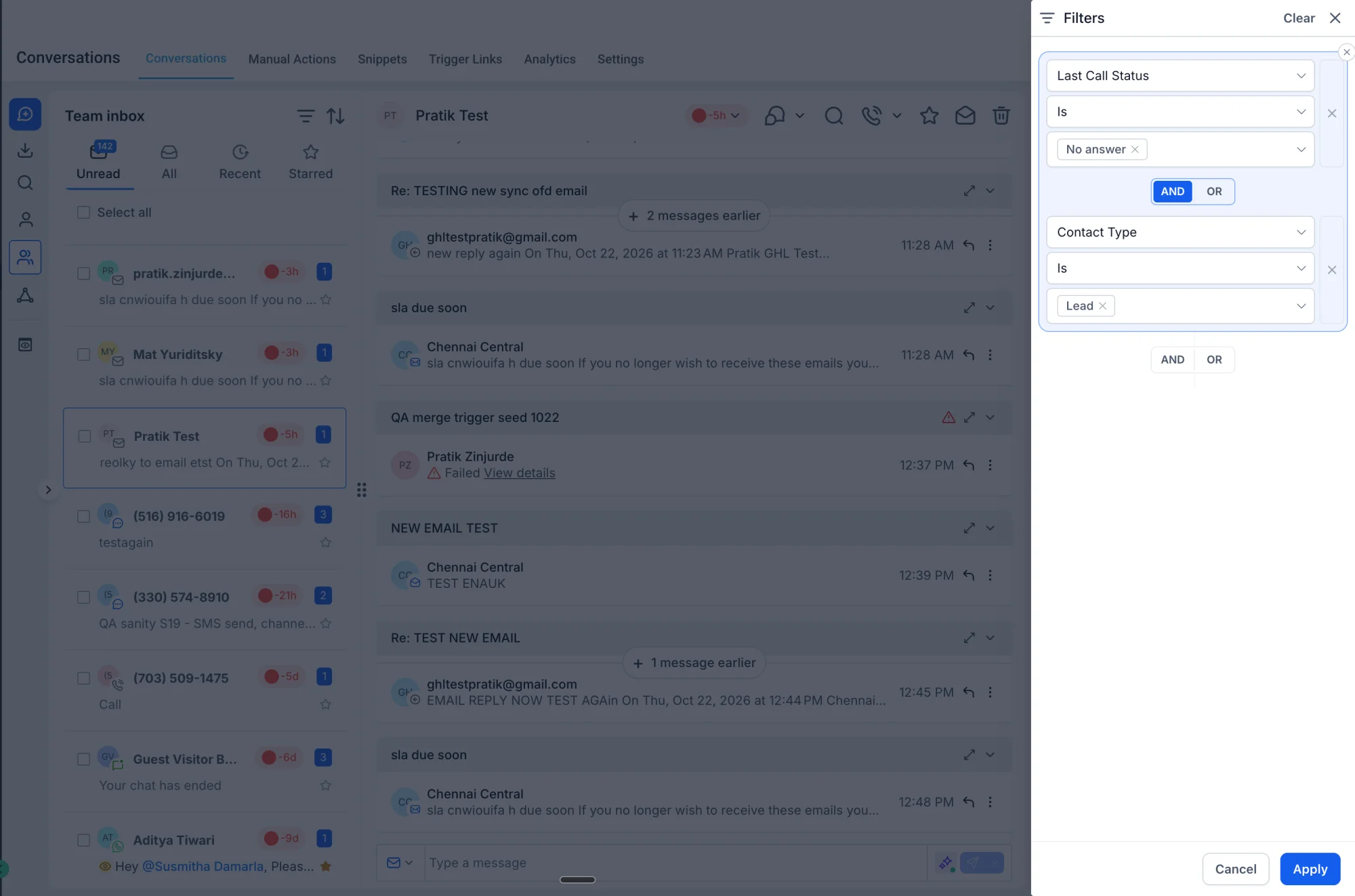
Last Call Status: Filter conversations based on the outcome of the most recent call, such as: completed, no answer, voicemail. Sales and support teams can quickly identify unanswered calls or voicemails and prioritise callbacks.
-
Contact Type: Filter conversations based on the contact's type, including Leads, Customers, and any custom contact types configured in the sub-account. Teams can separate conversations with leads from those with existing customers, making it easier to manage sales follow-ups and customer support.
How to Use:
- Go to Conversations. Click the Filters icon at the top of the conversation list.
- Open the Filter Type dropdown and pick one of the new filters.
- Select one or more values, such as a channel account, a call status, or a pipeline stage, and click Apply.
- Add more filters to combine conditions. Use Clear to reset the inbox.
Why It Matters
This brings CRM context into the inbox so teams can act on the conversations that matter right now: the missed calls that need a callback, the open deals waiting on a reply, or the customers who need support, without scrolling past everything else or jumping between Conversations, Contacts, and Opportunities.