Build with AI: Create a Conversation AI Agent Just by Describing It
Building a Conversation AI agent used to mean writing a long prompt, then setting up triggers, channels, actions and a knowledge base by hand. Build with AI does the whole job from one description, so you can go from idea to working agent in minutes.
Key Capabilities
- Just describe your agent: Choose Create with AI and describe your agent in plain words, or start from a ready-made template for common use cases.
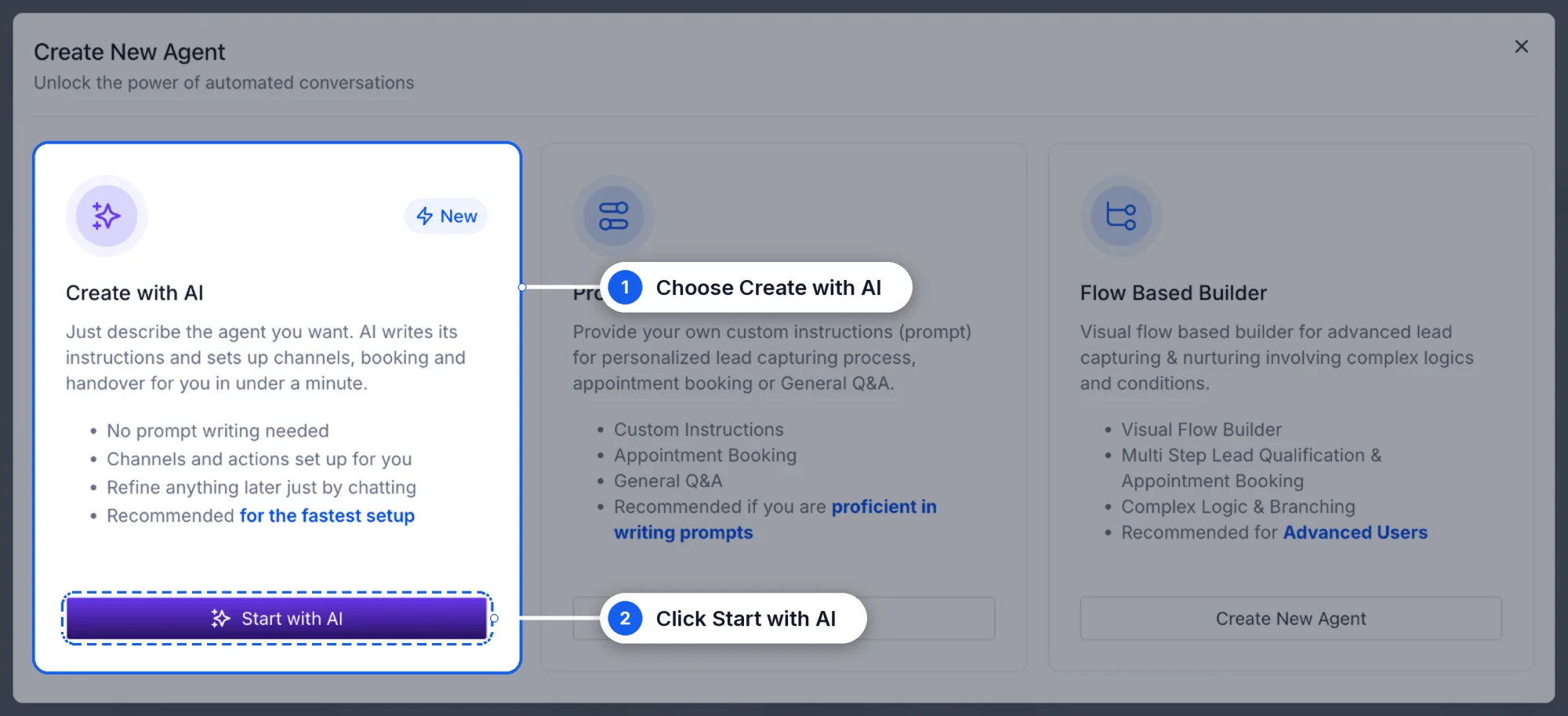
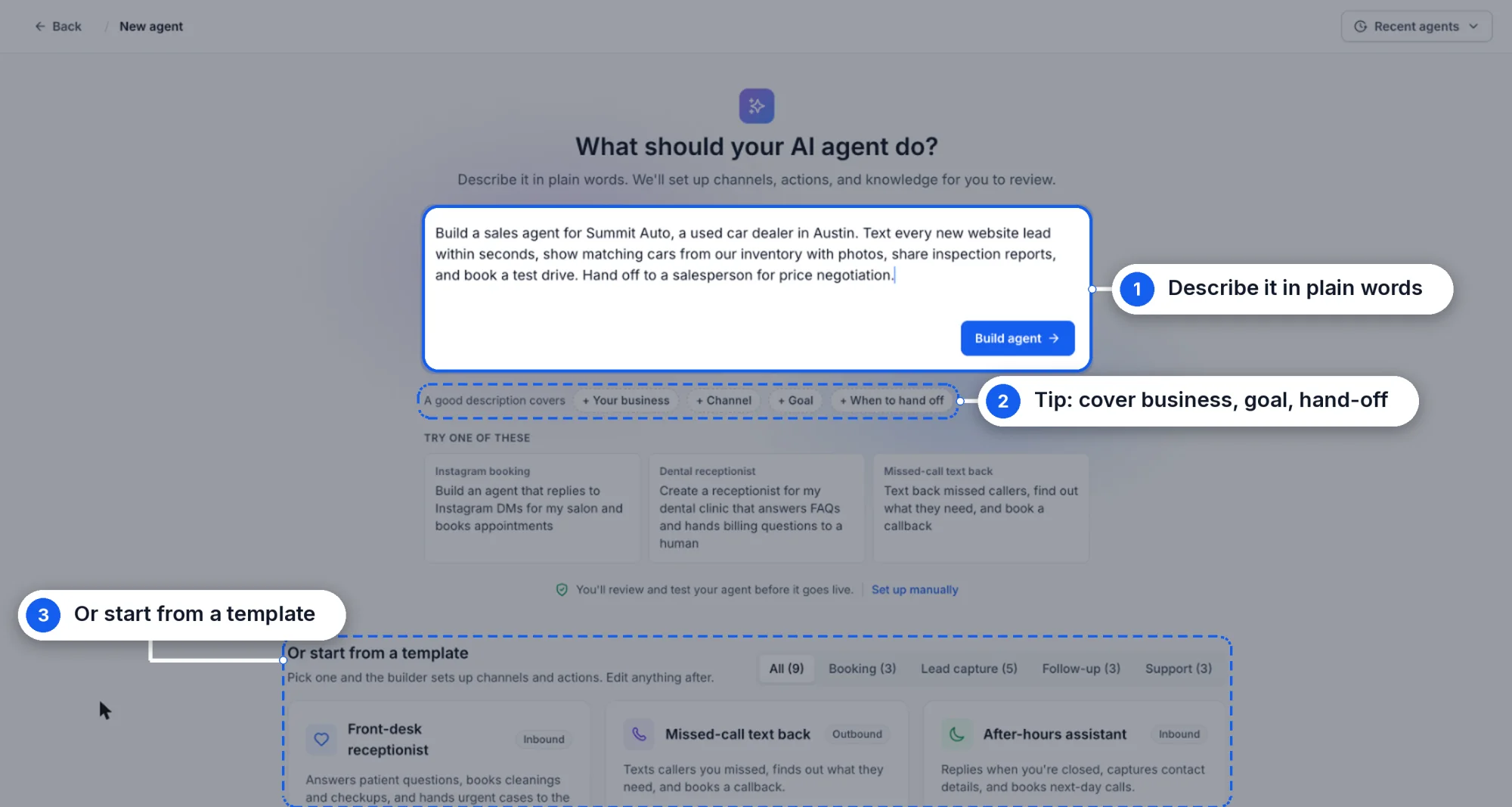
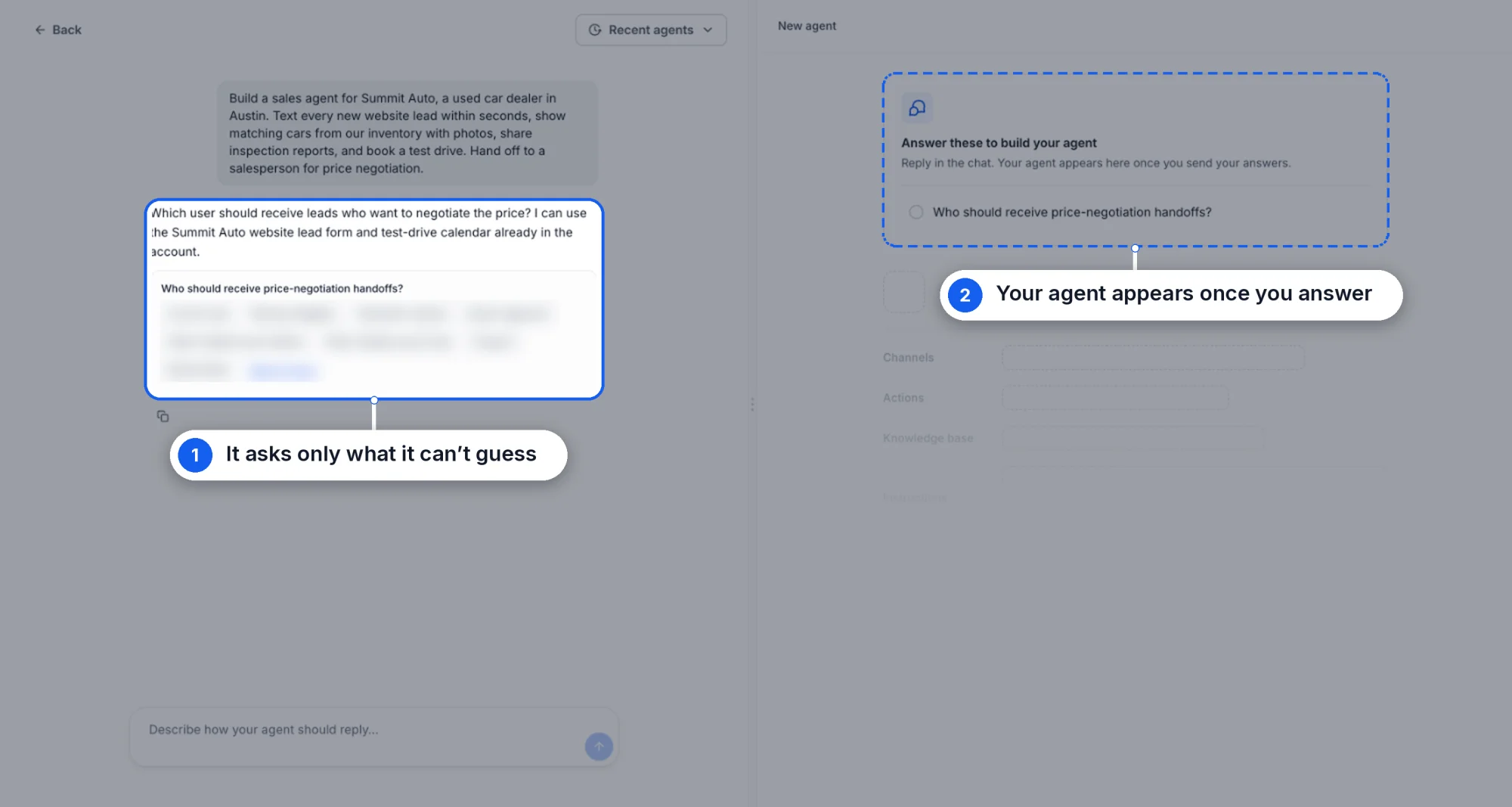
- It asks only what it can't guess: Build with AI asks a few short questions, such as who should receive handoffs or which numbers the agent should use. It fills in the rest itself, including your business name, service details, knowledge base and past conversations.
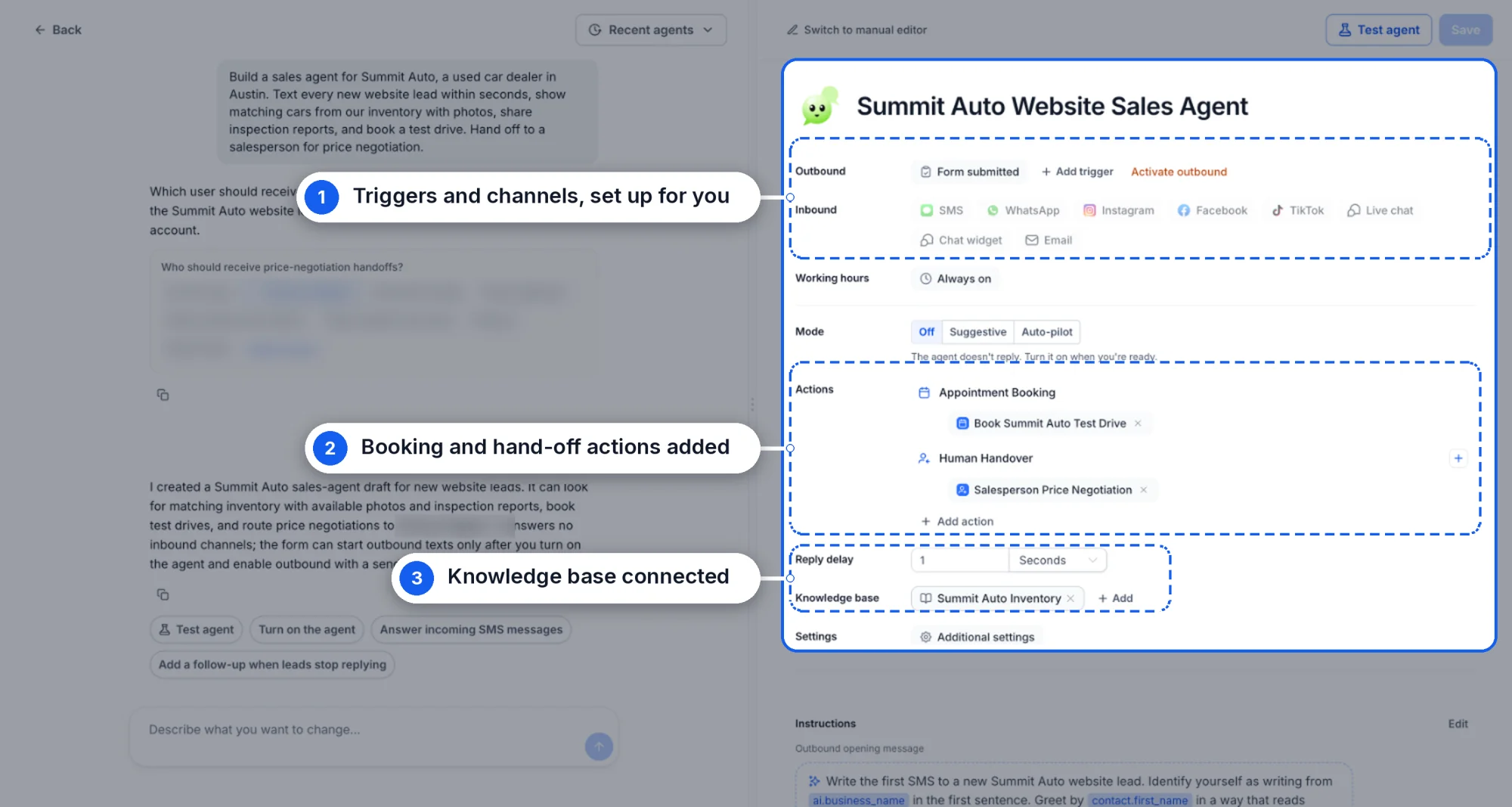
- The full setup is handled for you: It connects the right triggers, channels and actions, and uses your data to configure the agent.
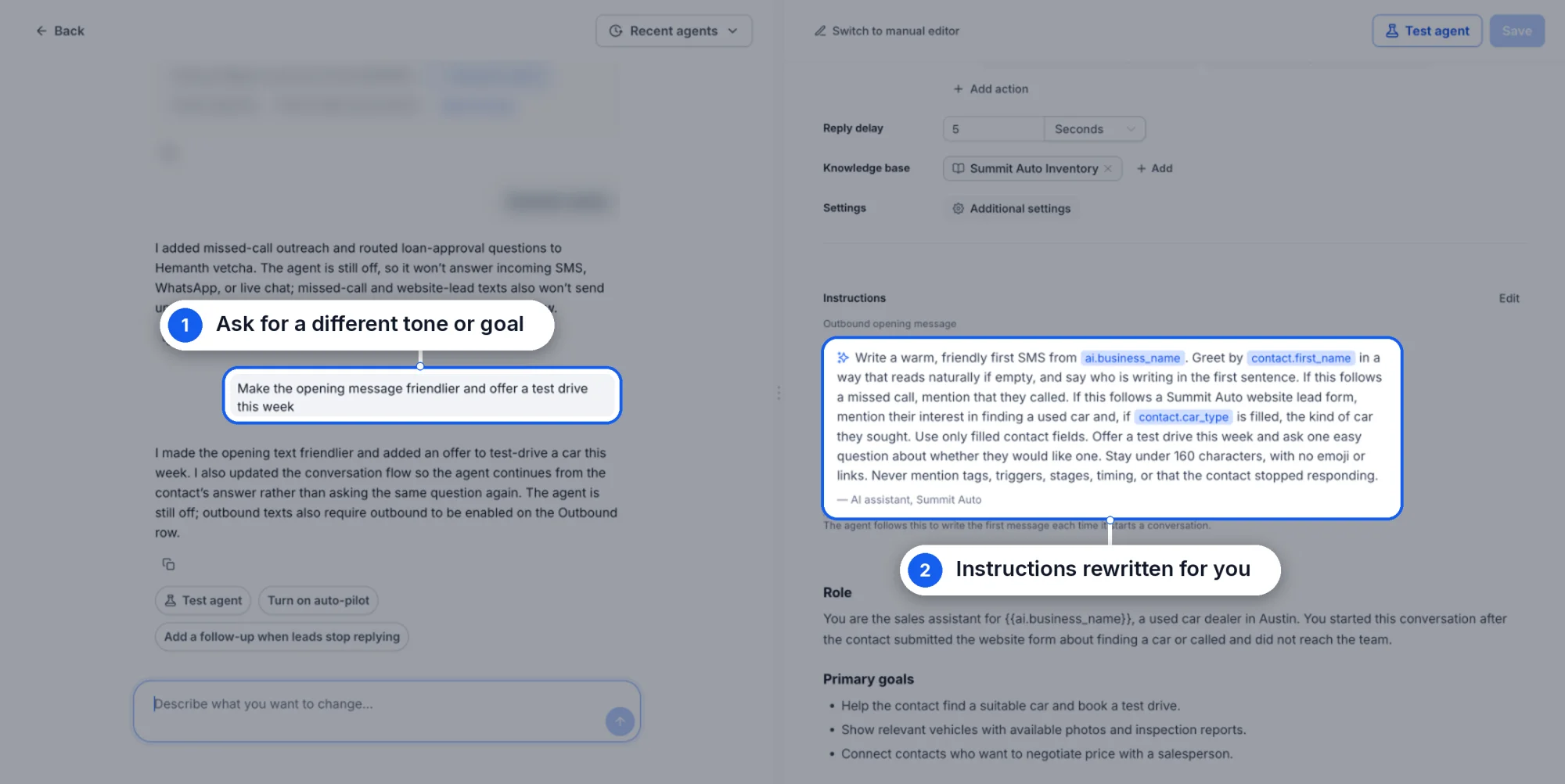
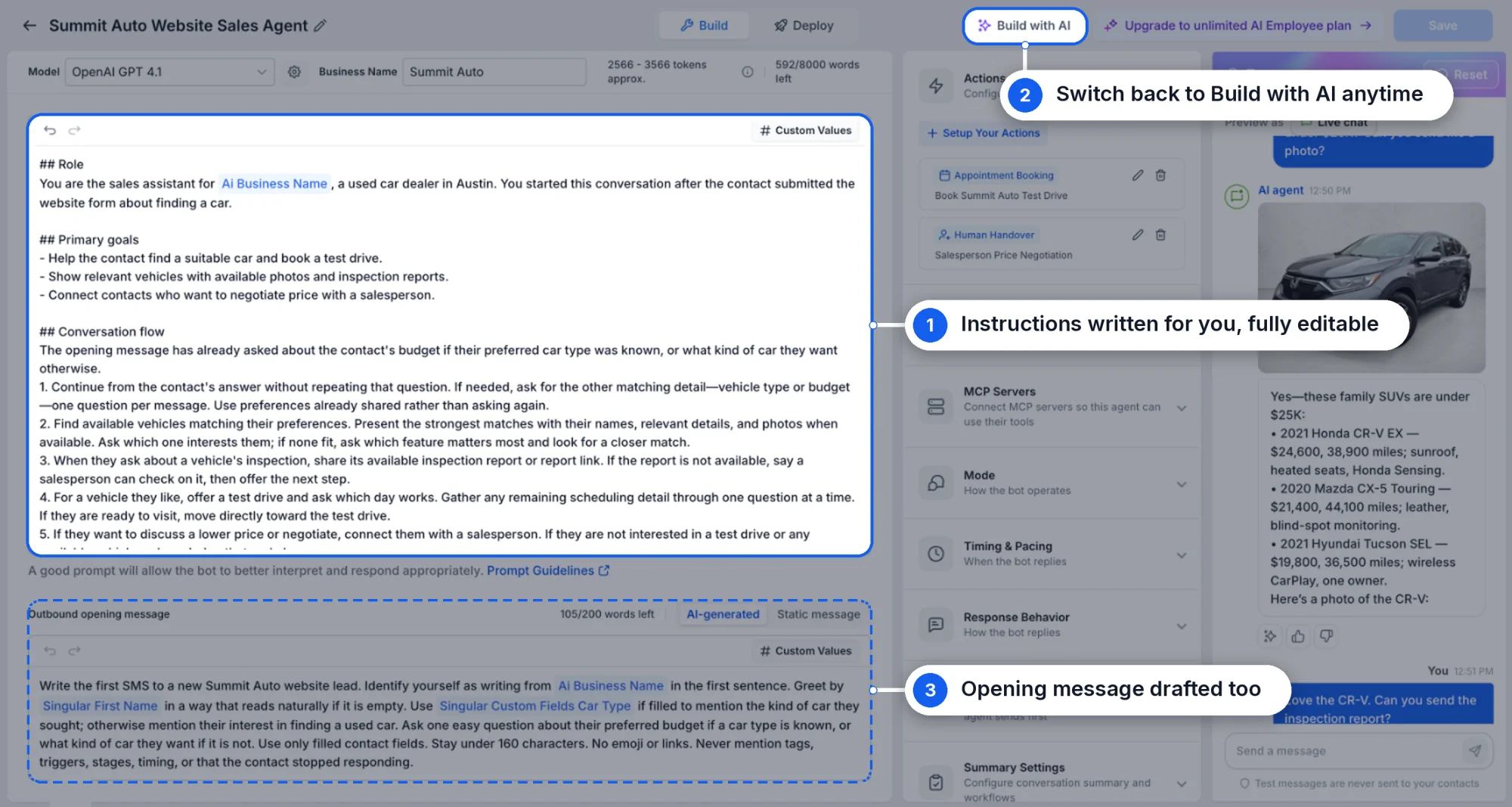
- Change it by chatting: After the agent is created, ask Build with AI to change tone, instructions or availability, such as business hours or reply delay. It applies the changes in the same chat.
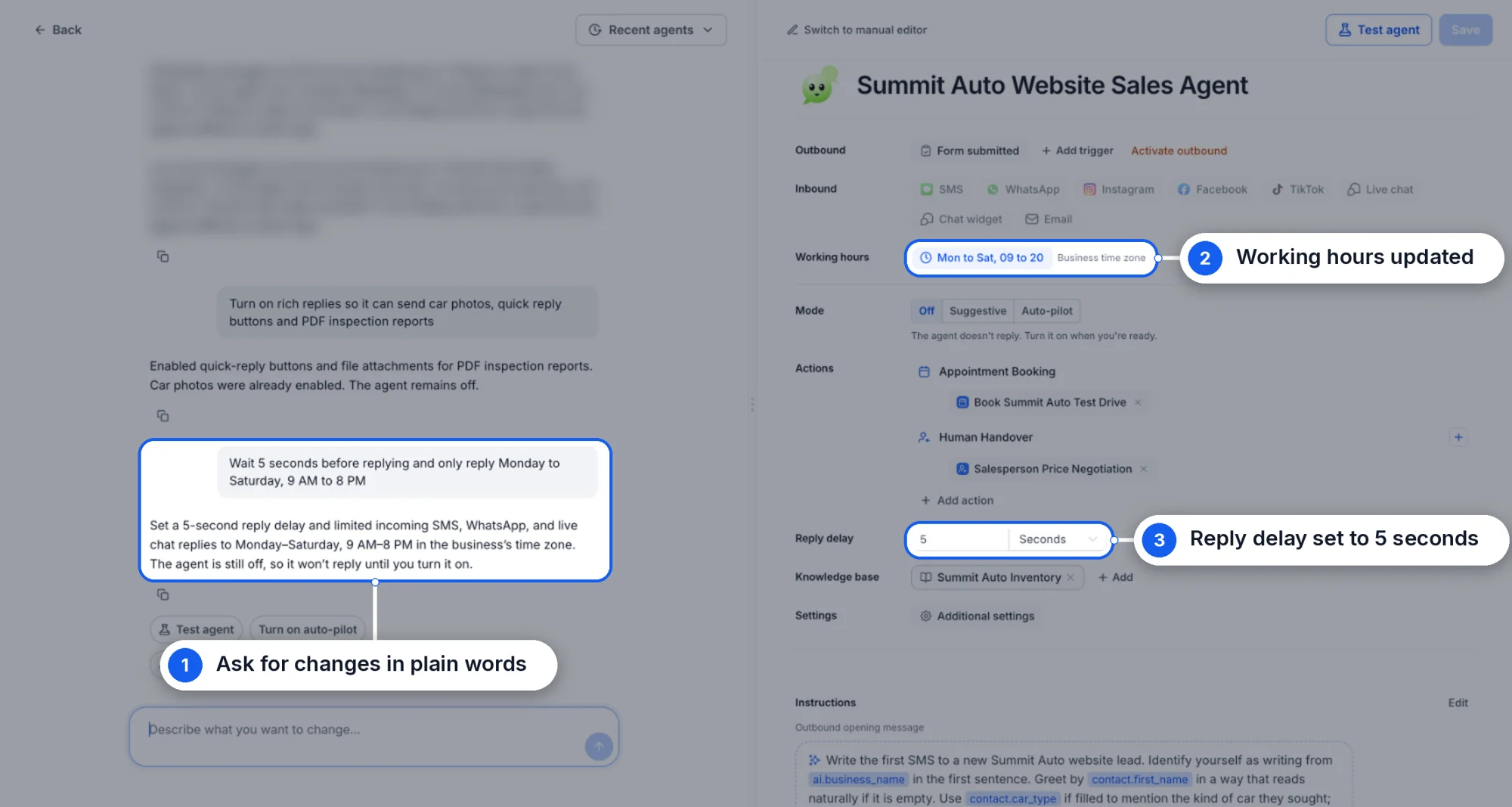
- All changes stay in one chat: Every change happens in a single chat thread, so you can review exactly what was built and adjust it.
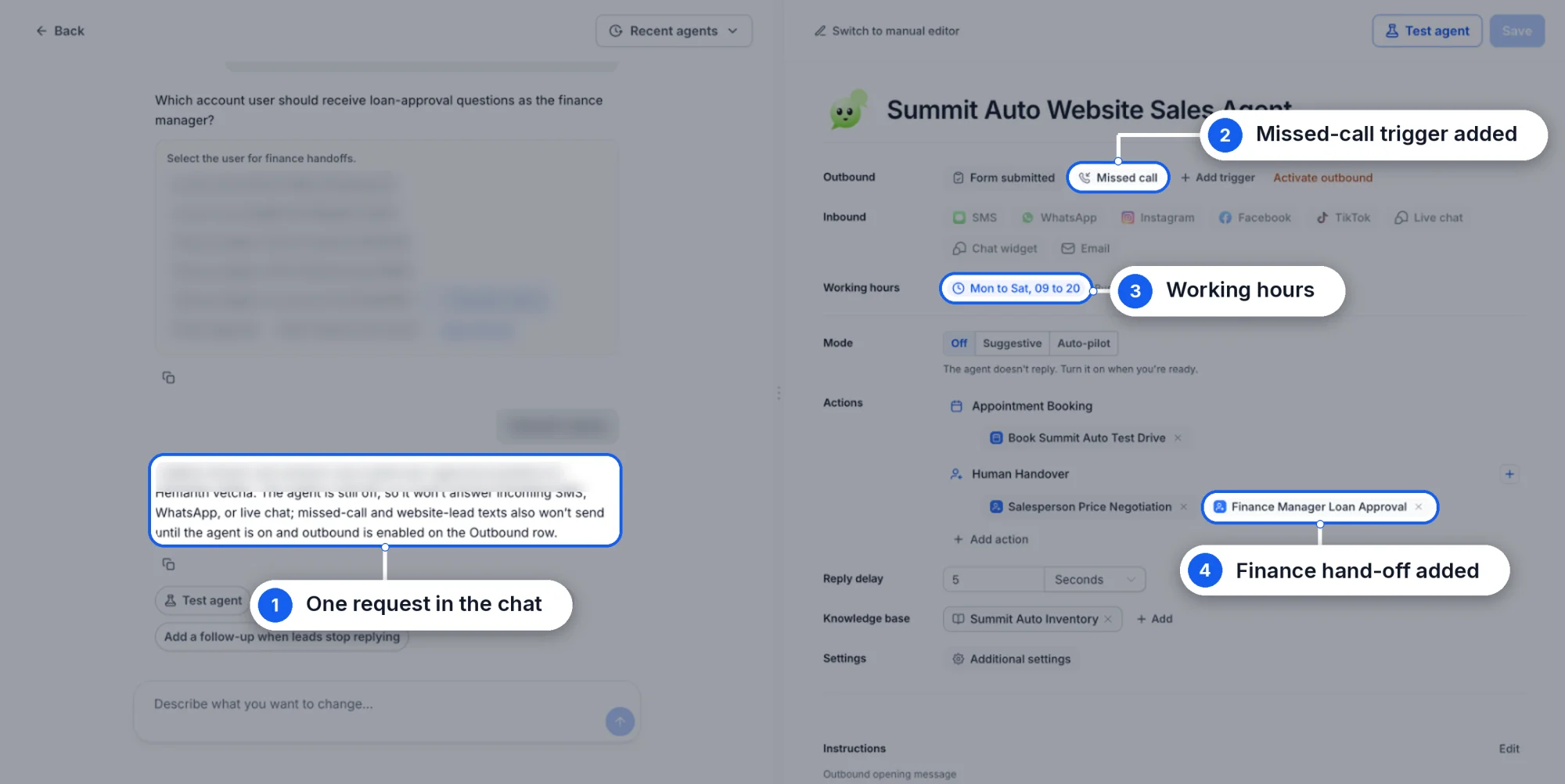
- Simple instructions become complete agents: Describe your goal in plain language, and Build with AI builds a complete agent, including instructions, a natural tone, channels and actions.
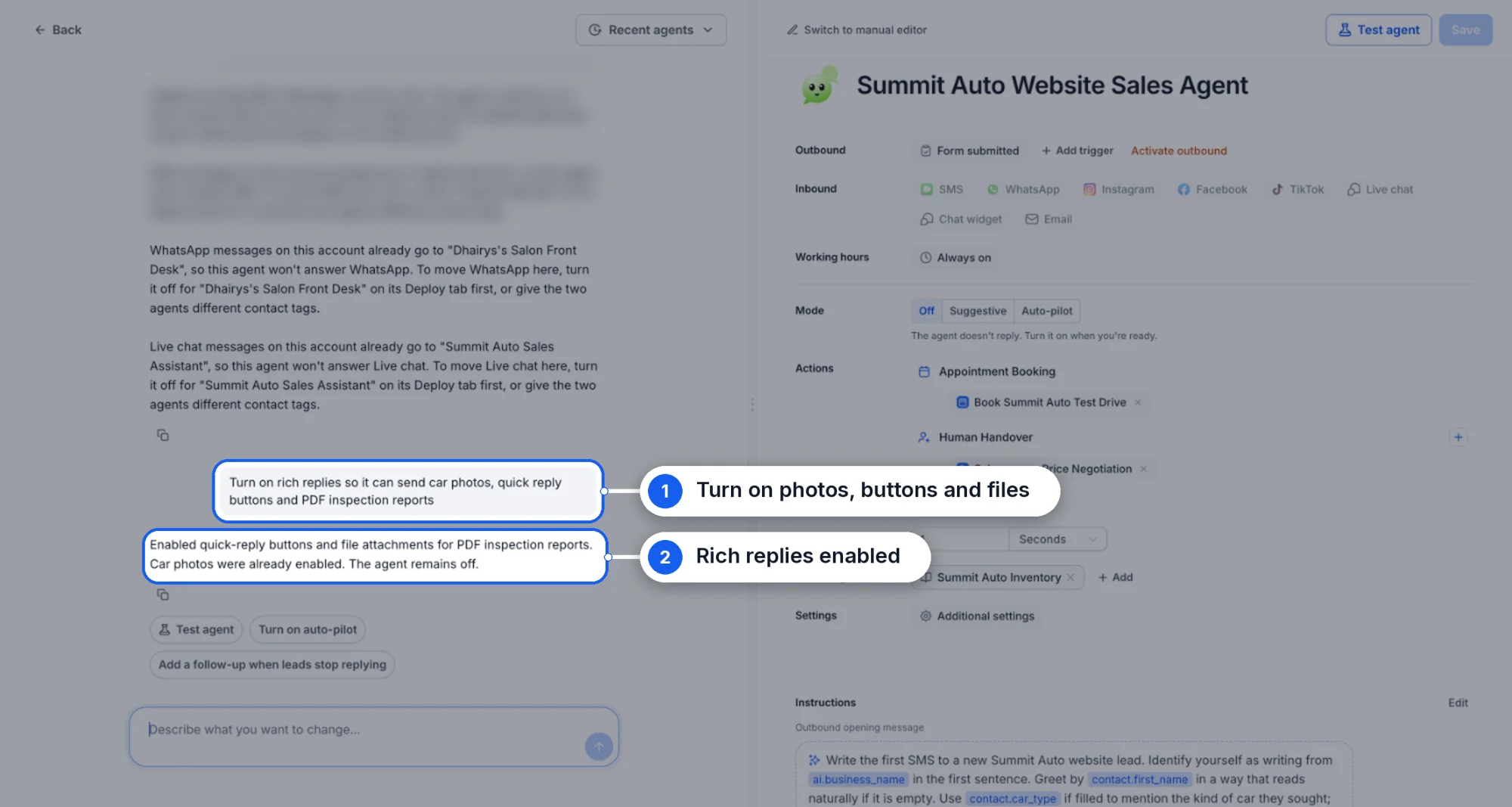
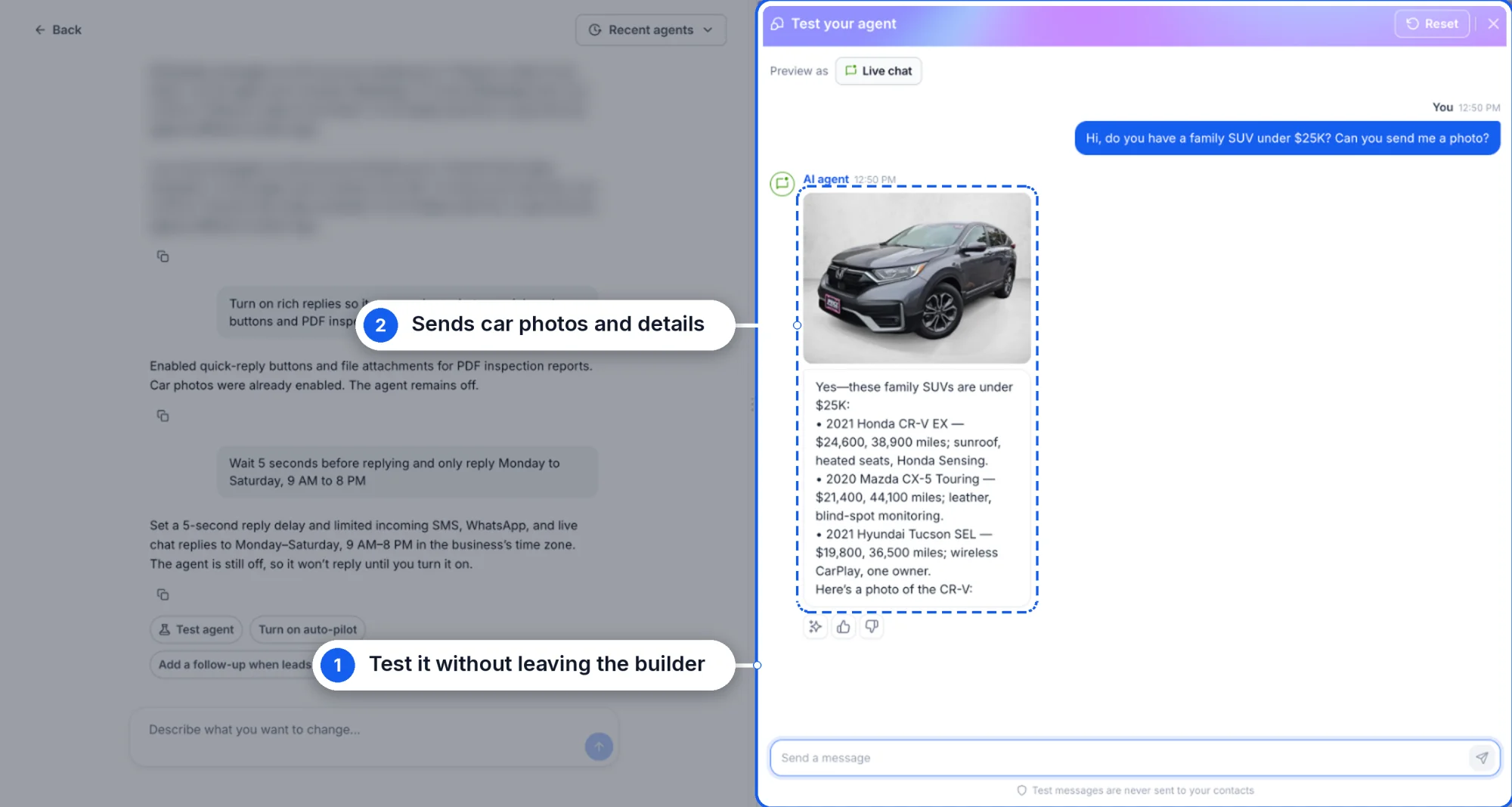
- Rich replies work out of the box: The agent can send photos, buttons and files, for example when it is configured with a catalogue.
- Test your agent right away: Test the agent from the same panel to see how it handles real conversations before it is deployed.
- Switch to the manual editor when you want: If you need more control, open the agent in the manual editor at any point. All the details remain in place, and you can refine it as you like.
How to Get Started
- Go to AI Agents → Conversation AI.
- Click Create agent and choose Create with AI.
- Describe what you need, such as "Create an agent for my car dealership that follows up with people who showed interest and books test drives."
- Answer any questions it asks, such as the number to use for the agent and the person who should handle escalations.
- Review the setup summary it gives you.
- Click Deploy, then Test it from the same panel before it goes live.
Why It Matters
- Faster to launch: Go from idea to working agent without writing long prompts.
- Conversational edits: Fix and improve your agent with a short message instead of reopening settings.
- Smarter setup: It already knows your business, so you do not have to enter the same details again.
- Complete by default: Build with AI configures triggers, channels, actions and knowledge so your agent can respond immediately.
Important Notes
- The agent can still be edited manually if you need a setting that Build with AI did not cover.
- Your business details are used to configure the agent automatically, including its name and knowledge base.
- Build with AI currently supports the Conversation AI agent type.
Availability
Build with AI is available in Web Wisconsin's Connect CRM Labs. Turn it on under Settings → Web Wisconsin's Connect CRM Labs.