AI Builder Now Configures Workflows with Your Account Data
AI Builder in Workflows no longer stops at the structure. Name the form, the pipeline, the snippet, or the user in your prompt, and AI Builder now finds that exact record in your account and configures the step with it.
👀 What's New?
Built and configured in one go
- Earlier, AI Builder created the right triggers and actions, but you still opened each step to pick the form, pipeline, snippet, user, or value it needed.
- Now AI Builder looks up the records you name and fills them in while it builds. No manual pass after the build to set values.
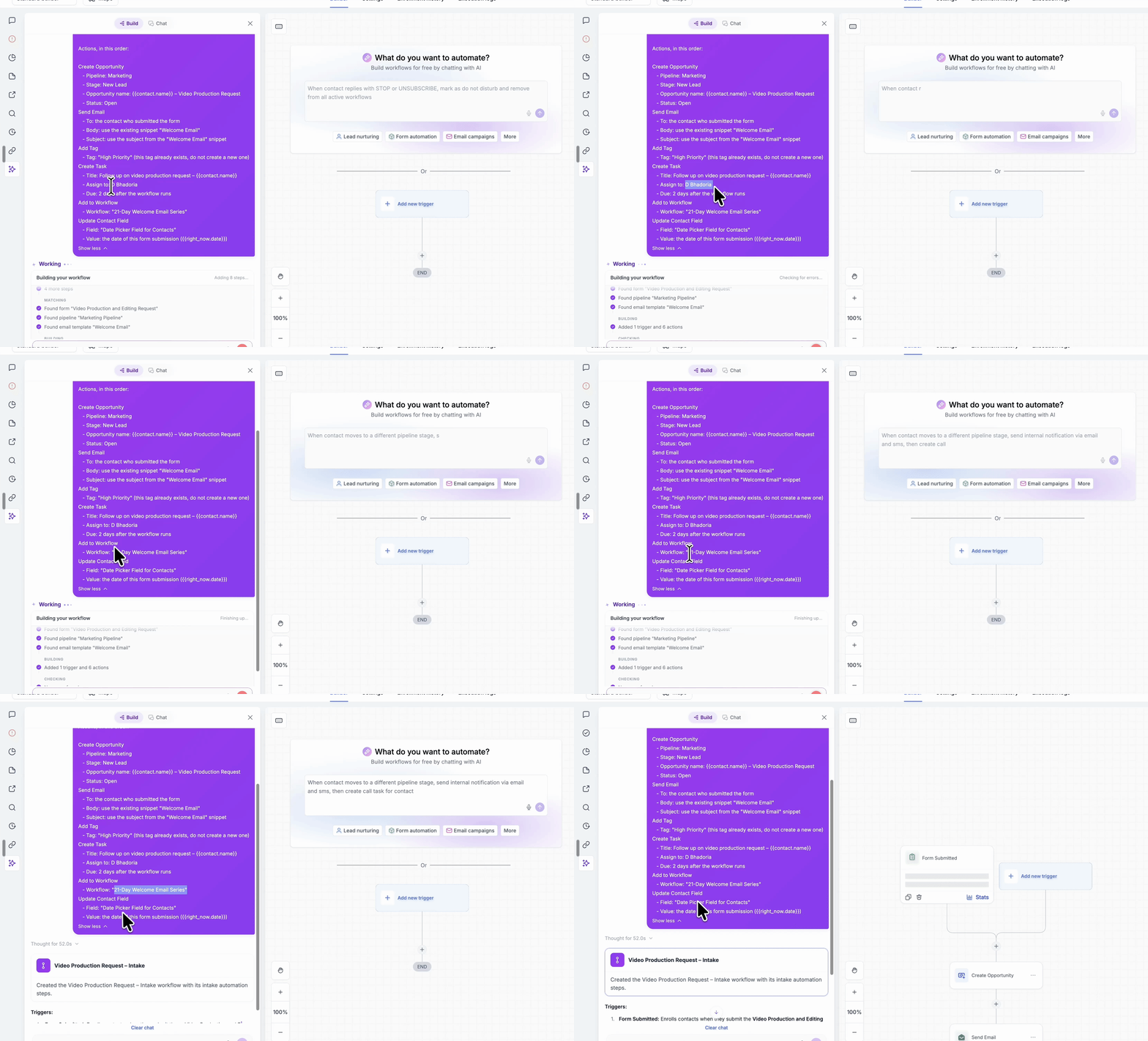
You can see it find your data
- The build progress shows each record as AI Builder finds it, for example "Found form", "Found pipeline", and "Found snippet".
Every step uses your real records
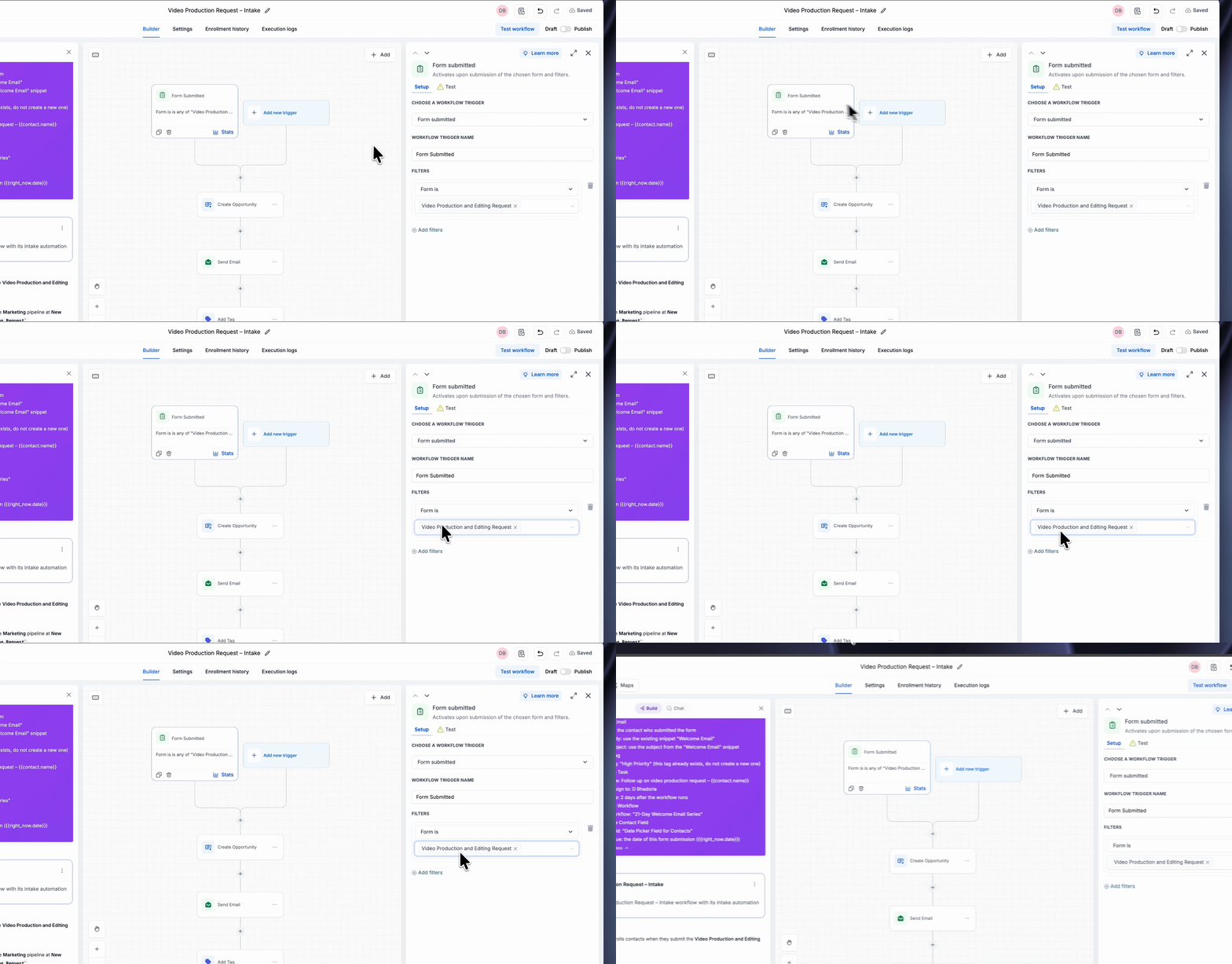
- Form Submitted trigger: It uses your form and maps its fields to the next steps.
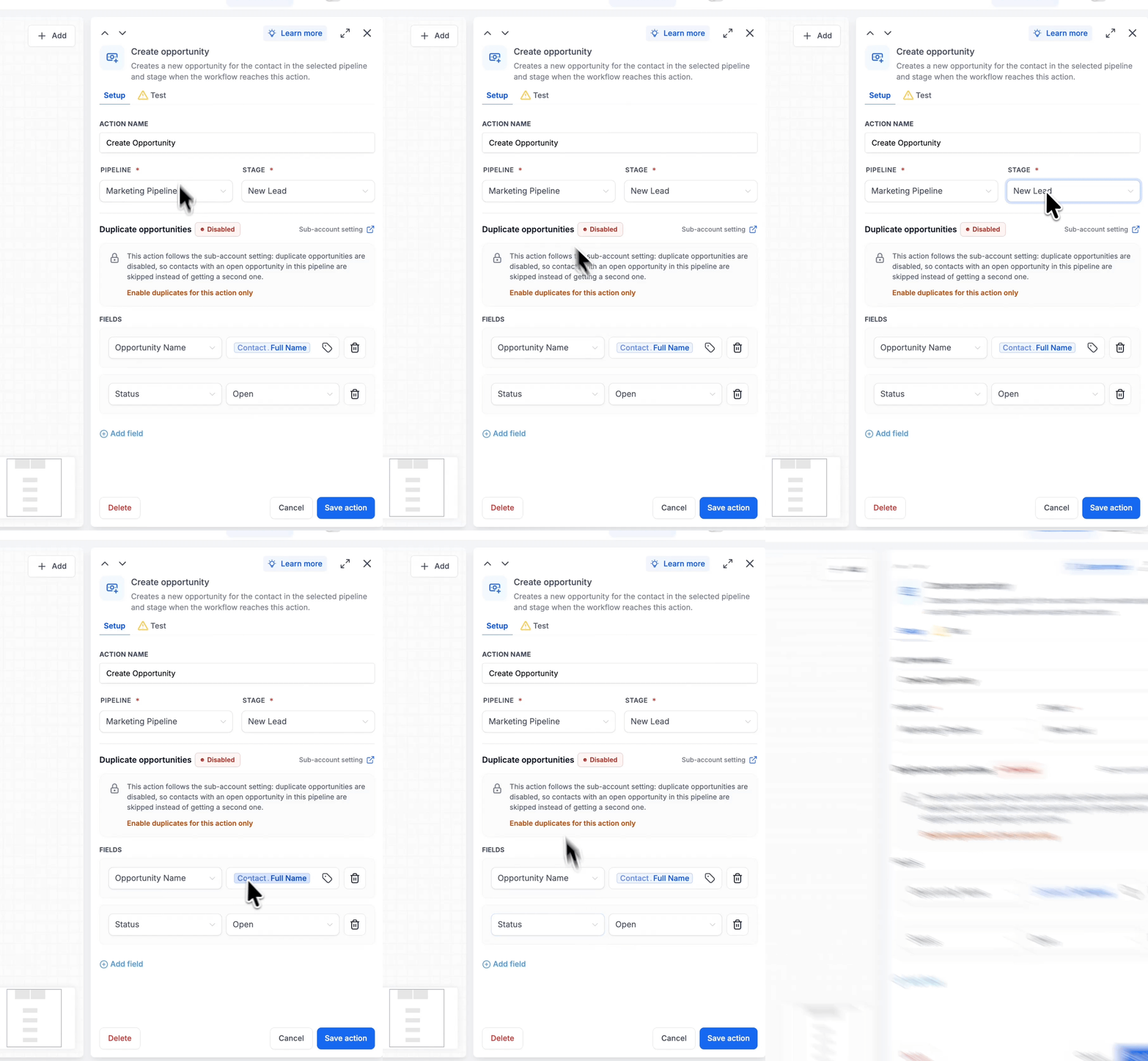
- Create Opportunity action: It picks the right pipeline and stage.
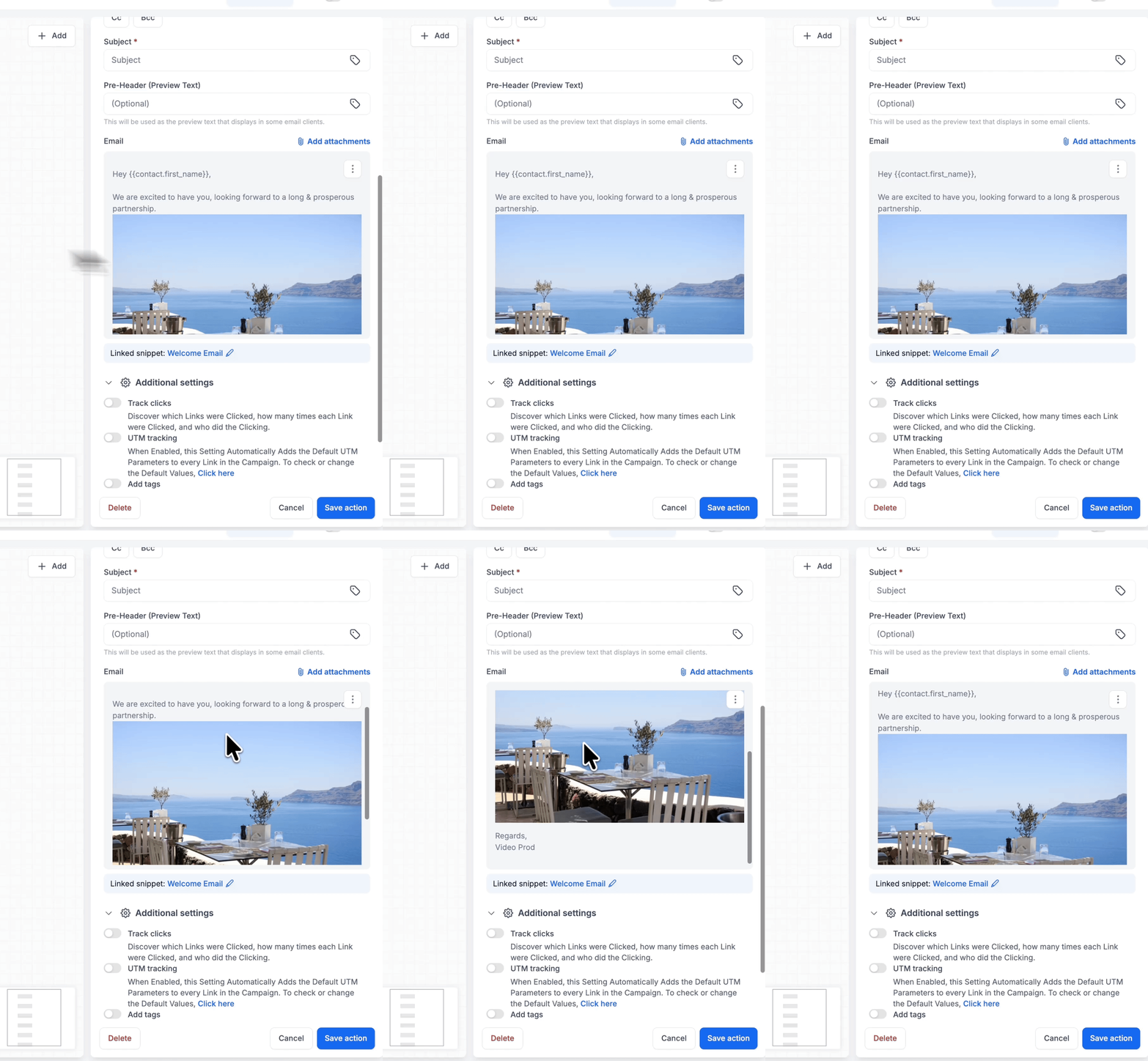
- Send Email action: It pulls the email template and links the right snippet.
- Add Tag action: It adds the exact tag from your list.
- Create Task action: It assigns the task to the user you named.
- Add to Workflow action: It links the workflow that matches the name.
- Update Contact Field action: It sets the field and value you described.
Works with the records you already use
- Workflows and automation: Workflows, triggers, actions, and custom values.
- CRM and account: Contacts, users, companies, tasks, notes, and custom fields.
- Opportunities: Pipelines, stages, and opportunity values.
- Calendars: Calendars, appointments, and event types.
- Forms and content: Forms, surveys, and their fields.
- Products and memberships: Products, prices, offers, courses, and memberships.
- Fields, objects, and values: Custom objects, custom fields, and custom values.
- Templates: Email, SMS, WhatsApp, and document templates.
- Social: Social accounts and social posts.
👷 How It Works:
- Go to Automation > Workflows and open a workflow or create a new one.
- Click Add New Workflow, choose Build with AI, and describe what the workflow should do.
- Name the records it should use in your prompt, for example "When a new lead submits the Website Inquiry Form, create an opportunity in the Sales Pipeline, assign a task to Sarah, and send the Welcome email".
- Watch the build progress to see AI Builder find each record as it configures the workflow.
- Check each step, then save and publish when you are happy.
Important: AI Builder links the records you name to the workflow, but it does not create new records for you.
🌟 Why This Matters:
Building the structure was only half the job. The other half was clicking into every step to pick values, check names, and fix the steps that used the wrong record.
- Configured with your real data: Every step is already set to the exact form, pipeline, snippet, user, or value you named.
- Ready to review, not rebuild: You check the workflow instead of finishing it yourself.
- Fewer mistakes: You do not need to fix mismatched forms, pipelines, or tags after the build.
Name it in the prompt, and it is already set.
📝 Notes:
- AI Builder currently looks up records that already exist in your account. If a record is missing or its name is unclear, it falls back to asking you to select it manually.
- AI Builder maps fields from your selected forms and sets the values you described, but it does not change your underlying data.